2026-05-06
062594
Dialog Box: Edit Member Cross-Section Selection in RFEM 6
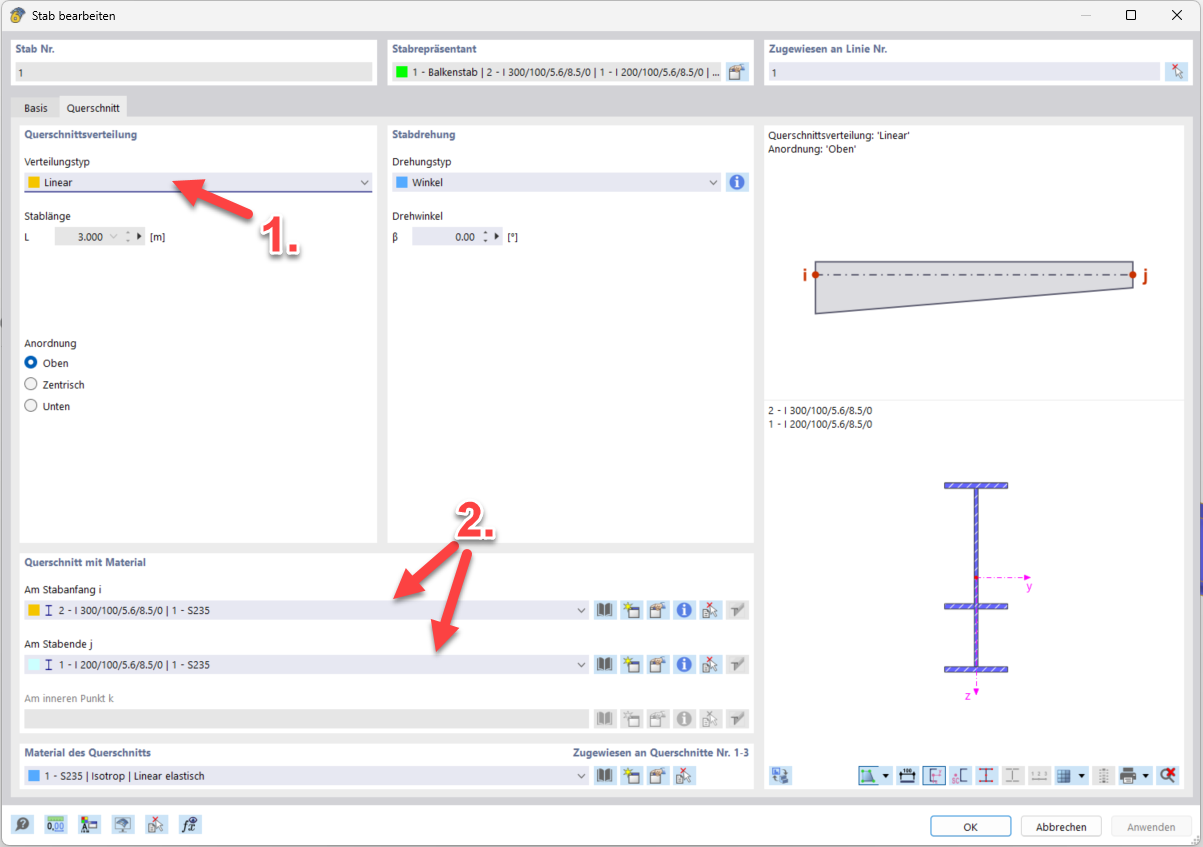
The “Edit Member” dialog box shows the cross-section selection in the “Sections” tab of RFEM 6, with a focus on the drop-down options for the distribution type and the start and end cross-sections.
The image shows the “Edit Member” dialog box in the “Cross-Sections” section of RFEM 6. An arrow labeled (1.) points to the drop-down menu for the distribution type. Two additional arrows labeled (2.) lead to the drop-down menus for selecting the member cross-sections at the member start and end. This display helps you understand the functionality for modifying member cross-sections in RFEM 6.
Used in