2026-08-21
064454
Adjusting Menus and Toolbars
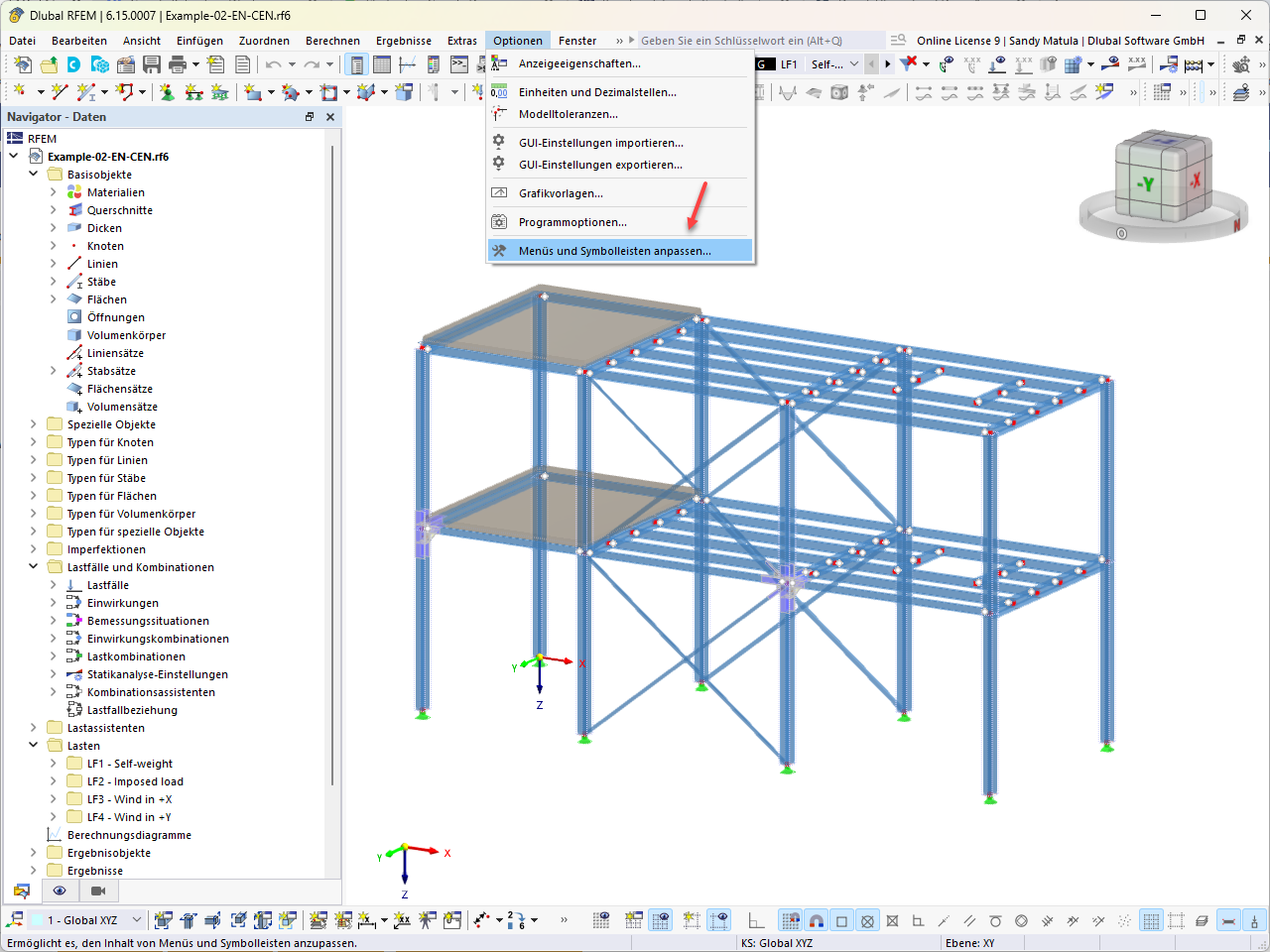
View of a 3D steel structure with the shortcut menu open for customizing menus and toolbars. The model shows columns, beams, trusses, and floor slabs.
The display of the RFEM user interface shows a three-dimensional steel frame model consisting of columns, beams, bracing, and surface elements. Right-clicking in the workspace opens a shortcut menu for customizing the menus and toolbars, with the “Adjust Menus and Toolbars...” option highlighted. This feature allows users to customize the work environment to their specific needs and organize frequently used tools more efficiently. The navigation pane lists various object types, such as lines, surfaces, and load cases (dead load, wind).
Used in