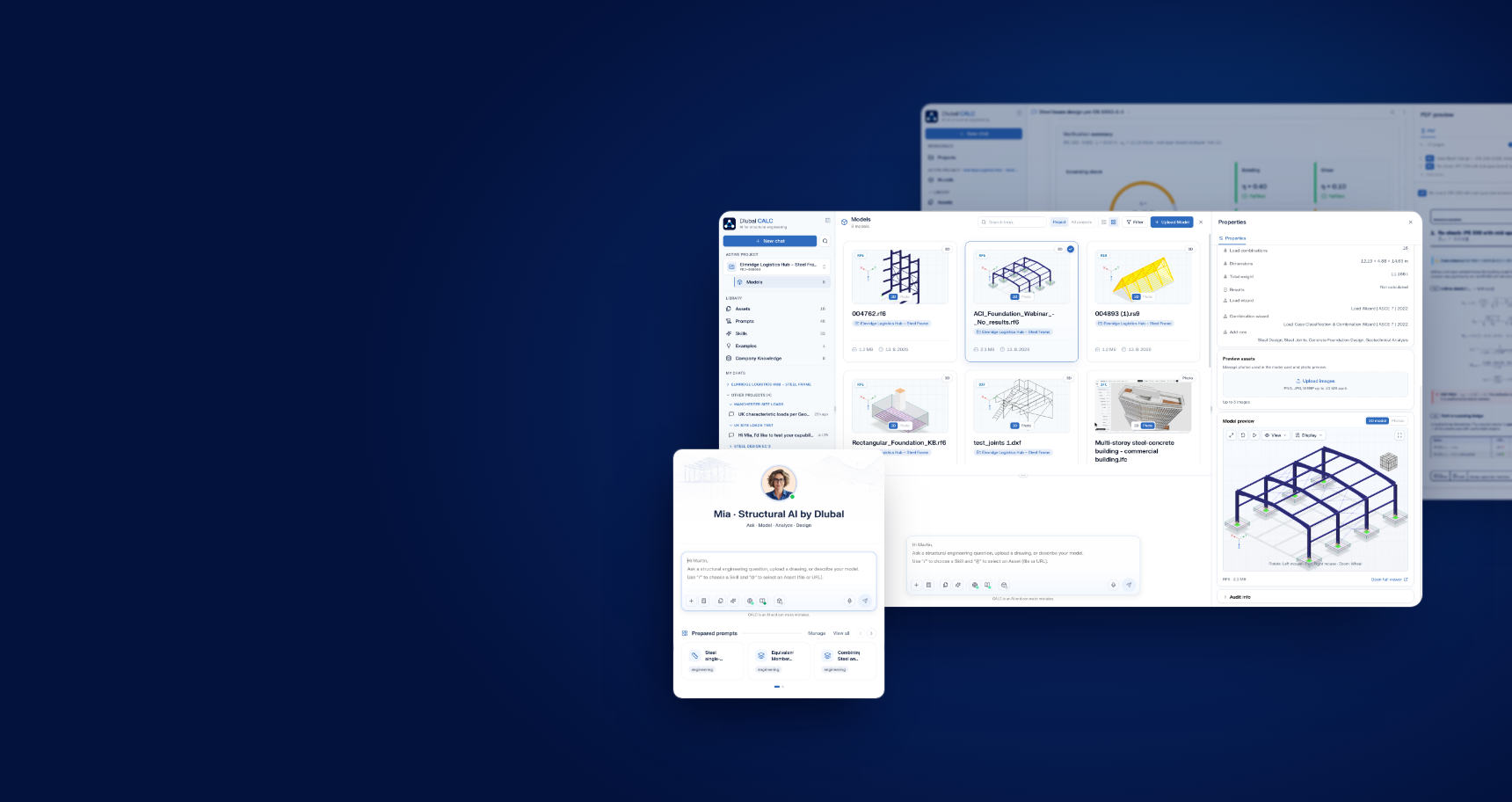
Ask a code question, design a member according to design standards, check your RFEM 6 model, or perform a specialized analysis that no add-on covers. Each answer is clearly derived and sourced, ensuring its reliability.
Discover Your AI for Structural Analysis and Design
A check that no standard module covers still means leaving your analysis software, opening Excel, copying values by hand and documenting it separately. The effort rarely sits in the engineering itself, it sits in the ground between the tools. Dlubal CALC as online platform brings question, calculation, check and documentation into a single dialogue, without switching tools.
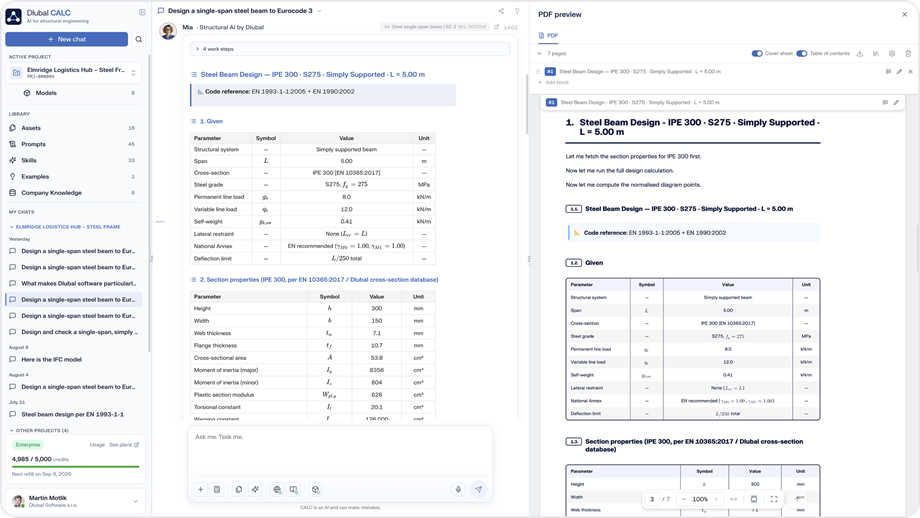
What you end up with is a document you can hand to a reviewer: input values, calculation steps, the governing provision and the source, exported as a PDF report in your office format. Whether it is the site loads for a project, a net section tension check with no module for it, or twenty similar connections following the same procedure, every number carries its origin: calculated by the solver, calculated by a calculation skill, or answered by the language model. Only calculated values go into the report, and the final sign-off stays with you.
Around 30 skills for recurring design checks are included, you add your own and share them across the team, and code, national annex and project country are treated separately and backed by a source. Drawings and models come in as they arrive: IFC, DXF, STEP, DSTV, STL, SDNF and GLB. If your office runs RFEM 6, RSECTION or the Geo Zone Tool, Dlubal CALC connects through the Dlubal Connector, uses the licences you already own, and works like an agent.
Video: Meet Dlubal CALC: The AI Workspace for Structural Engineers
Steel Beam Design Process with Chatbot Mia AI in Dlubal CALC
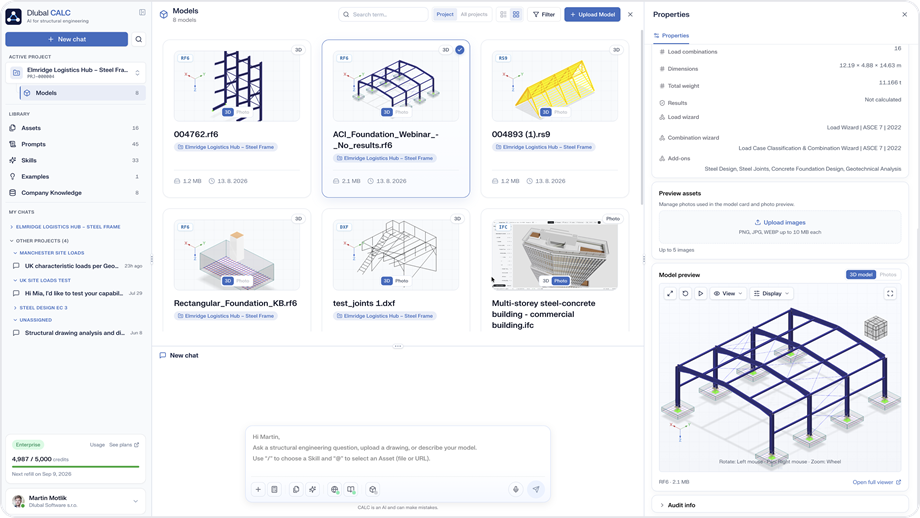
Structural Models Library with File Formats
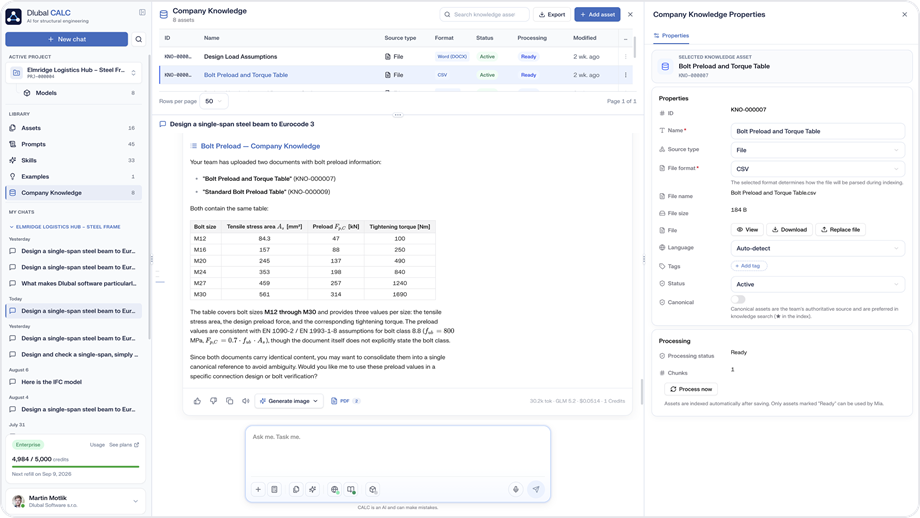
Skills Library in Dlubal Calc
Video: Meet Dlubal CALC: The AI Workspace for Structural Engineers
Steel Beam Design Process with Chatbot Mia AI in Dlubal CALC
Structural Models Library with File Formats
Skills Library in Dlubal Calc
Video: Meet Dlubal CALC: The AI Workspace for Structural Engineers
Key Features
Ask, Design & Create
Resolve code questions via discussion, with the provision and source. Design and check members with every intermediate step visible. Transform a procedure you developed into a skill and share it with the team.
Models & Data
Read drawings and models as they arrive from various formats, including IFC, DXF, STEP, DSTV, and GLB. Build structural systems and loads using text, voice, or sketches. Dlubal CALC connects to RFEM 6 and the Geo Zone Tool and operates as an agent.
Documented Reports
Reports in the format your office uses, with input values, calculation steps, the governing provision and a technical sketch. Exported as PDF and ready for review.
Four structural engineering bottlenecks you've probably encountered.
A full BIM model for one small part of it, in formats you cannot open.
Upload the data as it arrives. IFC, DXF, STEP and more are read directly, only your part is extracted, and you get a question back when something is unclear.
Out of the program, into Excel, values copied across by hand.
Build the calculation in the dialogue. The values come from your connected model, and the result exports as a PDF report.
The master connection is done. Twenty similar ones are still waiting.
Save the logic once as a skill and apply it to the rest, each with its own geometry, with the calculation running where it belongs.
Your own documentation table, rebuilt in Excel every time. The load path, sketched by hand.
Describe the table you need, and the values are pulled together for you. The load path comes back as a generated sketch, and both go into the report.
How can I be sure that the AI isn't just guessing the numbers?
The engineering checks themselves, including internal forces and zone values, are computed deterministically and are not predicted by AI. Dlubal CALC was specifically designed to integrate with our internal engineering knowledge base.
It also incorporates the content of our well-established online tools, including the cross-section properties library and the Geo-Zone tool. Furthermore, calculations can be performed via a direct connection to RFEM 6. The language model is responsible for explanations and documentation, while the actual calculations adhere strictly to the relevant standards, with the exact clause and source cited for every step.
Does the tool support country-specific design standards?
Yes, Dlubal CALC automatically identifies and highlights differences between the base design standards and the provisions that apply in your country. For example, it will clearly alert you to differences between recommended values and values strictly required by your country.
What is the difference between Dlubal CALC and Mia?
Dlubal CALC is the overarching web application and your main workspace. This platform serves as a central hub for managing projects, facilitating communication through chats, and storing uploaded files. It also enables access to your company knowledge.
Mia is the structural AI engine that powers the platform. When you ask a question, request a design optimization, or check a model, Mia actively analyzes your inputs and computes the results directly within the Dlubal CALC environment.
Can I save my calculations for later use?
Yes. Once you finalize a specific calculation or recurring node design, you can save the entire workflow as a custom skill. This enables your team to swiftly apply the same logic to similar structural issues, eliminating the need to start from scratch each time.
Can Dlubal CALC learn our internal company standards?
The CALC relies on globally recognized design codes, such as the Eurocode, by default. However, with an Enterprise plan, you can use the Company Knowledge feature to surpass standard codes.
This feature allows you to upload your company’s specific internal rules, proprietary product knowledge, web URLs, raw text, and internal documents directly into the system. The AI will then integrate this custom database into its knowledge pool. This ensures that, when generating answers, the assistant will seamlessly consult your specific workflows and proven detailed solutions. This allows your entire team to leverage this shared knowledge during their chat conversations.
What types of files can I upload and work with in CALC?
You can natively upload drawing and model files, including IFC, DXF, STEP, DSTV, and GLB/glTF. The application also supports uploading PDF drawings and standard image files. You can also paste an image from your clipboard directly into the chat.
These files are saved in your workspace's Assets library once uploaded. You can easily reference and reuse them in future chat conversations.
Here, you can ask and answer technical questions, engage in meaningful discussions about structural analysis and design, propose new features, and interact directly with the Dlubal team and other users.
Connect your office's own standards, qualified details and report wording so that every answer reflects how your company actually works, with the source named.