Answer:
Visibilities can be created using the RF‑COM 3 / RS‑COM 6 interfaces; the IrfView interface is used for this purpose. The elements that should belong to the visibility can be selected with the rfSelectObjects function:
Sub set_visibility()
'   get interface from the opened model and lock the licence/program
Dim iModel As RFEM3.IrfStructure3
Set iModel = GetObject(, "RFEM3.Structure")
iModel.rfGetApplication.rfLockLicence

On Error GoTo e

'   get interface for modeldata
Dim iModdata As RFEM3.IrfStructuralData4
Set iModdata = iModel.rfGetStructuralData

iModdata.rfSelectObjects STR_MEMBER, "1-2"
iModdata.rfSelectObjects STR_SURFACE, "6,14,17"

'   get interface for view
Dim iView As RFEM3.IrfView2
Set iView = iModel.rfGetActiveView

iView.rfSetPartialView "test|view"

'   select partial view
iView.rfSelectPartialView "test|view", PVM_SHOW, True, True


e:  If Err.Number <> 0 Then MsgBox Err.Description, , Err.Source

iModel.rfGetApplication.rfUnlockLicence
Set iModel = Nothing

End Sub
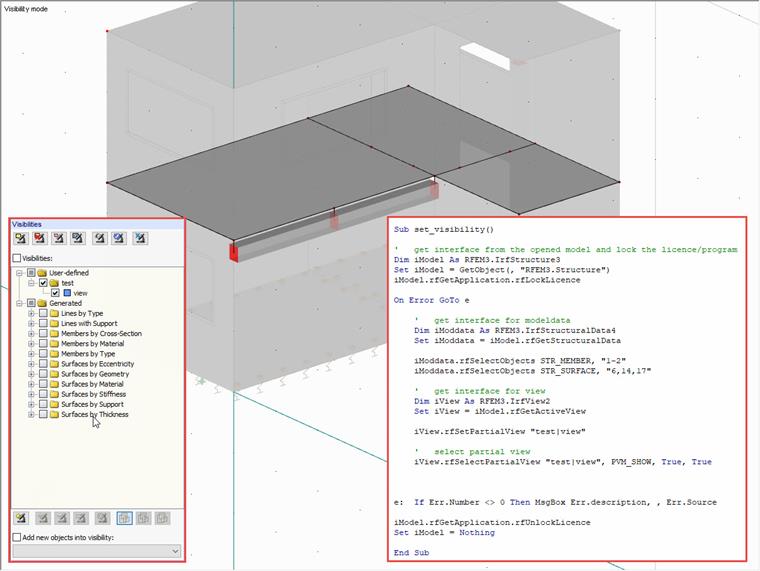
In the example, Surface 6, Surface 14, and Surface 17 are selected together with Member 1 and Member 2. Then, the visibility of these elements is created and named "view". The visibility "view" is in the "test" group. It is created with the delimiter "|". After the visibility has been created, it is still selected or displayed; in this case, PVM_SHOW is of the "RF_PARTIAL_VIEW_MODE" type, which can also remove the visibility. The function can also specify whether the elements are displayed in the background.