


Advantages of Printout Report Templates
Selecting and compiling the contents of a printout report, including the desired graphics, can be time-consuming. It is necessary to repeat this process for every new project. To avoid doing so, you can save individual configurations as templates. Templates significantly simplify the creation of future printout reports and ensure consistent and efficient documentation.
Creating Template
To save an existing printout report as a template, follow these steps:
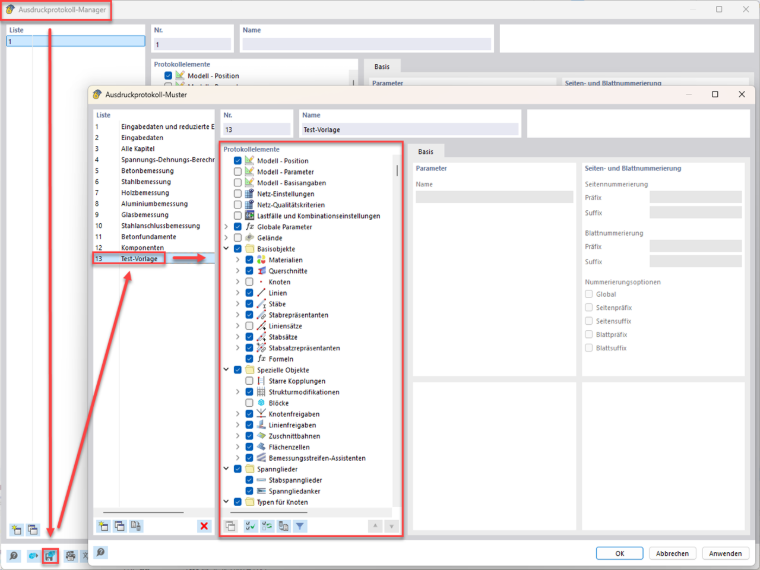
- In the printout report manager, click “Save as Template” in the lower-left corner.
- The “Printout Report Template” dialog box opens. Here, you can edit the report items of all templates.
In this dialog box, you can:
- Create or customize your own templates,
- Delete user-defined templates that are no longer needed.
Customizing Printout Report
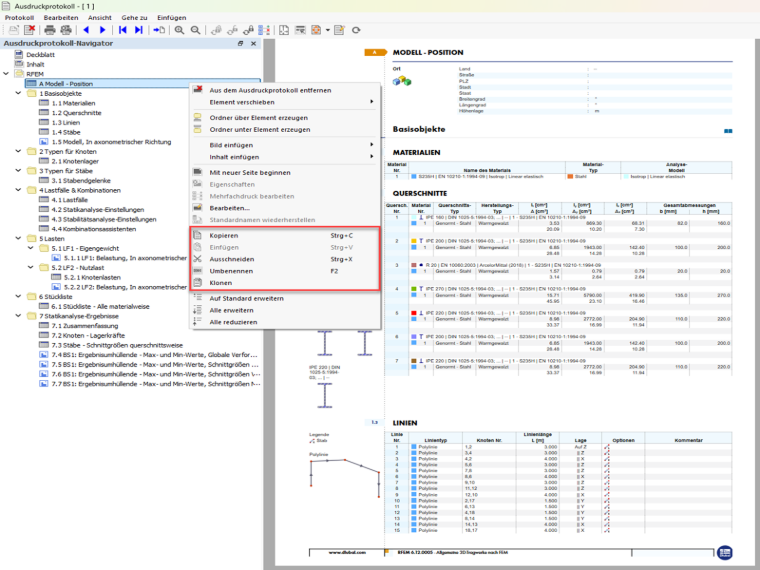
The contents of the printout report can be customized to meet your individual requirements. In the printout report navigator, you can:
- Move,
- Copy,
- Cut, or
- Clone report items.
The chapter numbering is automatically adapted as you make these changes.
Storage Location and Transfer of Templates
The saved printout report templates are stored in the “report_templatesV2.bin” file. Depending on the program version, this file is located in the following directories:
- C:\Users\USER\AppData\Local\Dlubal\RSTAB_9.12\configs
- C:\Users\USER\AppData\Local\Dlubal\RFEM6_6.12\configs
By copying this file, you can transfer the printout report templates to another computer, for example, to use them across projects or departments.
Conclusion
The printout reports in RFEM 6 and RSTAB 9 make the documentation process significantly more efficient. Reports created once can be flexibly customized, saved as templates, and easily transferred to other workstations—ensuring consistent and time-saving report generation.