


Modeling
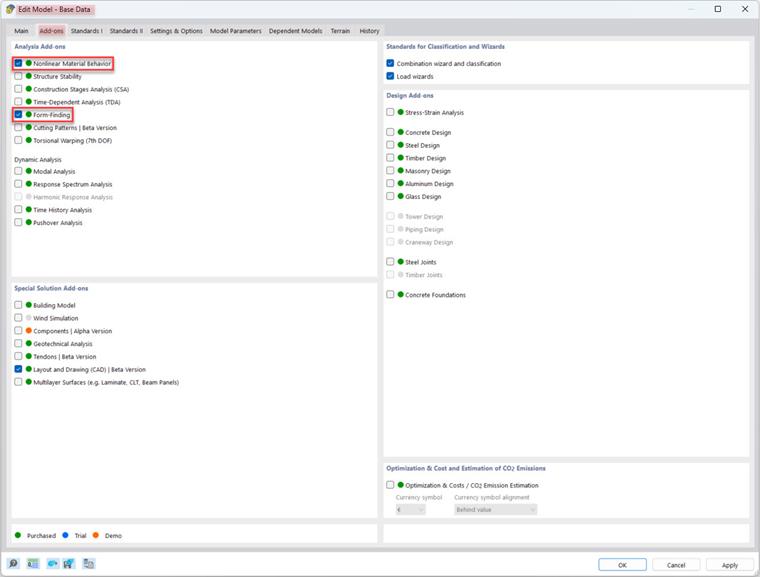
To model and design a multi-chamber foil cushion, it is necessary to make various entries in the base data (see Image 1).
For iterative and plastic calculation of the model's shape change, it is necessary to select and activate “Nonlinear Material Behavior” and “Form-Finding” under the Analysis Add-ons. Otherwise, all settings are as usual.
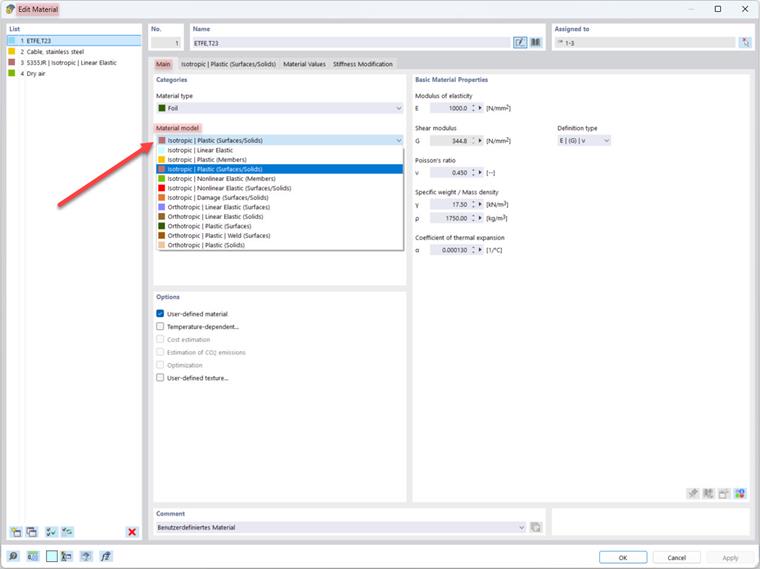
To simplify modeling, the material is defined in advance using the navigation panel. Select the relevant material type from the material library. The basic properties are already preset and can be adopted. The “Nonlinear Material Calculation” Base Data allows you to select from various material models in order to perform a plastic and nonlinear calculation (see Image 2).
First, the initial system is modeled. To do this, the outer edges of the surfaces and their subsequent alignment after internal pressure has been applied are defined using lines. The greater or more accurate the preliminary displacement of the surfaces, the fewer iterations RFEM requires to calculate the final state. However, this is not absolutely necessary and can also be indicated as a small preliminary displacement.
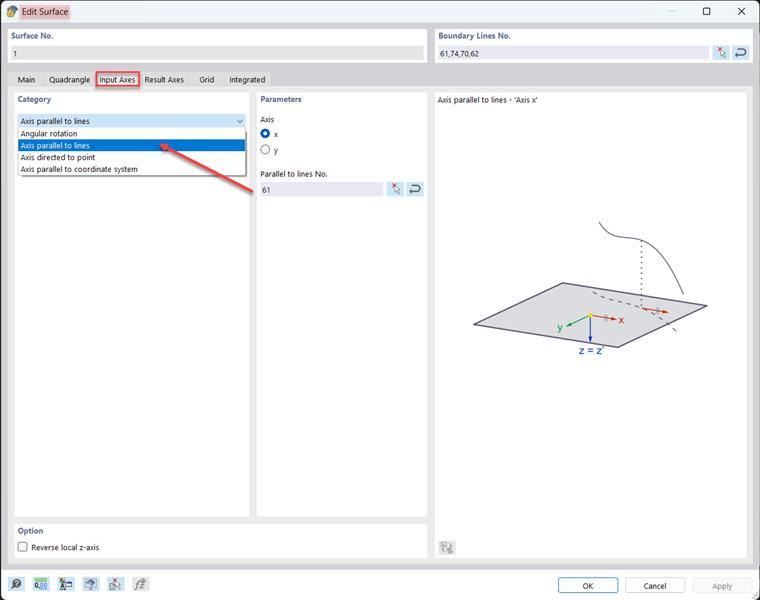
The surfaces are now placed over the defined outer lines to create a solid. It is important to define the orientation of the axis in the editing menu under the “Input Axis” tab so that the stress and force directions match when the load is entered later (see Image 3).
The body is filled with the selected gas under normal conditions [1 bar, 23°C]. The overpressure load is defined later in the load cases.
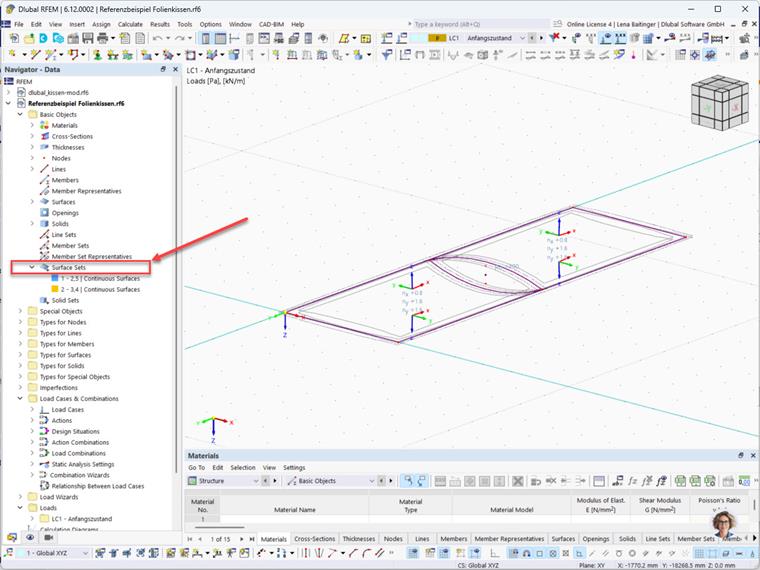
To facilitate form-finding and load application, several surfaces can be selected under the “Surface Sets” menu item and combined as a surface set. This allows you to handle them as a single unit, for example, to apply loads across surfaces or to design continuous surfaces.
Load Input
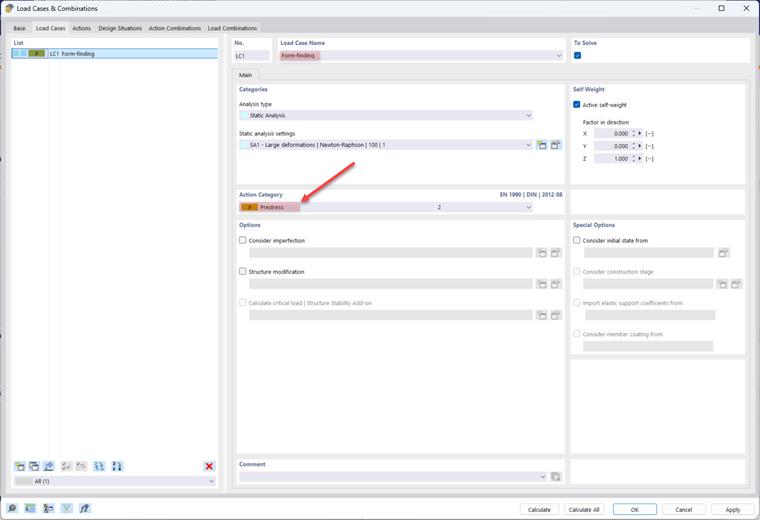
Once the model structures have been modeled, the loads can be entered. In RFEM 6, a form-finding and solid load is assigned to the elements, such as membranes and gases. To perform the form-finding, the loads are entered exclusively in a separate load case under the “Prestress” action category, as displayed in Image 5.
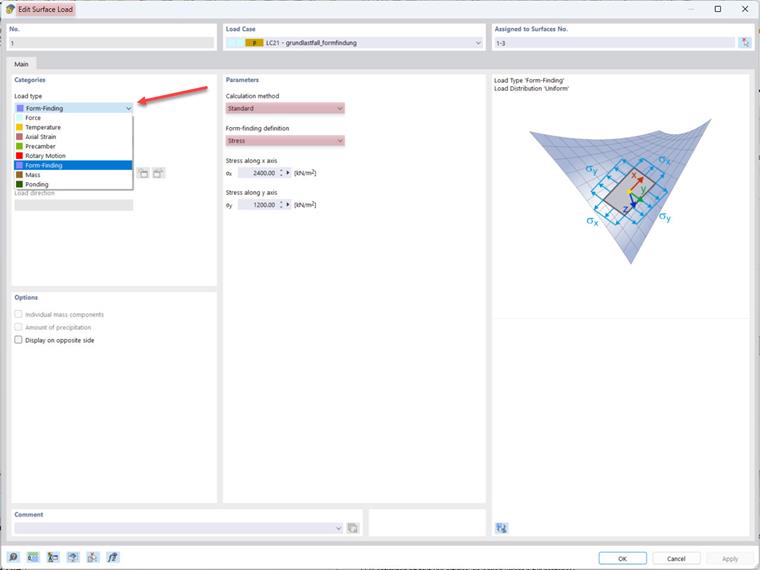
The input data for the surface load of the form-finding process include the calculation method (standard or projection), the form-finding definition (force, stress, or deflection), and the magnitude of the corresponding force.
The standard method describes a vector that can move freely in space to the target position, while the projection method describes a vector that is partially movable in space and fixed to its XY coordinates. The standard method is suitable for pneumatically stabilized membranes.
The gas behavior is defined in the editing menu of the solid load. The load magnitude is entered depending on the selected behavior. The meaning of the input parameters is illustrated in the load sketch.
Analysis Settings
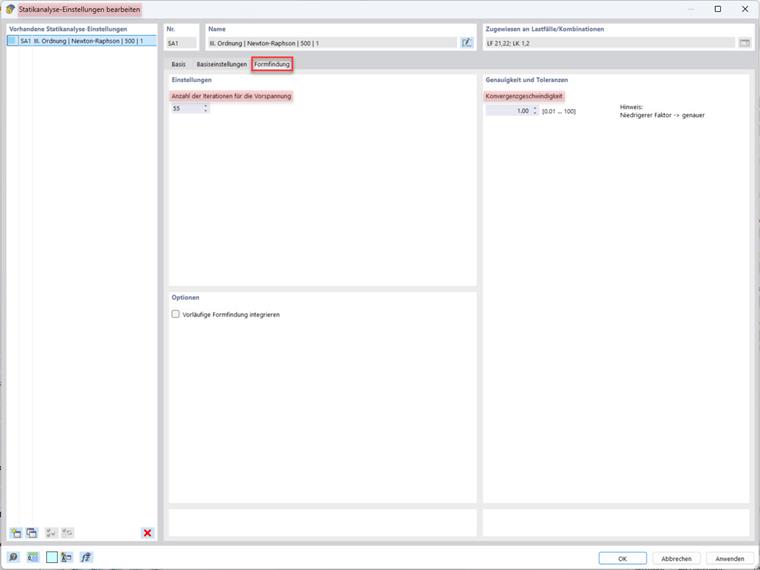
In the settings for the structural analysis, the user can specify how often the form-finding calculation should reapply the prestress with the originally defined value to the elements. If this limit is exceeded, the program no longer reapplies the prestress with the initial value. More iterations can lead to better convergence.
Results
After the load case calculation, the deformations and the member and surface results can be displayed graphically via the “Results” tab in the navigator.
Shape
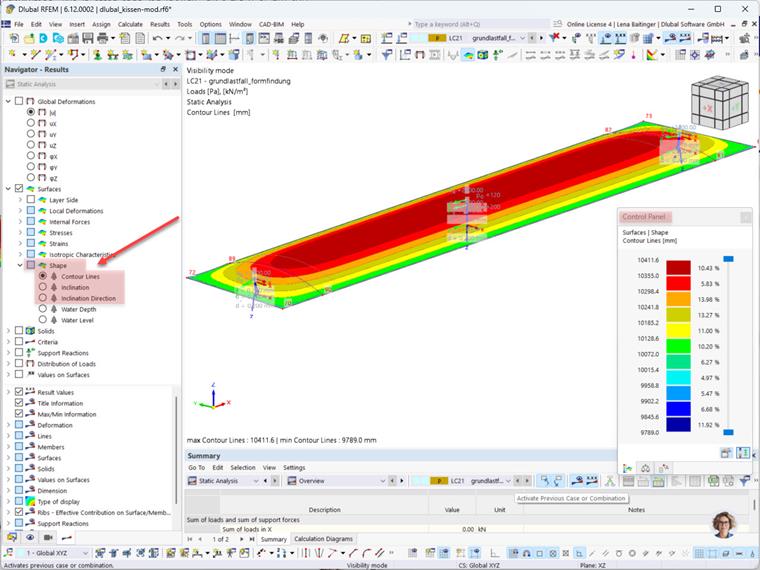
After the form-finding calculation, the Navigator – Results entry appears with three subentries (see Image 8). The control panel on the right provides the legend for the displayed deformations.
Contour Lines
The outlines correspond to the contour lines of the global XY plane.
Slope
The Slopes entry can be used to display the maximum slope at the respective point on the membrane relative to the global XY plane.
Slope Direction
The angles can also be displayed as slope directions.