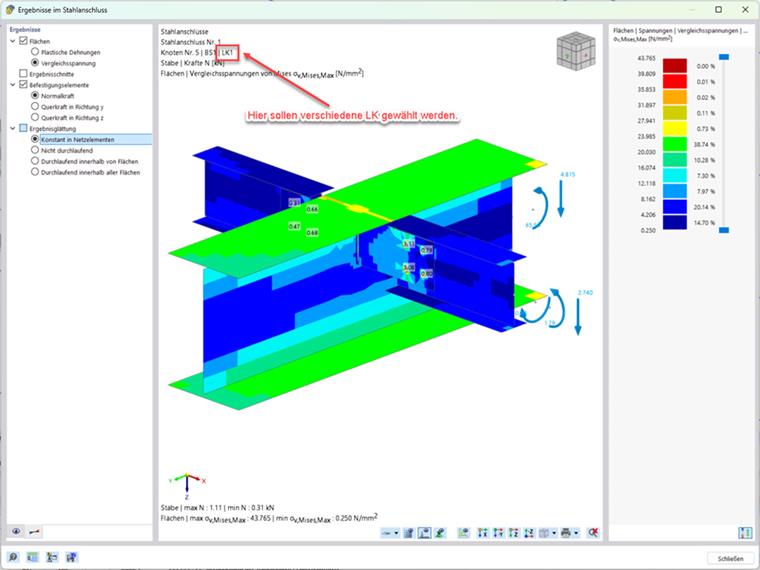
Once a joint has been designed, the results can be analyzed in a separate window called “Results in Steel Joint.” The results are displayed in this window by load combination. It is not possible to switch between load combinations within this window.
There are two ways to do this:
- Navigation via the table
- Navigation via the design check details.
Navigation via Table
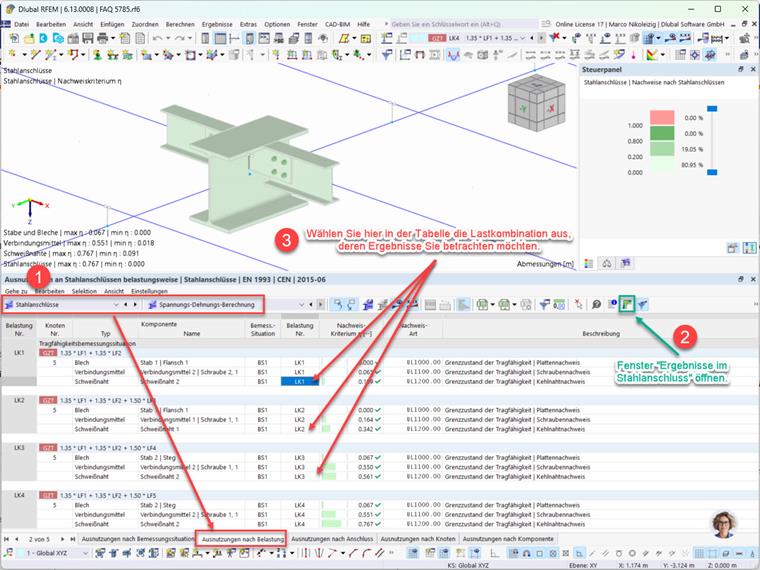
Select the table for the results of the Steel Joints add-on and switch to the “Design Ratio by Loading” tab. With the “Results in Steel Joint” window open, you can switch to the desired load combination by clicking the corresponding rows in the table. The “Results in Steel Joint” window (see Image 1) is adapted automatically.
Navigation via Design Check Details
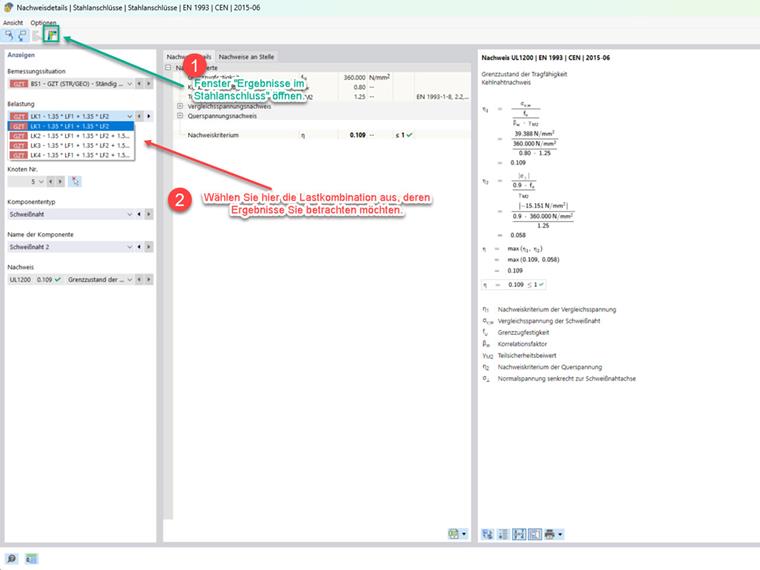
Double-click in the table for the results of the Steel Joints add-on to open the window for the design check details. Open the “Results in Steel Joint” window and select the desired load combination by selecting the load. The selected load combination is displayed in the “Results in Steel Joint” window (Image 1) for evaluation.
By clicking on the following image, you will be redirected to download a sample model.