


The connection is a local one. CALC does not reach your RFEM over the internet, and RFEM does not have to be accessible from outside. Everything happens on your own computer.
The link is created by a small helper program, the Dlubal Connector. You install it once. It then runs quietly in the background and forwards CALC’s requests to your RFEM installation through RFEM’s own programming interface: the Dlubal API. It is the same interface a Python script would use.
Dlubal CALC (browser, calc.dlubal.com)
        │
        ▼
Dlubal Connector  (runs locally on your PC, tray icon)
        │
        ▼
RFEM 6 / RSECTION  (Dlubal API on your PC)
Thus, there are three parts. CALC is where you write what you want. The Connector is the actual bridge. Your RFEM does the work. CALC sends a request to the Connector, the Connector hands it to RFEM, and RFEM’s answer comes back along the same path. That is why RFEM has to be running for the connection to be usable.
Two Ways of Using CALC, Same Connection
You can work with CALC in one of two places. The connection to RFEM is established in exactly the same way in both:
- CALC in the web browser: you open
calc.dlubal.comin Chrome or Edge and sign in with your Dlubal account. This is the usual way, and you can also use CALC here with no RFEM connection at all—for example, for hand calculations or reports. - CALC in RFEM 6: CALC is available directly in RFEM as an integrated panel, so you can work without switching windows. You do not sign in again, because CALC uses the Dlubal account you are already logged in with in RFEM.
In both cases the Dlubal Connector is the bridge, so it has to be installed and running either way.
What You Need
- A Windows computer with a licensed RFEM 6 (or RSECTION) installation
- The Dlubal Connector, installed once on that computer
- A CALC account, signed in with your Dlubal account (the connection does not work as a guest)
- CALC open in a current browser (Chrome, Edge) or in RFEM
The RFEM connection is included in every CALC plan, including the Free plan. Each request to RFEM uses credits, as shown in the CALC price overview.
Setting up Connection
- Sign in to CALC with your Dlubal account.
- Install the Dlubal Connector. In CALC, click RFEM 6 in the sidebar, then Download Connector, and run the installer once. If a newer version is needed later, CALC offers you Update Connector in the same place.
- Start the Connector. It runs in the background and shows an icon in the Windows notification area. Under Settings → Profile → Local Workspace you can have it start automatically whenever you log in to Windows, so you never have to think about it again.
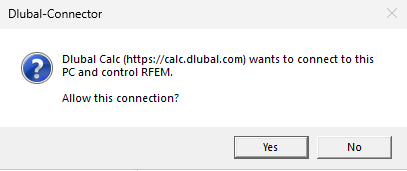
- Allow it once. Go to Settings → Profile → Connector pairing, click Pair Connector, and confirm the dialog that appears on your computer. This one-time confirmation is what makes sure that only CALC, and no other website, can reach your local installation. It is stored on that computer only, so you do it once per computer.
- Start RFEM 6. You can also let CALC do it for you: RFEM 6 → Start RFEM.
- Check the status. As soon as a first request has actually gone through, the connection is shown as connected (see below). Just after starting the Connector or RFEM, it may still say Connecting…. One request in the chat is enough to finish it.
The connection is then live. From then on, it re-establishes itself on its own: as long as the Connector and RFEM are running, CALC finds them again by itself.
Where can you see the connection status?
You can see the state of the connection at any time directly above the chat input: the RFEM symbol in the toolbar has a small colored dot, which is green when the connection is working. Click the symbol to open the status overview.
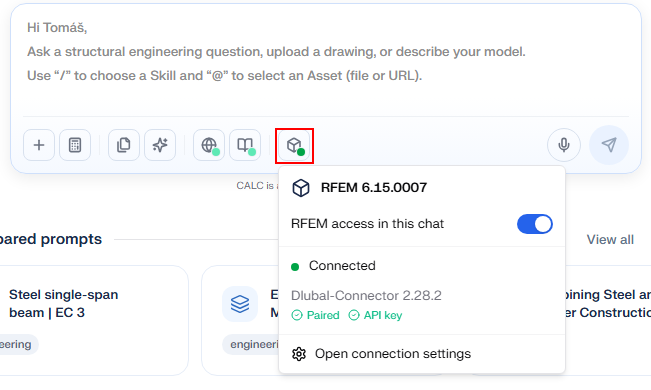
In addition to showing you where things stand, the overview is also where you act if something is still missing—for example, pair the Connector, start RFEM, switch RFEM access for this chat on or off, or open the connection settings.
What do you have to allow, and why?
You will find three questions on the way to a working connection. All three are there for the same reason: nothing on your computer opens without your say-so.
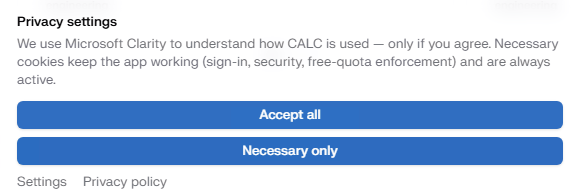
Privacy settings, so you stay signed in. When you first open CALC, it asks how it may handle your data. Necessary only is enough for everything described here. Those cookies keep you signed in and secure, and being signed in is a requirement for the RFEM connection. The optional part is analytics (Microsoft Clarity), which only helps us see how CALC is used. Say no and the connection works just the same.
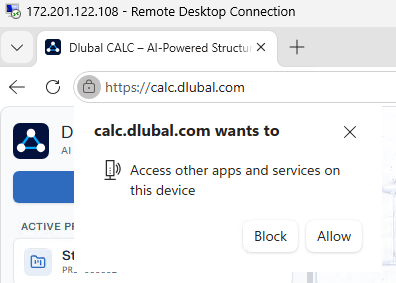
Browser access, so CALC can reach your computer. Web pages are normally not allowed to contact programs running on your own machine, and that is good. Since the Connector is just such a program, your browser asks once whether calc.dlubal.com may do it. Click Allow. With Block, the connection cannot be made even though the Connector is running. If you close the question by mistake, reload the page with Ctrl + F5.
Pairing token, so only CALC can control your RFEM. The Connector waits on your computer for instructions, so it must not take them from just anyone. That is why it asks you directly, in its own window on your desktop, and only your Yes unlocks it. The permission is then stored on that computer alone, so you do this once per computer. On the next one, you confirm again.
After that, the way is clear. And your data stay where they are: nothing is uploaded to set up or use the connection. RFEM and your files stay on your computer, and only the results you asked for come back into the chat for your calculation and your report.