


IFC Format
The IFC format has established itself as the central basis for coordinating structural projects. For this reason, it is supported in almost all software solutions for both import and export. It makes sense to use the IFC format for data exchange so that, for example, the structural engineer does not need to model the structure from scratch, but can instead draw on the data from the architectural model. Similarly, the structural engineer wants to pass on the model, including any changes, to the other parties involved in the design process. Here, too, the IFC format provides the optimal solution. The following article therefore presents the IFC workflow in RFEM 6.
Import and Display
The import supports IFC versions 2x3, 4.0, and 4.3 and is performed via the “File” – “Import” menu. Depending on the Model View Definition (MVD) of the IFC file, two different import methods are used:
- If the IFC file contains a Structural Analysis View, the analytical elements are created directly in RFEM 6 (for example, nodes, members, surfaces). Using the upstream conversion tables, the materials and cross-sections from the IFC file can be assigned to the corresponding elements in RFEM 6.
- For all other MVDs (for example, Reference or Coordination View), the IFC objects are displayed using the integrated IFC viewer.
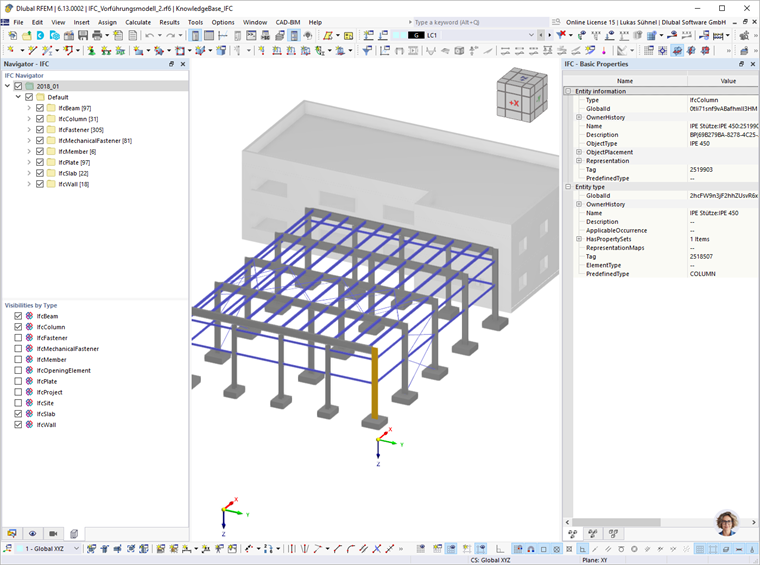
The navigator on the left side is extended with a special IFC navigator. In this navigator, you can control the visibility of individual objects or, in the lower section, the visibility of entire IFC classes. With regard to the later conversion of objects, it is recommended to deactivate unnecessary IFC classes (for example, IfcFasteners). In addition to control via the navigator, visibility can also be defined using a selection and the visibility functions of RFEM 6.
By double-clicking an IFC object or the corresponding icon, you can also display the IFC Properties Navigator (right side). This is divided into basic and user-defined properties as well as relations. This gives the user access to all information stored in the IFC.
Conversion to Members, Surfaces, and Solids
Native model data (members, surfaces, and solids) can be derived from the IFC objects.

Before this step, however, you should check the conversion tables for materials and cross-sections. These can be accessed via the “CAD-BIM” menu.

The material and cross-section descriptions read from the IFC file are listed on the left. The corresponding material or cross-section from the library should be assigned on the right. If problems arise during conversion, the original cross-section can be reopened using the “Add new entry from IFC properties” icon. To do this, simply click the corresponding entry in the IFC Properties Navigator for each IFC class. After a successful conversion, the IFC objects are hidden and an unconnected structural model of the structure is usually created.

Connection Using Nodal and Line Links
Nodal and line links can be used to create a model that can be used for calculations. These features create rigid members or rigid links between objects, whereby the objects themselves are not shifted.
- Nodal links
A nodal link facilitates the task of connecting nodes to neighboring objects. The program searches for nodes, members, and surfaces within a specified area and creates a link in the shape of rigid members. They are suitable for coupling columns or beams to other beams or slabs.

The user defines the initial nodes from which to search for additional objects. It is necessary to specify the objects to be searched for and the search radius. In the additional settings, member hinges can be created on the rigid members. The “Exclude objects” feature can be used to exclude specific members from the search.
If nodal links are deleted, the associated generated rigid members are also removed. However, it is possible to convert the generated rigid members into regular rigid members.

These regular rigid members remain intact and can be modified individually as required.
The following shows the result of a nodal link that controls the connection between the frame beams and the columns.

- Line links
Line links behave in the same way as nodal links, but are assigned to lines. They are therefore suitable for coupling walls, slabs, and downstand beams.

Rigid links are created as fasteners. The “Ignore influence of distance” option is inactive for rigid links. This means that the distance between the objects acts as a lever arm.
Line hinges can be defined for force transmission.
The following displays the result of a line link that controls the connection between the slabs and walls.

By defining multiple nodal and line links, the user can create a calculable model.
Rule-Based Link Generator
The manual definition of nodal and line links already facilitates the linking of objects. However, the manual selection of initial nodes and lines can be an error-prone process. For this reason, the rule-based link generator was implemented.

This can be viewed as a generator for nodal and line links, whereby nodes and lines are selected automatically.
The user controls which link is desired by selecting the type. The type of the link can be derived from the name of the type. Here are a few examples:
- “Column – Plate”: This is a nodal link that selects nodes of vertical members (columns) and searches for surfaces (plates) in the closer vicinity.
- “Wall – Wall”: Line links between walls are to be created. The algorithm selects the vertical lines on vertical surfaces and searches for other surfaces.
- “Wall – Slab”: Here, the horizontal lines on vertical surfaces are selected, which are to be connected to other surfaces (slabs).
Each rule represents a nodal or line link. The associated detailed settings can be defined in the lower section of the dialog box.
A rule set is activated in the Base Data dialog box, in the “Settings and Options” tab.

Any changes made to the rule set have a direct impact on the structure. This allows you to quickly evaluate different types and settings. You can also deactivate the link generator in the Base Data. In this case, you can decide whether to keep or delete the generated links.

IFC Export
In addition to import, RFEM 6 also provides the option to export models in IFC format. You can select either the IFC 4 Structural Analysis View or the Reference View.

For referencing in other CAD programs or IFC viewers, it is recommended to select the Reference View. This view contains both the geometry and information about cross-sections and materials.
If the structural objects were derived from IFC objects, the GUID of the objects is retained during export. This allows for easy comparison between different IFC versions.
Conclusion
The integrated IFC viewer in RFEM 6 allows you to display IFC files directly in the software. Furthermore, you can convert IFC objects into analytical models. By using nodal and line links as well as the rule-based link generator, these analytical elements can be combined into a closed model that can be used for further design.
Exporting IFC data to the Reference View allows for easy visualization of the project in common CAD programs and IFC viewers, such as BimVision.