


Layers in the Dlubal apps are a powerful tool for organizing and structuring model information. They allow for the logical grouping of objects, such as members, surfaces, loads, or auxiliary elements, and for the control of their visibility and editability in a targeted manner. This is particularly helpful in complex models to maintain clarity and make workflows more efficient.
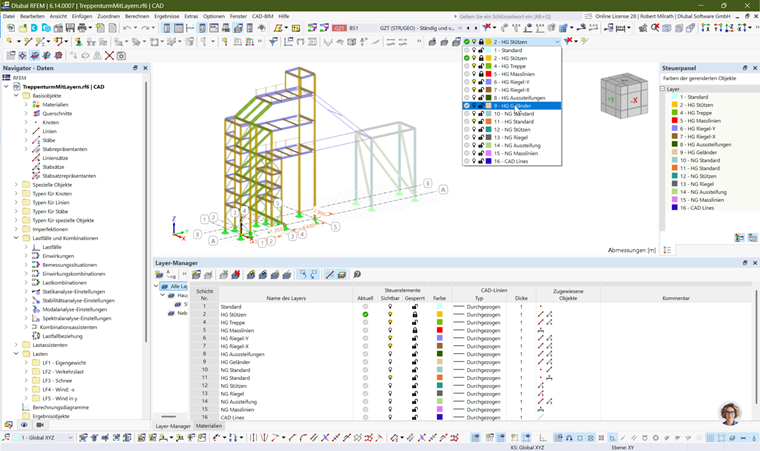
What are layers in Dlubal apps?
Layers are similar to planes in CAD programs. Each model object can be assigned to a specific layer. Using the Layer Manager, you can:
- Control visibility: Show or hide layers.
- Restrict editing: Lock layers to prevent accidental changes.
- Create structure: Organize objects by function, material, or project phase.
Creating and Managing Layers
To work with layers, it is recommended to open the Layer Manager via the “View | Layer Manager” menu. You can then place or dock it anywhere in the interface.
In the Layer Manager, you can then create and organize the layers you need.
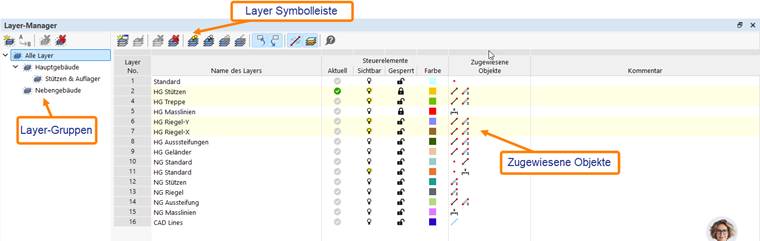
Layer Manager Toolbar

The “Layer Manager” toolbar provides you with the following options:
- New layer
- Set the layer as active
- Delete the layer
- Delete all layers
- Show all layers
- Hide all layers
- Lock all layers
- Unlock all layers
- Select objects in the drawing
- Show selected objects in the drawing
- Show hidden objects in the background
- Colors of rendered objects by layer.
- Help
Layer Groups
The Layer Manager provides you with the ability to organize layers into groups. You can create as many grouping levels as you need. When you assign a layer to a layer group, that layer is automatically assigned to its parent groups as well. Layers can be reassigned to a different group at any time. A layer can be assigned to only one group strand at a time.
Layer Information of Object
- When creating an object, it is always assigned to the current layer.
- Existing objects can be assigned to a layer via Properties or by selecting multiple objects. To do this, please select them and then assign them to the desired layer (4).
The “Selected Layer” toolbar

- Show/hide the selected layer
- Lock/unlock the selected layer
- Edit the selected layer
- Selected layer
- Activate the layer group filter