


Modern architectural and urban design projects rely increasingly on clear, intuitive, and data-driven visualizations to understand how wind interacts with buildings, open spaces, and surrounding vegetation. As design challenges become more complex—driven by climate responsiveness, sustainability goals, and human comfort requirements—simple qualitative descriptions of airflow are no longer sufficient.
Ventilation diagrams play a crucial role in translating complex airflow behavior into an understandable visual language. They enable engineers, architects, and urban planners to quickly assess wind distribution patterns, identify areas of stagnation or excessive wind speeds, and evaluate the effectiveness of natural ventilation strategies. By illustrating how air moves through courtyards, between buildings, and around landscape elements, these diagrams support informed decisions at both early concept stages and later design refinements.
Beyond airflow visualization, ventilation diagrams also contribute to the evaluation of thermal comfort, pedestrian wind comfort, and environmental performance. They help designers understand how geometry, orientation, openings, and vegetation influence ventilation efficiency, heat removal, and microclimatic conditions. As a result, ventilation diagrams are widely used not only for technical analysis, but also for communication with clients, stakeholders, and non-technical audiences, bridging the gap between CFD results and architectural design intent.
This technical guide according to Ref. [1] demonstrates a streamlined workflow for creating a high-quality ventilation diagram by combining:
- Rhino → 3D model creation
- RWIND → CFD-based wind-flow calculation
- Snagit → Post-processing and final diagram export
The method is optimized for simple architectural models such as rooms, courtyards, pavilions, and outdoor layouts with obstacles like trees or walls.
1. Overview of the Workflow
The complete workflow consists of six stages:
- Create a 3D Model in Rhino
- Import the STL Model into RWIND
- Set up the Wind Simulation in RWIND
- Visualize Airflow and Extract CFD Results
- Post-Process the Diagram in Snagit
- Produce the Final Ventilation Layout
This process combines ease of modeling (Rhino), advanced wind simulation (RWIND), and high-quality graphics (Snagit) to produce results suitable for architectural presentations, environmental analysis reports, or marketing material.
2. Creating the 3D Model in Rhino
2.1 Model only the Essential Elements
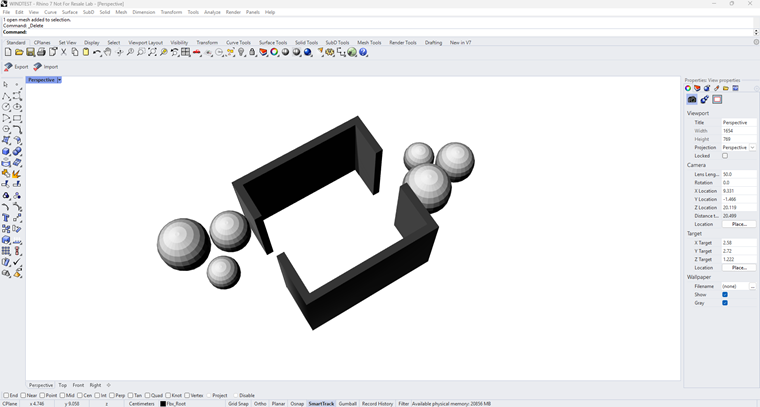
In Rhino, it is recommended to model only those elements that are essential for the ventilation study, such as:
- Building envelopes and primary walls
- Openings that influence airflow and ventilation paths
- Simplified representations of vegetation (e.g., spheres or cylinders)
At the same time, users are free to include any additional geometric details that are relevant to their specific analysis objectives. However, unnecessary or purely decorative elements should be avoided, as excessive geometric complexity can negatively affect mesh quality, increase computational cost, and slow down CFD calculations.
2.2 Set the Correct Units
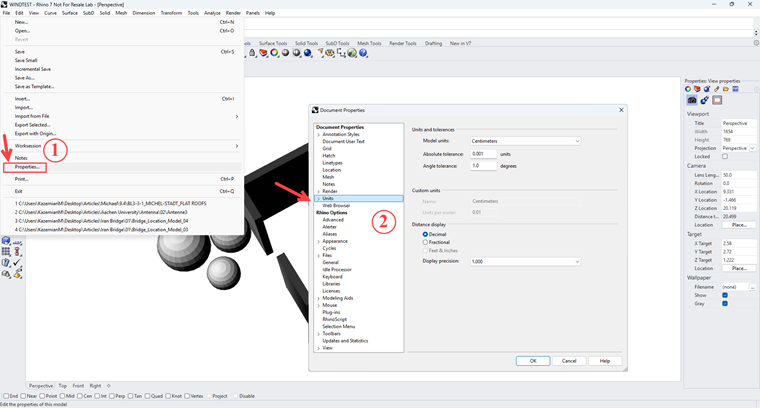
RWIND expects the geometric units to be correct.
- Set model units to meters (File → Properties → Units)
- Ensure closed solids and clean surfaces
- Align the model with global axes to avoid orientation issues
2.3 Exporting the Model
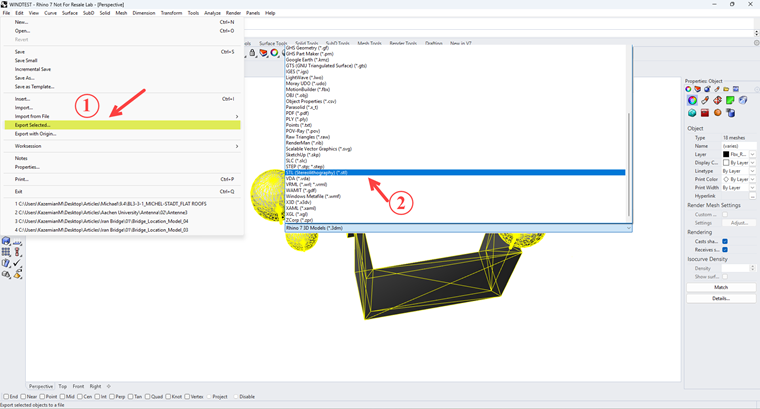
Export the model as STL file:
- File → Export → 3D Model
- Choose STL format
- Confirm that the export units are set to meters
This STL file will serve as the geometry input for RWIND.
3. Importing the Model into RWIND
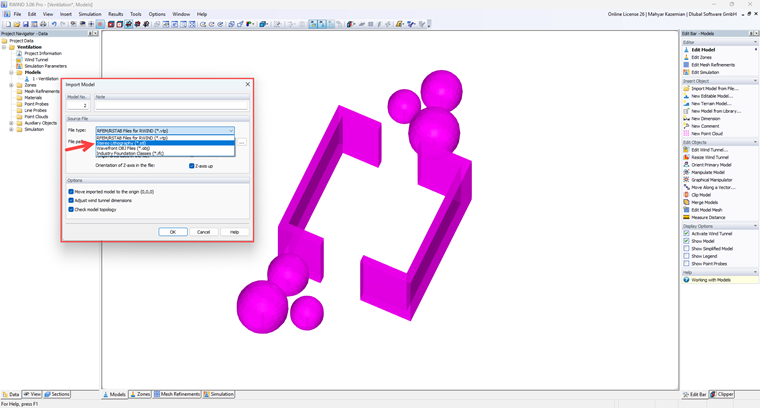
Open RWIND and import the exported STL file. The software automatically recognizes the domain boundaries and generates an external wind tunnel environment around your model.
Key steps after importing
- Verify orientation and scale of the model
- Adjust bounding-box size if you want a larger flow domain
- Choose whether objects (trees, walls) behave as solid obstacles or porous elements
RWIND supports a wide range of turbulence models and solver settings, ideal for architectural studies.
4. Setting up the Simulation in RWIND
4.1 Define Wind Direction and Speed
Typical inputs include:
- Wind speed at reference height
- Terrain category (urban, suburban, open field, etc.)
- Wind direction angles (e.g., 0°, 45°, 90°)
Multiple directions can be simulated for comparative analysis.
4.2 Mesh and Solver Configuration
- Select automesh for general use
- Increase mesh density only around critical areas (e.g., vegetation, facade openings)
- Choose Steady or Transient depending on the complexity
4.3 Run the Simulation
RWIND generates:
- Velocity field
- Pressure distribution
- Streamlines
- Surface pressures on all elements
These data sets are essential for creating airflow diagrams.
5. Visualizing Airflow
RWIND offers several visualization tools:
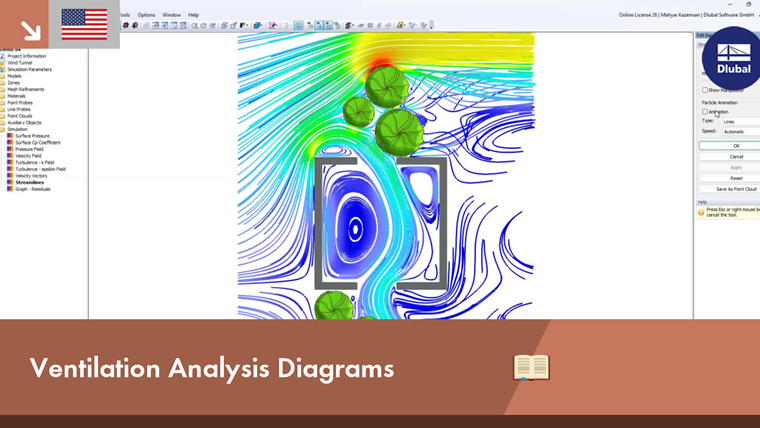
- Streamlines for airflow patterns
- Velocity contour slices
- Vector fields
- Wind pressure color maps
For ventilation diagrams, colored streamlines are often the most intuitive.
Adjust:
- Streamline density
- Line thickness
- Color gradient (e.g., blue → green → yellow)
- Transparency for architectural clarity
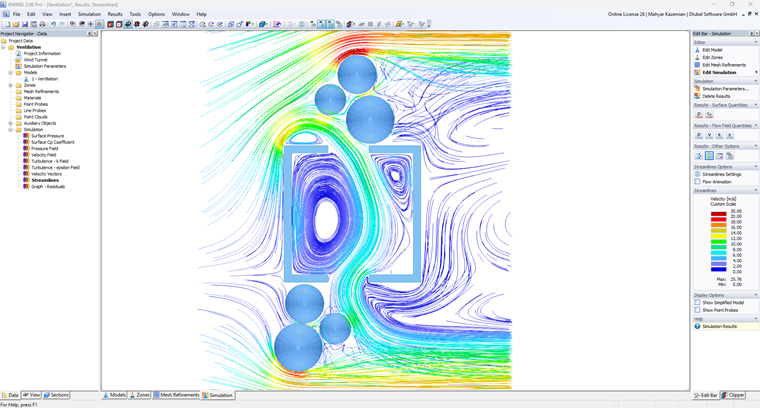
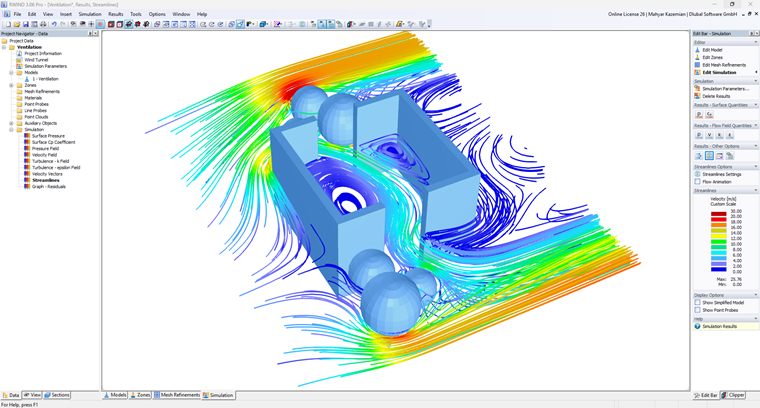
Export the visualization as:
- Transparent PNG
- High-resolution JPG
- TIFF for graphic post-processing
6. Post-Processing and Documentation with Snagit
Snagit is used for efficient post-processing and communication:
- Capture high-resolution simulation views
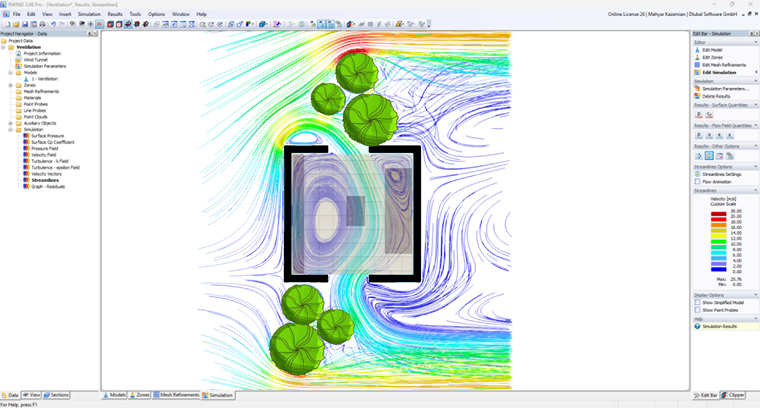
- Add arrows, annotations, and labels
- Highlight airflow directions and ventilation zones
- Prepare images for reports, tutorials, or presentations
This step focuses on clarity rather than artistic rendering, making it ideal for technical documentation and knowledge-sharing content.
7. Final Ventilation Diagram
The result is a professional ventilation diagram suitable for:
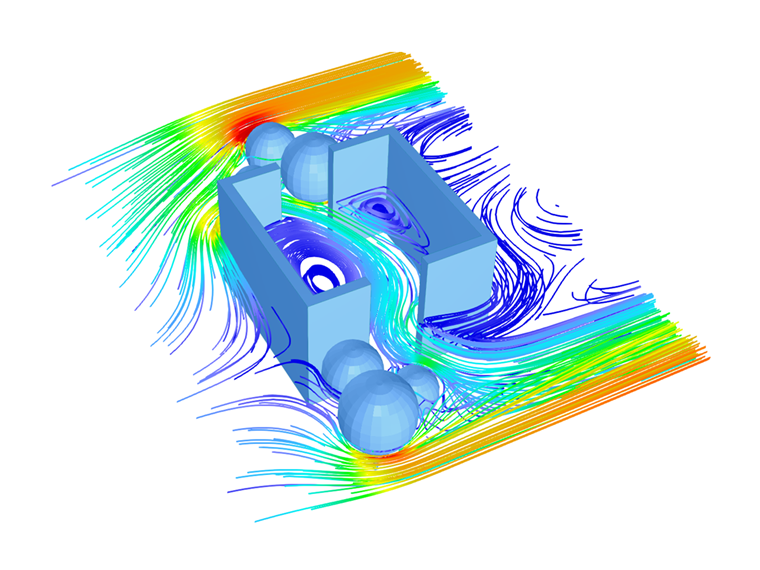
The final output is a clean and informative ventilation diagram that combines:
- Accurate CFD results from RWIND
- Precise geometry from Rhino
- Clear visual annotations from Snagit
Such diagrams are well-suited for design reports, environmental studies, educational material, and marketing content.
8. Key Advantages of this Workflow
- Rhino: Precise and flexible 3D modeling
- RWIND: Fast and reliable CFD analysis
- Snagit: Efficient annotation and documentation
- Simplified geometry: Reduced computational cost
Clear visuals: Improved communication of airflow behavior
Conclusion
By integrating Rhino, RWIND, and Snagit, designers and engineers can efficiently create ventilation diagrams that are both technically accurate and easy to understand. This workflow supports informed design decisions while providing high-quality visual documentation for a wide range of architectural and engineering applications.
 Knowledge Base