Answer:
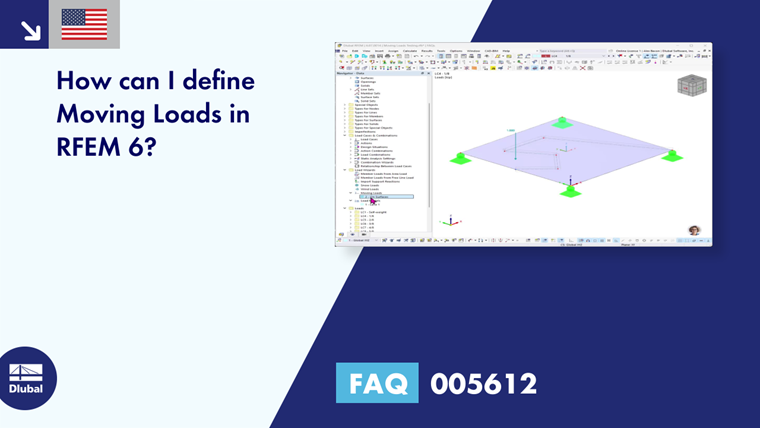
Moving Loads can be found under the Load Wizards folder in the Data navigator or through the Insert menu. Once the dialog box is open, there is a drop-down menu where you can choose whether you want to apply the moving load to a surface or member.
Under the Main tab, select the desired surface(s). The path for the loading must be defined as a set of lines drawn in the model. Next, determine the number of lanes you want to define. For each lane, you can define parameters along with an offset and/or bumper.

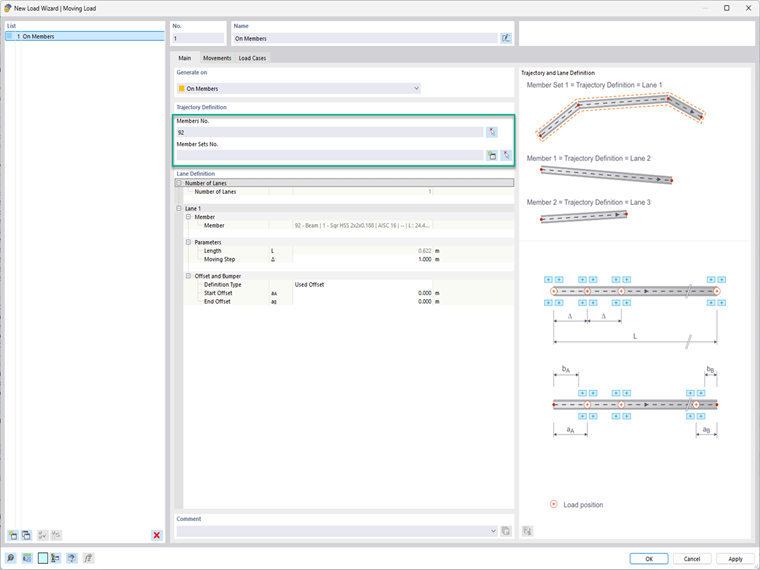
For a member or set of members, simply select the member(s) or set of members to apply the moving load to. You can also create a member set in this dialog using the "gold star" icon button. Under the Lane Definition is then where the "Moving Step" and offsets can be entered. Take a look at the bit model on the right for reference to these inputs.
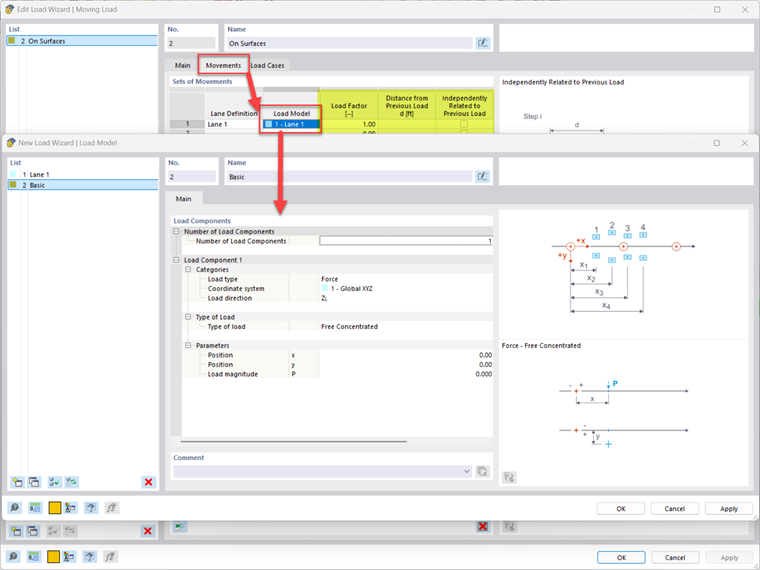
In the Movements tab, select the lane definition in the table, then create a load model definition in the cell under the Load Model column. In this definition dialog box, the number of load components is decided. For each component, the following can be defined by the user:
- Load Type
- Coordinate System
- Load Direction
- Type of Load
- X and Y Positions
- Load Magnitude
Once this is set, a load factor can be applied. You can also choose to define a distance from the previous load or decide if this movement is independently related to the previous load.
In the final tab, Load Cases, the necessary load cases will be generated automatically.