1) Standardized Sections
To optimize standardized sections:
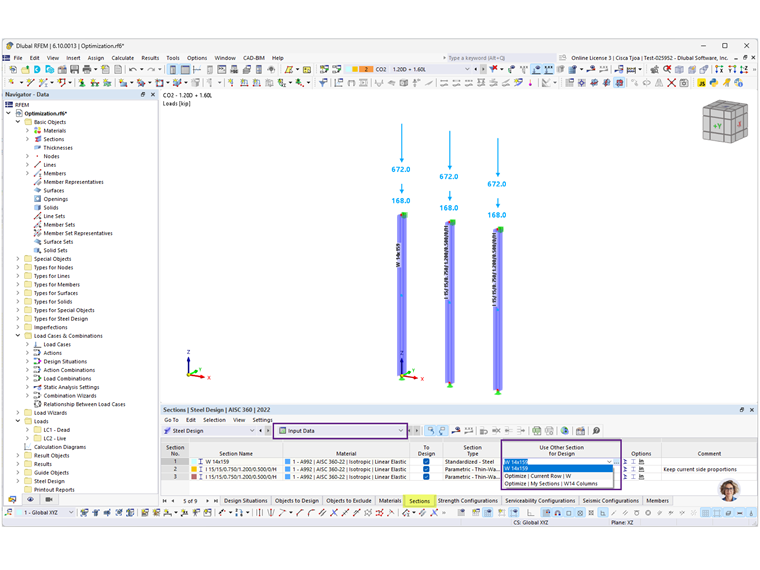
- In the Steel Design table, go to the Sections tab.
- Under the "Use Other Section for Design" column, click "Optimize | Current Row | …" to choose from a predefined section series (Image 1).
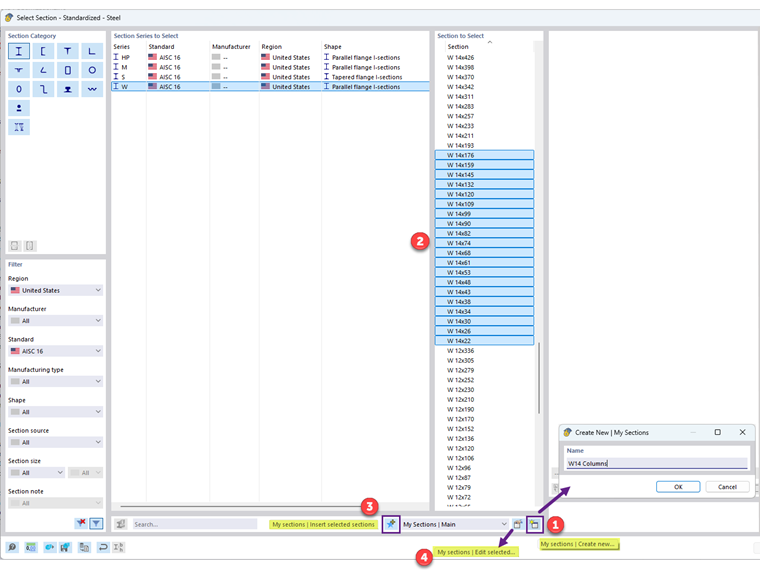
You can also create your own favorite section series (Image 2):
1. Select "My Sections | Create New…"
2. Choose the desired cross-sections
3. Click "My Sections | Insert Selected Sections"
4. To edit or view the custom series, go to "My Sections | Edit Selected…"
Your custom series will then appear in the drop-down menu under "Optimize | My Sections | …" (Image 1).
2) Parametric Sections
To optimize parametric sections:
- Select "Optimize | Current Row | …" to open the "Edit Section" dialog (Image 3).
- Select the parameters to optimize (for example, depth, width, thickness).
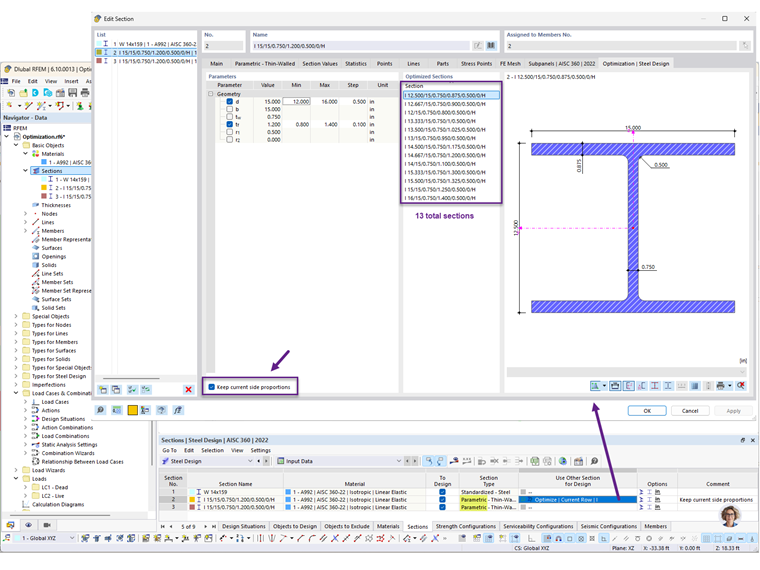
Proportional Optimization Option
Enabling "Keep current side proportions" suggests section alternatives that maintain the original proportions (for example, between depth and flange thickness). This generates a limited list based on proportional increments, not just the specified steps like 0.1 in. This is ideal for quick, approximate sizing.
To obtain more precise, rounded values, "deactivate" this option. In the given example, the number of suggested sections increases from 13 to 63.
3) Transfer Optimized Sections to RFEM
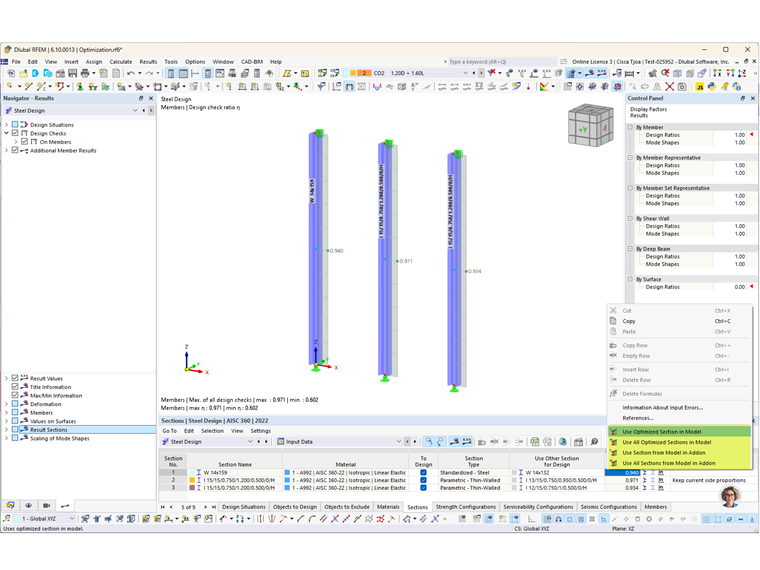
The effect of cross-section changes on stiffness and internal forces in the RFEM model is not accounted for initially. Therefore, to complete the design, the optimized cross-sections must be transferred to RFEM, and the calculation must be performed again (Image 4).