


In modern structural design, effective collaboration between CAD and structural analysis software is crucial for ensuring accuracy and efficiency. Therefore, when planning buildings and facilities, it’s common to use separate models for CAD and structural analysis. However, the use of separate models can lead to errors in data transfer and duplicate efforts.
At Dlubal Software, we understand the need for collaboration between different software platforms, as well as the fact that issues can arise in this collaboration. To address these challenges, we offer numerous interfaces that facilitate easy data exchange with popular industry software, such as Tekla Structures. The direct integration between RFEM 6 and Tekla Structures avoids potential data transfer issues by seamlessly coupling CAD and structural analysis. This eliminates the risk of inconsistencies between models and saves time, ensuring that both design and analysis processes are aligned.
With this interface, you can efficiently manage the flow of data between Tekla and RFEM, enhancing the design process and optimizing collaboration at every stage. This article will provide an introduction to the interface by summarizing the import and export options and the possible workflows.
Export from Tekla Structures to RFEM 6
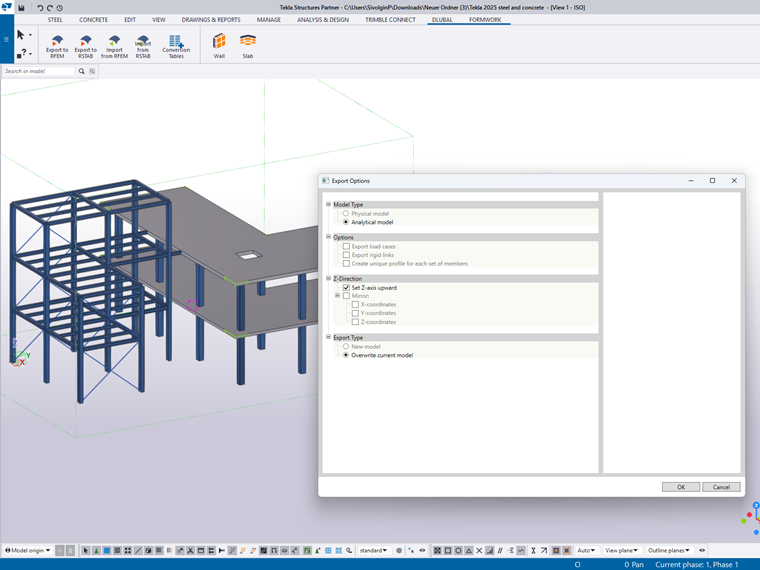
The Dlubal-Tekla interface provides several export options that allow you to transfer data from Tekla Structures to RFEM 6. These options offer flexibility based on whether you are working with the complete model or just part of it. Here are the key features available for export (Image 1):
1. Physical model
When exporting the physical model from Tekla to RFEM 6, the solid geometry of the members is transferred without considering their axial positions. This option is useful when you want to visualize the structural elements in RFEM without needing precise axial alignment for analysis.
2. Analytical model
The analytical model can be exported, which includes the centerlines of beams, columns, and other structural elements. This model is used in RFEM 6 for structural analysis, where the geometry, supports, and material properties are preserved, ensuring that the analytical data are reflected accurately.
3. Export load cases
This option allows you to export Tekla Load Groups as Load Cases from Tekla Structures to RFEM 6. Tekla’s various load types are transferred as follows: Point Load as Nodal Load, Line Load as Member Load, and Area Load as Surface Load. By exporting these loads, you ensure that the exact loading conditions from Tekla are accurately reflected in RFEM for structural analysis and design, maintaining consistency between the models in both programs.
4. Export rigid links
This feature enables the export of rigid links defined in the Tekla model to RFEM 6. Rigid links are important when modeling complex interactions between elements that are not directly connected but must behave as a unit in the analysis.
5. Create unique profile for each set of members
By default, RFEM 6 groups identical cross-sections into a single profile. Enabling this option creates a unique cross-section for each member, even if they share the same geometry. This is particularly useful when members with the same cross-section require different design parameters or treatment in the model.
6. Set Z-axis upward
In Tekla, the global vertical axis is typically the Y-axis, while RFEM 6 uses the Z-axis for vertical alignment. With this setting, the Z-axis in RFEM is aligned upward, ensuring that the models in both software platforms are oriented consistently.
7. Overwrite current model
When exporting to RFEM 6, you can choose to overwrite the existing model in RFEM. This option allows you to replace the current model with the new model from Tekla, but it does not update the existing model with new design changes. It is helpful when you want to completely replace the model in RFEM, for example, when starting a fresh analysis.
Import from RFEM 6 to Tekla Structures
The interface between the two types of software also provides various import options from RFEM 6 to Tekla Structures (Image 2), enabling you to bring the updated or modified model back into the detailing phase.
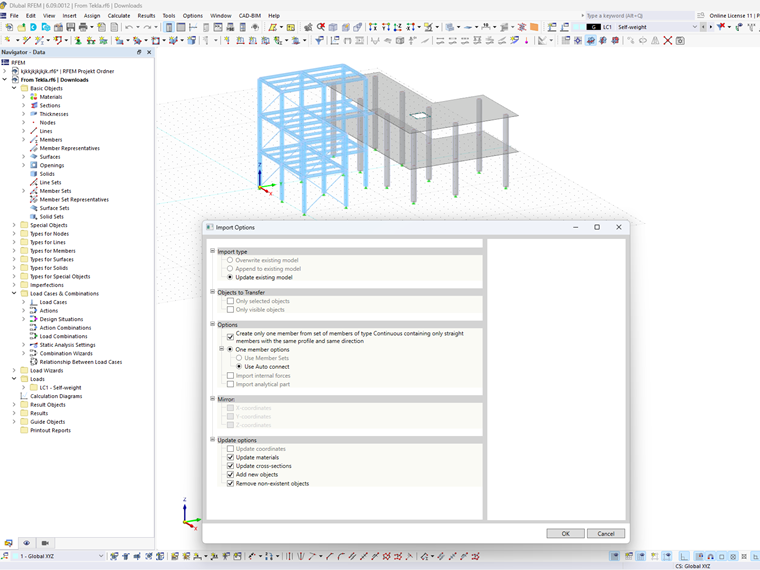
Here are the key features of the import options:
1. Import type
When importing from RFEM 6 to Tekla Structures, you can choose how the model is handled:
- Overwrite: The Tekla model is completely replaced with the RFEM model.
- Append: New elements from RFEM are added to the existing Tekla model.
- Update: Existing elements in Tekla are updated with the latest changes from RFEM (e.g., cross-section changes, material updates).
2. Objects to Transfer
The Objects to Transfer option allows you to import specific elements from RFEM 6 to Tekla Structures. You can choose to import either:
- Selected objects: Import only the objects that you have specifically selected in RFEM, giving you full control over what is transferred.
- Visible objects: Import only those objects that are visible in the RFEM model, helping to streamline the import process by excluding hidden or irrelevant elements.
This option provides flexibility in managing the data that are imported into Tekla, ensuring that only the necessary elements are transferred for further detailing.
3. Create one member from a set of members
This option allows you to combine a set of members of the type “Continuous” that consist solely of straight elements with the same profile and direction into a single element when importing from RFEM to Tekla. Using this option, you can simplify the model in Tekla by reducing multiple continuous elements into one, making it easier to manage and work with in the detailing phase.
4. Import analytical part
An analytical model will be generated for the physical model when importing from RFEM to Tekla. This analytical model is used for further analysis of structural behavior and design.
5. Mirror
When overwriting or extending an existing model, the mirror option allows you to mirror elements axially, ensuring that the model remains symmetrical or fits the desired spatial configuration.
6. Update options
When updating an existing Tekla model, you can choose the following update options:
- Update coordinates: Adjusts the position of elements to match the RFEM model.
- Update materials: Reflects any material property changes made in RFEM.
- Update cross-sections: Changes the cross-sections of members to match the RFEM model.
- Add new objects: Incorporates new elements that were added in RFEM.
- Remove non-existing objects: Deletes elements from Tekla that no longer exist in the RFEM model.
Possible Workflows
The integration between Tekla Structures and RFEM 6 supports a range of workflows, depending on the project scope and requirements. Below are three possible workflows for using the Dlubal-Tekla interface. These three workflows provide flexibility in the way the Tekla and RFEM models are used throughout the design process, ensuring that the right balance between structural analysis and detailed design is maintained. By choosing the appropriate workflow, you can optimize collaboration and streamline your project’s design process.
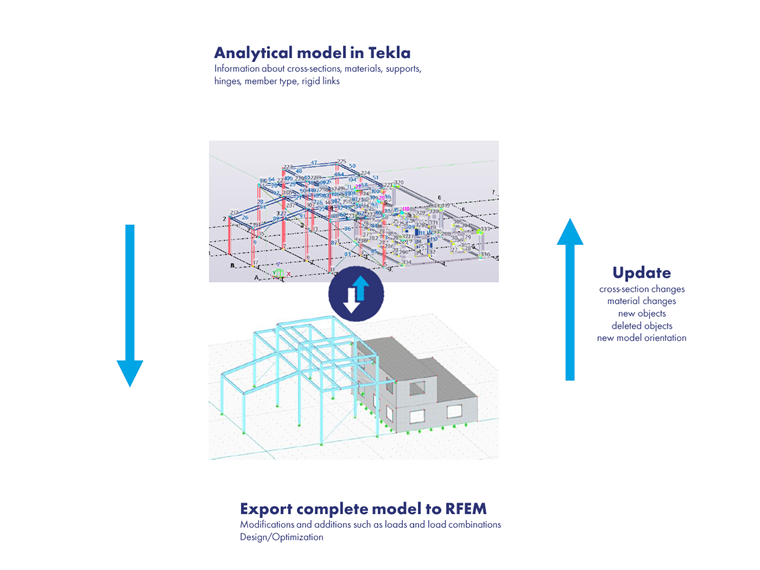
1. Full Model Workflow
Step 1: Analytical Model in Tekla
- Start by creating the analytical model in Tekla Structures with details such as cross-sections, materials, supports, hinges, and rigid links.
Step 2: Export Complete Model to RFEM
- Export the complete model to RFEM, where additional modifications can be made (e.g., applying loads, defining load combinations).
- Perform structural analysis and design optimization in RFEM.
Step 3: Update and Export Back to Tekla
- After analysis, update Tekla with the changes made in RFEM, such as cross-section modifications, material updates, and/or the addition/deletion of objects.
Use Case: Best suited for projects requiring comprehensive structural analysis across the entire model, with back-and-forth data exchange to refine both the CAD and analysis models.
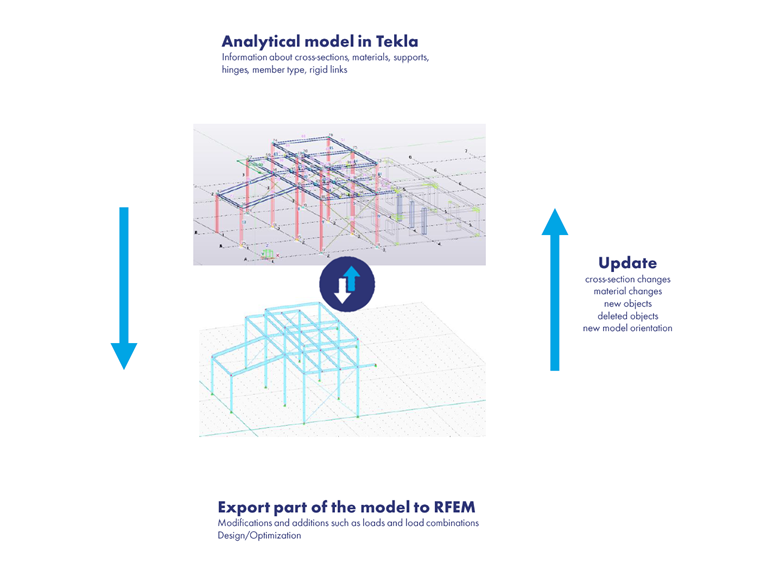
2. Partial Model Workflow
Step 1: Analytical Model in Tekla
- Similar to the full model workflow, start by defining the analytical model in Tekla.
Step 2: Export Part of the Model to RFEM
- Export only part of the model (e.g., a specific section) to RFEM.
- In RFEM, modify this part of the model (loads, load combinations) and perform the structural analysis.
Step 3: Update and Export Back to Tekla
- After completing the design analysis in RFEM, update Tekla with the changes specific to the affected portion of the model (e.g., updated cross-sections or new objects).
Use Case: Ideal for focusing on particular structural components or sections that require more detailed analysis, without re-analyzing the entire model.
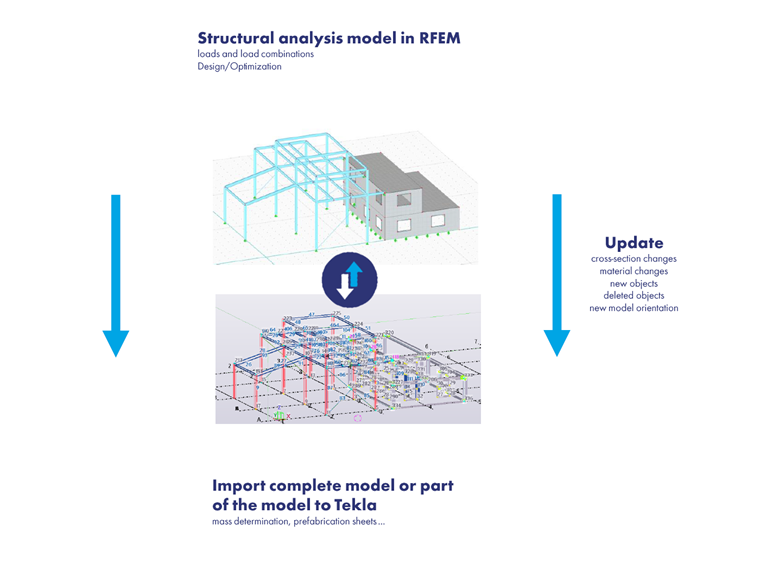
3. Structural Analysis Model in RFEM Workflow
Step 1: Structural Analysis Model in RFEM
- Perform structural analysis in RFEM, including defining loads, load combinations, and design optimization.
Step 2: Update
- Update the model in RFEM as needed based on the latest analysis results.
Step 3: Import Complete or Partial Model to Tekla
- Import the updated model (either complete or partial) into Tekla for further detailing, mass determination, and prefabrication.
Use Case: Best for cases where the analysis is handled entirely in RFEM, and Tekla is used for detailing, prefabrication, and construction documentation after the analysis is complete.
Final Words
The integration between Tekla Structures and RFEM 6 through the Dlubal-Tekla interface significantly enhances the efficiency and accuracy of structural design. This direct coupling streamlines the design process by eliminating the need for redundant work and minimizing the risk of errors caused by data transfer between independent models. Whether you're working with a full model or specific sections, you can rely on seamless data exchange to keep CAD and structural analysis models aligned, ensuring a smooth workflow from conceptual design to construction documentation.
The variety of export and import options, combined with the flexibility of different workflows, allows you to tailor your approach to the needs of each project. With these tools, you can confidently manage complex designs, optimize structures, and reduce the risk of costly errors, all while saving time and effort.