


In modern structural design, glass is becoming an increasingly popular material due to its aesthetic appeal and versatile functionality. However, designing glass structures requires careful consideration of various factors such as load-bearing capacity, serviceability, and material properties. RFEM 6, with the Glass Design add-on, offers an integrated solution for the structural analysis and design of glass surfaces. This add-on enables engineers to perform detailed calculations for mono and laminated glass, ensuring compliance with relevant standards like DIN 18008.
This article will guide you through the steps for using the Glass Design add-on to design the curved surface model provided below. It's important to highlight that the Glass Design add-on supports the design and dimensioning of both flat and curved glass panels, offering advanced capabilities for creating glass structures.
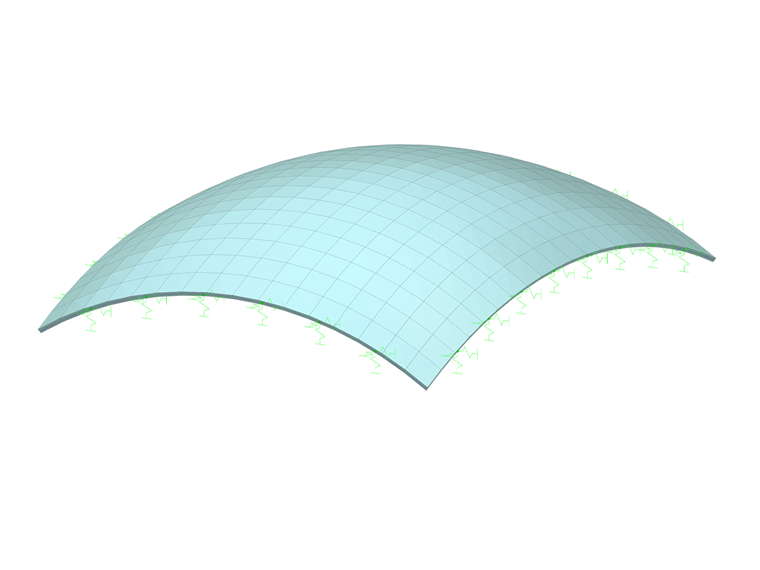
Steps for Using the Glass Design Add-on in RFEM 6
1. Activate the Glass Design Add-on
To start using the Glass Design add-on, navigate to the Add-ons tab under Model - Base Data and activate the Glass Design add-on. Once activated, the user interface will be extended with new entries in the navigator, tables, and dialog boxes, making the glass design parameters fully integrated into RFEM 6. This integration ensures that you can work with the add-on seamlessly alongside your other design functions. Similar to other add-ons, you'll also be able to set the standards for load case classification, load wizards, and glass design.
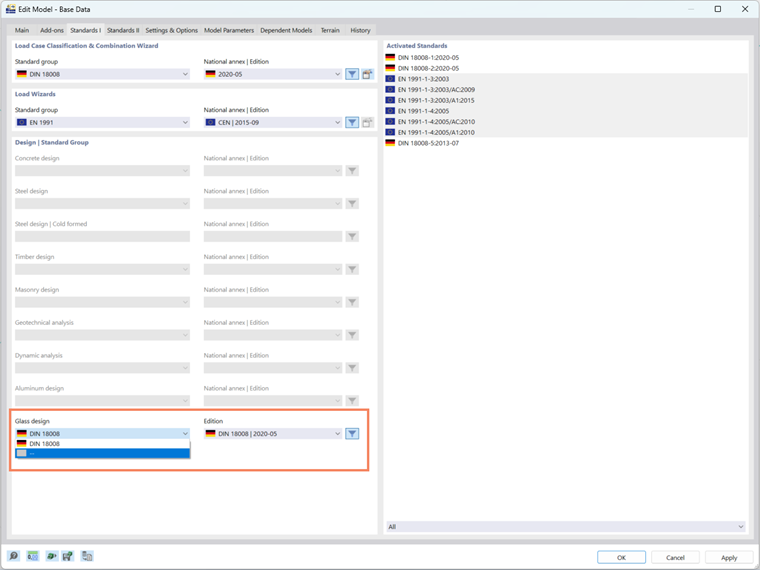
Additionally, there is the option to perform stress verification without applying a standard (Image 1), providing flexibility for customized calculations based on your specific needs. This feature allows for more tailored approaches when performing glass design calculations outside of the standard requirements.
2. Set Materials for the Glass Design
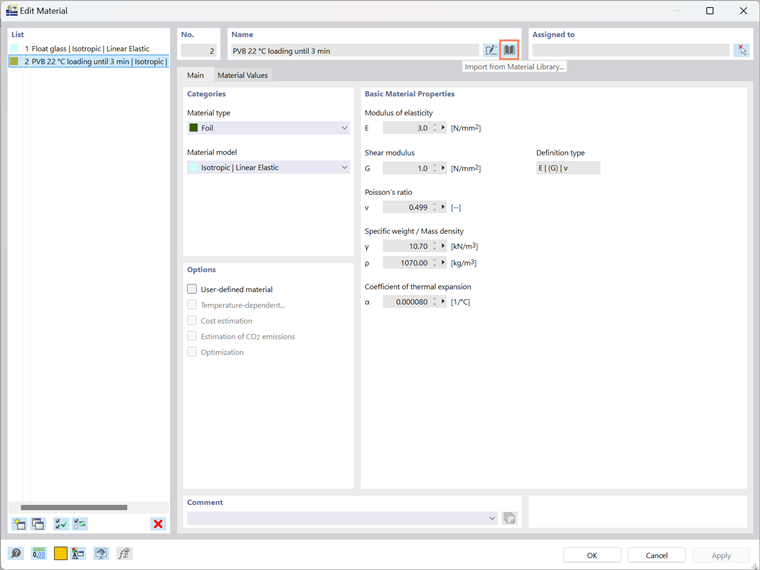
Next, you'll need to select the materials for the glass design. RFEM 6 offers a Material Library from which you can directly import various materials. In this case, you'll be working with a layer model, so you’ll define materials such as glass and foil. These materials are based on an isotropic material model, ensuring that the behavior of the layers is properly represented. For example, you might use Float Glass and Foil PVB 22, which are defined under a specific loading condition (e.g., under 3 minutes). Once materials are selected, they are integrated into the design for further modeling.
3. Define Glass Structure Thickness
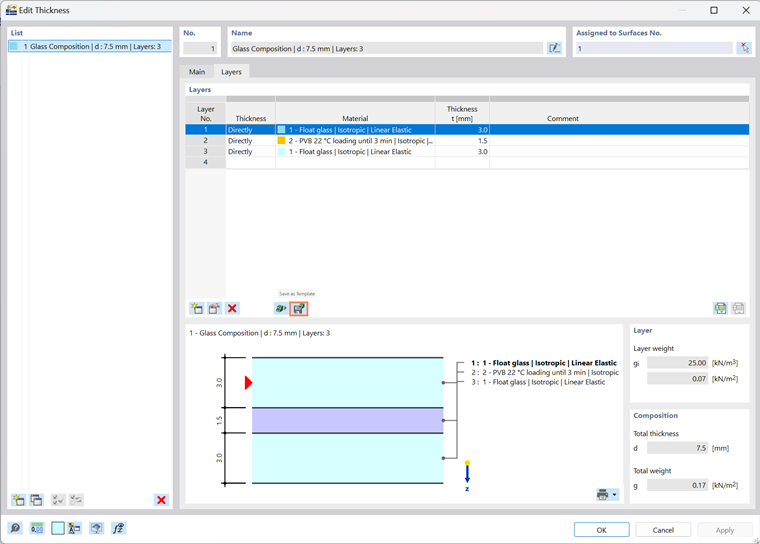
After setting the materials, the next step is to define the thickness of the glass structure. RFEM 6 allows you to define a Glass Structure thickness type (Image 3) to help create layers with their own specific thickness. The thickness types are linked to the materials you imported from the RFEM material library (Image 4).
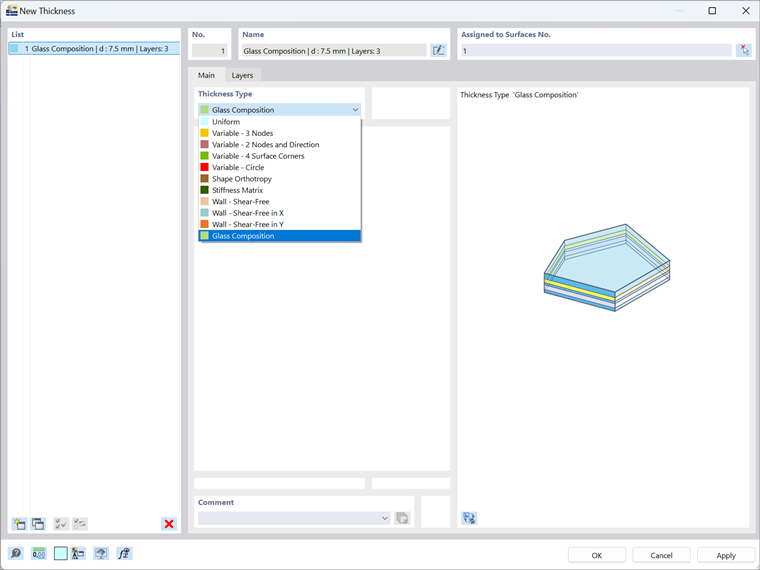
One of the key advantages of the Glass Design add-on is that it allows the dimensioning of both single glass panes and laminated glass panels, catering to various project needs. This flexibility makes it suitable for a wide range of applications, from simple glass elements to complex laminated structures. The program currently supports these compositions, while the calculation method for insulating glass is still under development.
In addition, the add-on offers Layer Visualization, which enables you to visualize the glass layers directly in the cross-section (Image 4). This feature makes it easier to assess and adjust complex laminate structures, providing a clearer overview of the design and allowing for quick modifications as necessary.
Save and Reuse Layer Sets
If you’ve manually created layer sets for your glass structure, you can save them for future use. Simply click the “Save” button, name your template (Image 4), and the layer structure, including stiffness reductions, will be stored locally on your computer. You’ll find this file named thickness_layers.bin in the following directory:
- C:\Users\"username"\AppData\Local\Dlubal\RFEM6_6.xx\configs.
This file can be copied to other computers, meaning you won’t need to recreate the layer structures every time you work on a new project.
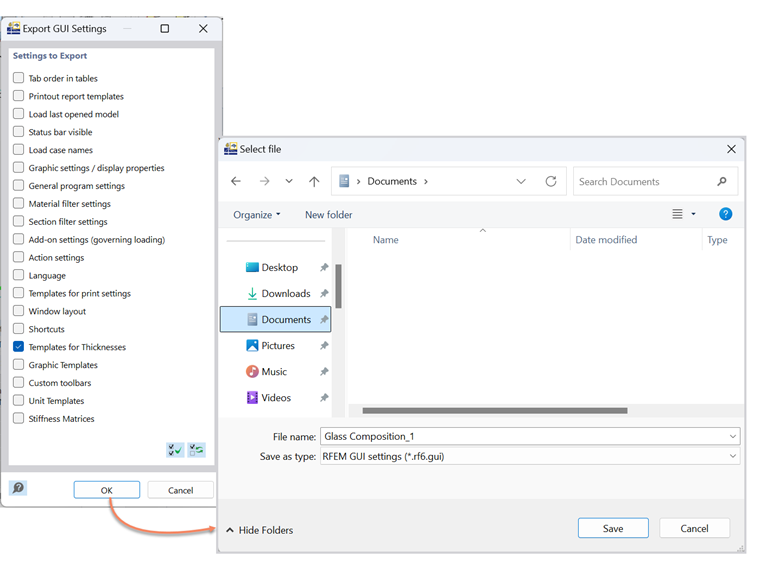
Additionally, the layer structures can be saved in the GUI settings and exported accordingly. To do this, go to the Options menu and select Export GUI Settings. In the Export GUI Settings dialog box, ensure that the Templates for Thicknesses option is selected, as shown in Image 5. After clicking OK, the Windows "Choose File" dialog will appear. Specify the location where you want to save the file, assign a file name, and the export will create a configuration file in .rf6.gui format.
4. Assign Glass Composition to Surfaces
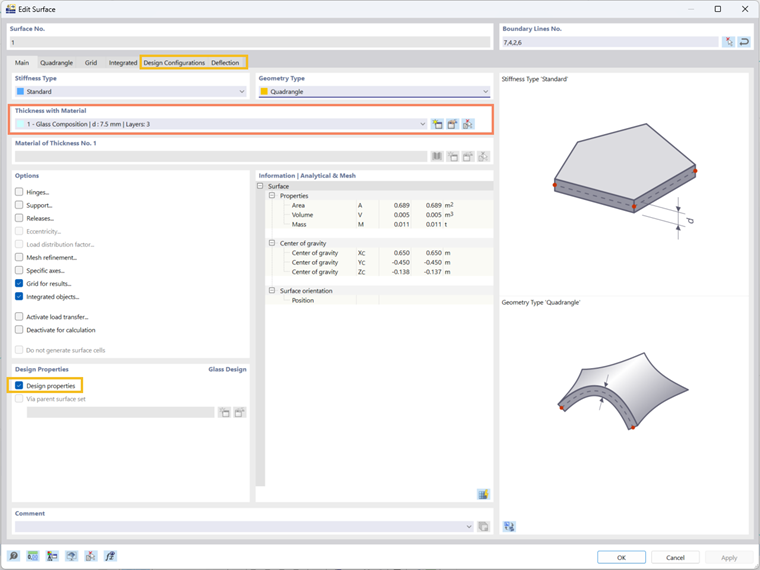
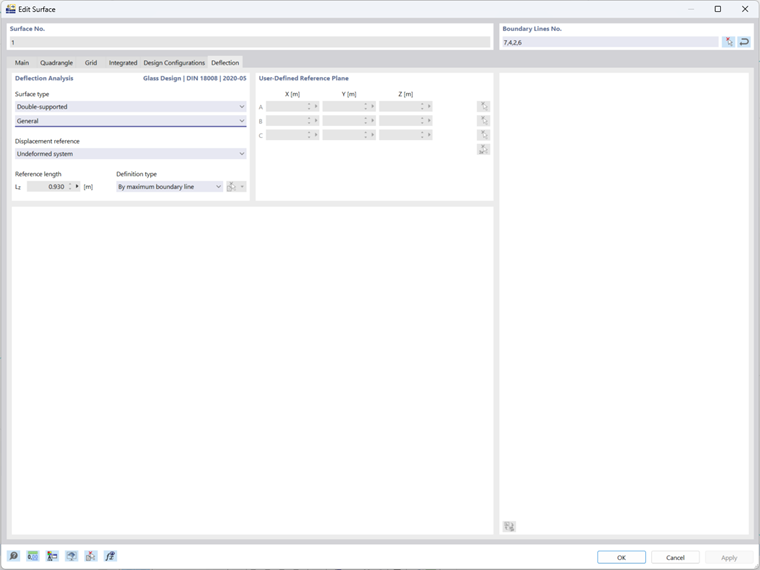
At this step, you can assign the glass composition you’ve just created to the surfaces of interest by selecting it from the drop-down menu, as shown in Image 6. Once the composition is selected, activate the design properties for glass design in the same window. This will unlock additional settings and tabs, such as Design Configurations and Deflections, providing the flexibility to fine-tune settings that are specific to glass design. These options allow you to adjust the design parameters to match the unique requirements of your project, such as the Deflection Analysis settings for Glass Design, shown in Image 7.
5. Define Glass Composition Model
At this stage, the program automatically generates a glass composition model, which will serve as the foundation for making further adjustments specific to glass construction. The program will group surfaces with similar geometries into a single model. If needed, you can create additional models and assign them to the appropriate surfaces using the "Create New Material" button.
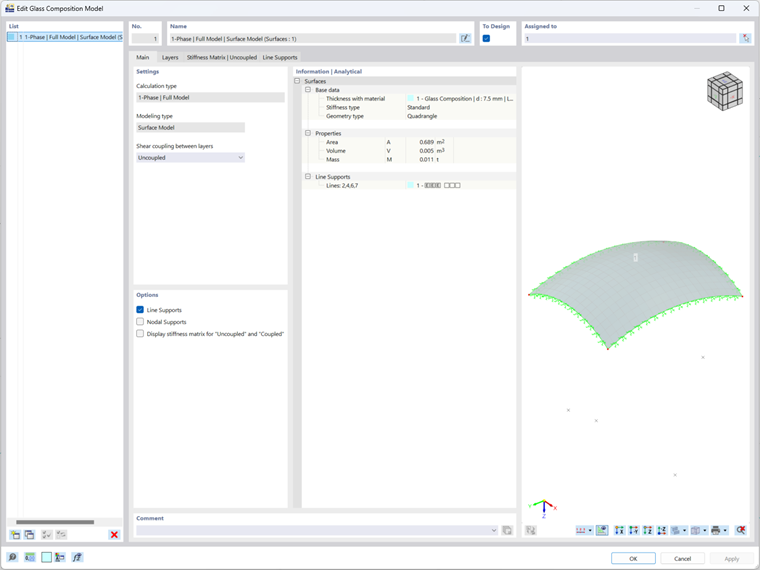
To access the Glass Composition Model window, go to the Navigator under Types for Glass Design. In this window (shown in Image 8), you must configure the following settings:
- Calculation Type
The first critical step is determining how the glass structure will be analyzed. In the Glass Composition Model Main window, select 1-Phase | Full Model in the Calculation type section. This option performs a direct analysis of the specified area, considering all supports defined in RFEM. This ensures that the analysis reflects all relevant factors and accurately represents the behavior of the glass structure under different conditions.
- Modeling Type
In this step, you will choose how the glass structure should be modeled. Currently, only the surface model is available for analysis, which is ideal for most applications and enables efficient calculation and design. The solid model is still under development and will be available in future updates. Once released, the solid model will offer a more detailed approach for analyzing glass structures that require in-depth analysis.
- Shear Coupling Between Layers
For laminated glass, you have the option to either consider or neglect the shear coupling between the glass layers. This decision is particularly important when modeling laminated glass. When using the surface model, note that the ratio (G * t) / (Gf * tf) should be less than 1000 to obtain accurate results. If this ratio exceeds 1000, it is recommended to switch to the solid model, which will provide a more precise representation of shear coupling effects.
6. Set Load Cases and Combinations
In this step, you will define the load cases and load combinations for the glass design. If you select DIN 18008 as the design standard like in this example, it is important to also choose DIN 18008 for the load case classification and combination wizard. This ensures that the program activates additional options in the Load Cases & Combinations tab (Image 9).
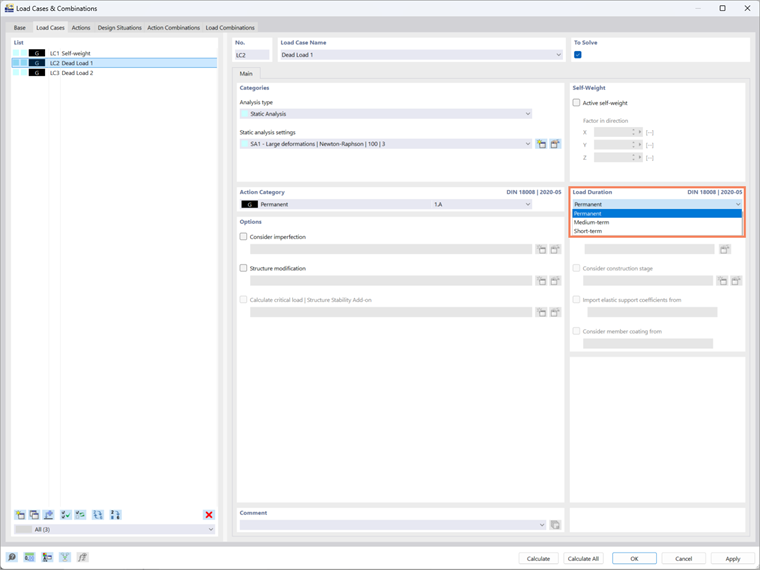
The program automatically records load duration factors for each load case, ensuring precise stress calculations in accordance with the DIN 18008 standard. For load cases, you can define the load duration for each action category, and the program will automatically set these values according to the specifications of the standard. If the automatic combination wizard is not used, you can also manually adjust these settings as needed.
7. Activate Design Situations
In the Design Situations tab, you can activate any of the design situations relevant to your glass structure, allowing you to test different scenarios and configurations. An additional advantage of the add-on is the ability to reverse the shear coupling setting in laminated glass, enabling you to analyze both cases—with and without shear coupling—within the same file (Image 10). This ensures dual verification, allowing you to perform calculations and verify both situations simultaneously by simply copying the Design Situation and checking the reverse setting.
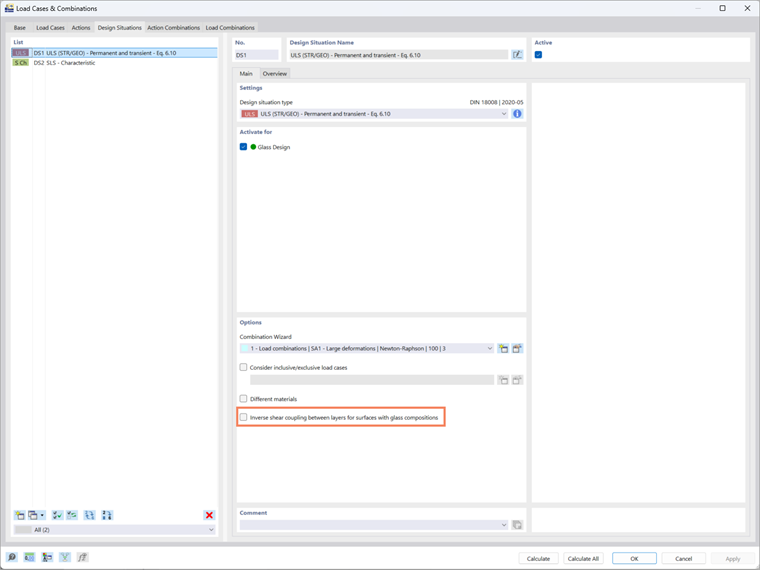
By enabling this option, the inverse stiffness matrix, as defined in the glass structure model, is used in the calculations. This approach offers a more comprehensive evaluation of the glass structure's performance, providing valuable insights into how the glass will behave under different conditions.
8. Run the Calculation
After configuring all the necessary settings, including materials, thicknesses, modeling type, and load cases, you’re ready to run the calculation. At this point, RFEM 6 will analyze the glass structure according to the design parameters you’ve specified, providing you with the results needed for your project.
9. Review Results
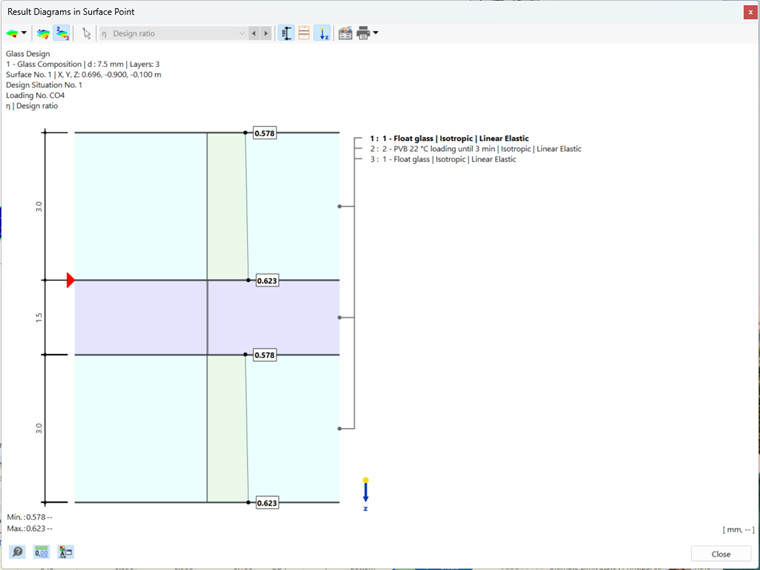
Once the calculation is complete, the results can be accessed as usual through both result tables and graphical outputs. You will find a comprehensive graphical and tabular presentation of the results, providing clear insights into the performance of the glass structure.
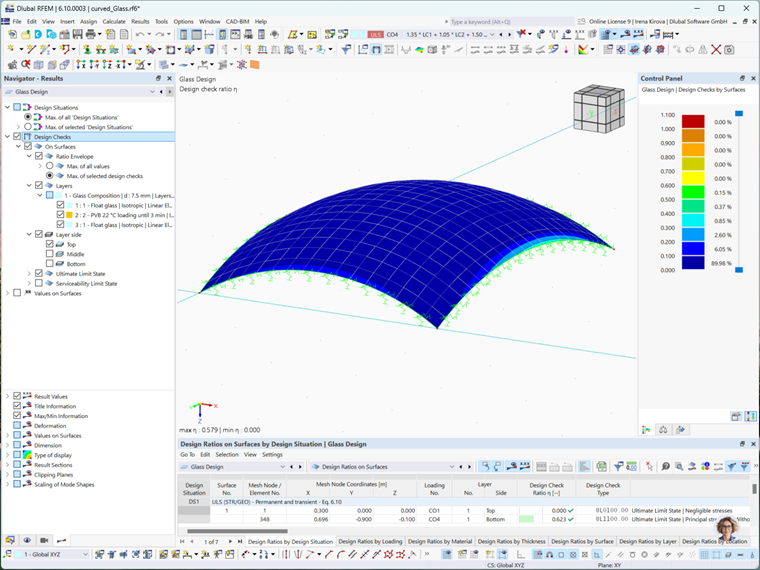
For each result point, the program allows you to display the results across the cross-section, giving you a detailed overview of the structural behavior. You can also visualize the results as a diagram, helping to interpret the data more intuitively.
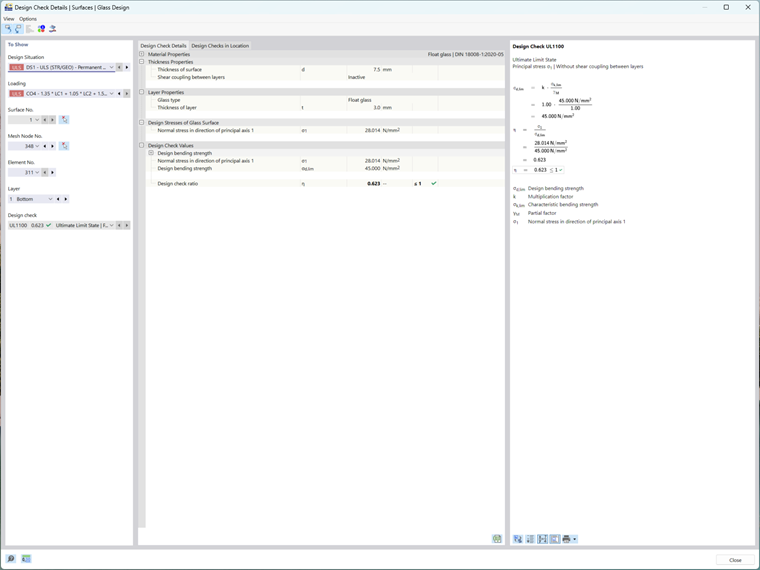
Additionally, you can view a detailed display and output of the proof formulas for each result point. This feature enables you to show the result details alongside the relevant formulas, offering full transparency and clarity in how the calculations were made.
Conclusion
In conclusion, the Glass Design add-on for RFEM 6 offers a powerful and flexible solution for designing glass structures, from single panes to complex laminated systems. With its seamless integration into the RFEM 6 interface, it provides intuitive tools for material definition, modeling, and analysis. The ability to perform dual verification, analyze shear coupling, and visualize results across the cross-section ensures a thorough evaluation of your design. By leveraging both graphical and tabular results, along with detailed proof formulas, you can confidently assess the structural performance of your glass elements, making informed decisions throughout the design process.