You can define the parameters for glass components for both thicknesses and materials. You then assign these properties to the surfaces and define the design parameters.
Thicknesses
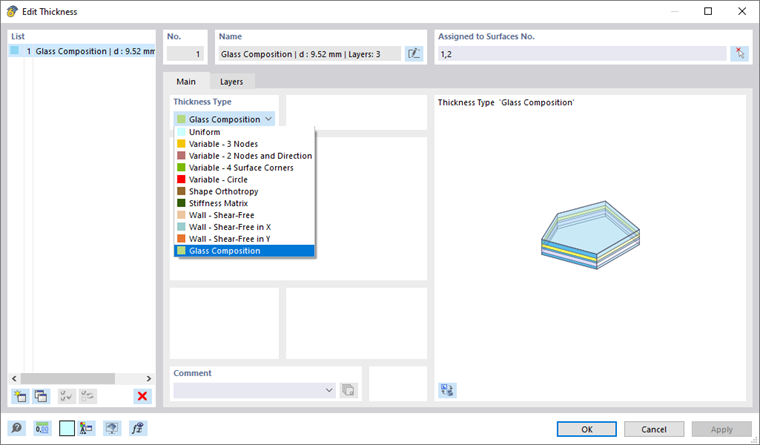
Once the Glass Design add-on is activated in the model's Base Data, the Glass Composition thickness type can also be selected as the thickness of surfaces.
Layers
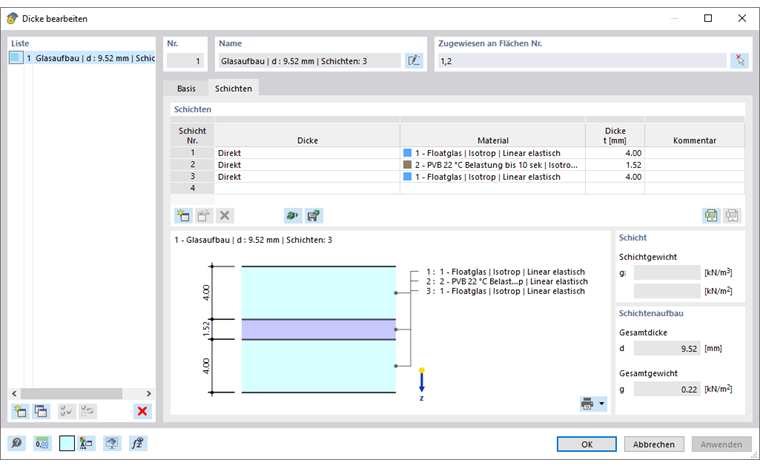
When specifying the "Glass Composition" thickness type, the Layers tab becomes available. Here, you can define the structures of any layers.
Saving Layer Compositions
Manually created layer compositions can be saved in a library. To do this, use the
 button. Then enter a name of the template.
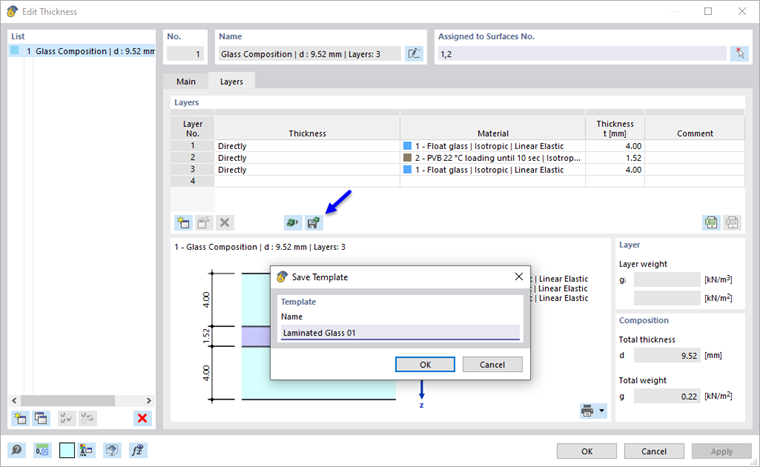
The layer compositions, including stiffness reductions, are saved locally on your computer. In the standard installation, you will find this file with the name thickness_layers.bin in the directory C:\Users\"UserName"\AppData\Local\Dlubal\RFEM6_6.xx\configs. You can copy the file to other computers. This way, you only need to create user-defined compositions once.
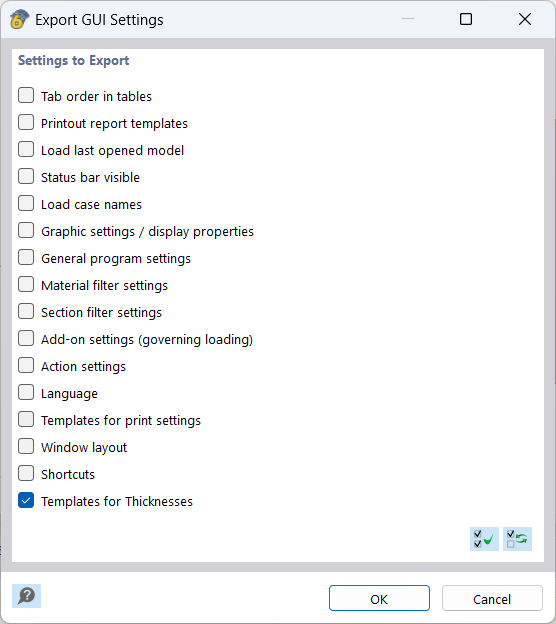
Furthermore, the layer compositions are also saved in the GUI settings and can be exported from there. This is described in the chapter Adjusting Color and Display of Objects of the RFEM manual.
Materials
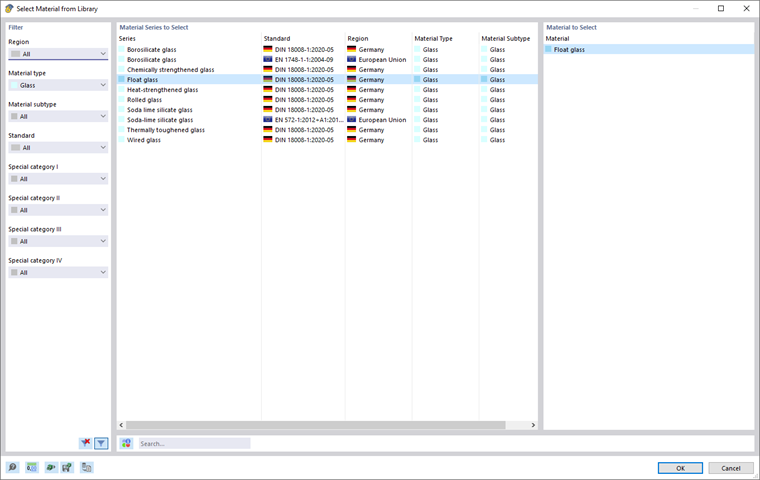
You can select the materials as usual in the Material Library. The materials of the Glass, Foil, and Gas type are allowable.
Surfaces
In the Surfaces tab, you can activate the design properties of the glass design.
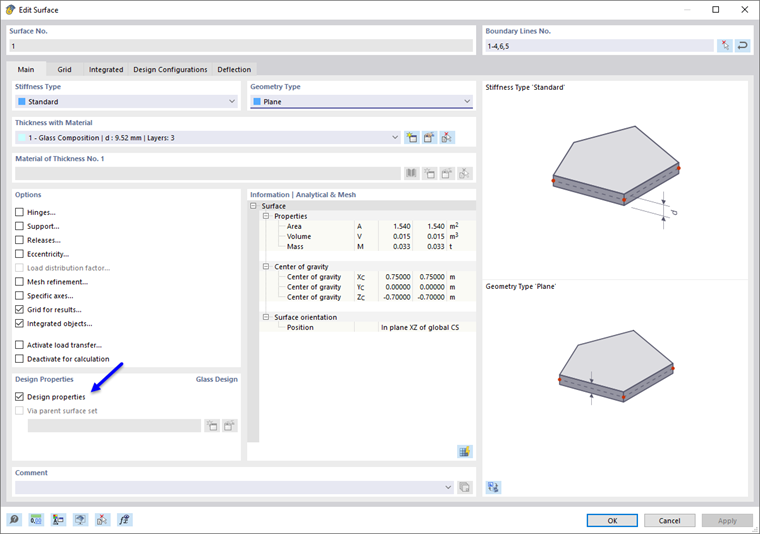
This activates additional tabs.
- Design configurations
- Deflections
In the Additional Options, you can make settings complying with the selected standard.