The properties of many materials are stored in an extensive database.
Opening Library
You can access the library in the New Material dialog box by clicking the
 button.
Selecting Material
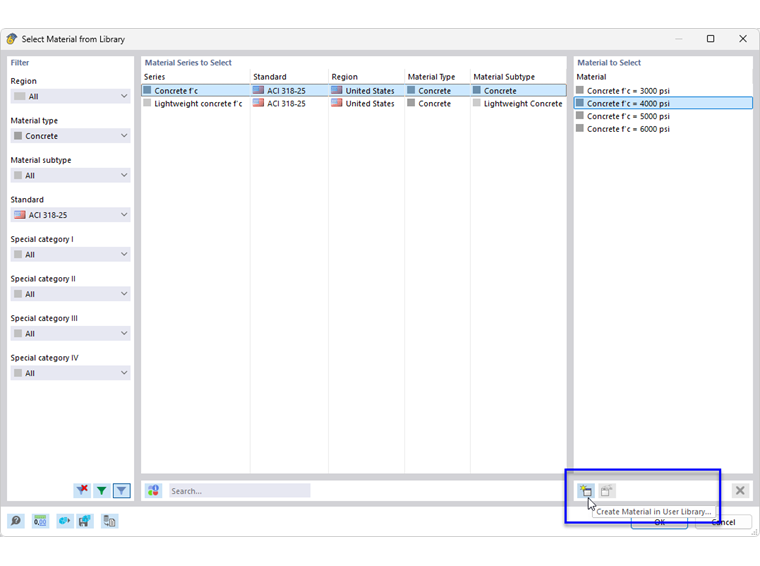
The library is divided into the sections “Filter”, “Material Series to Select”, and “Material to Select”.
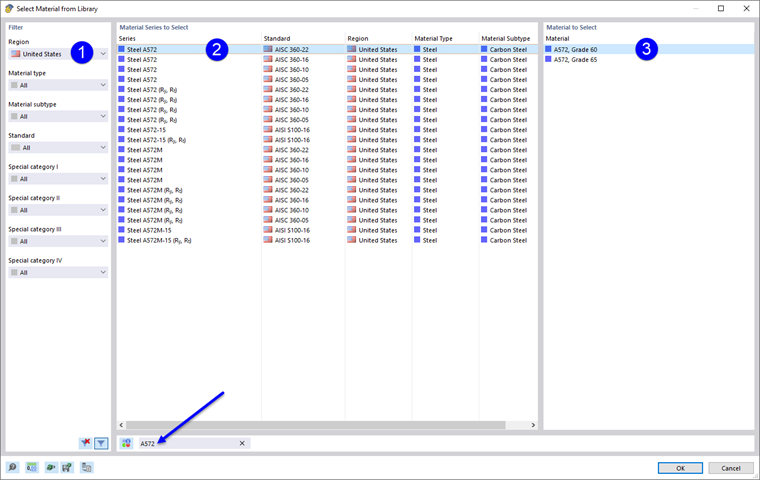
This results in the following recommendation for selecting a material:
- Set the appropriate filter.
- Define the material series.
- Select the material.
Click OK to transfer the material to the original "New Material" dialog box.
Filter
The "Filter" section offers various selection options. You can filter the materials by certain criteria, reducing the offered data.
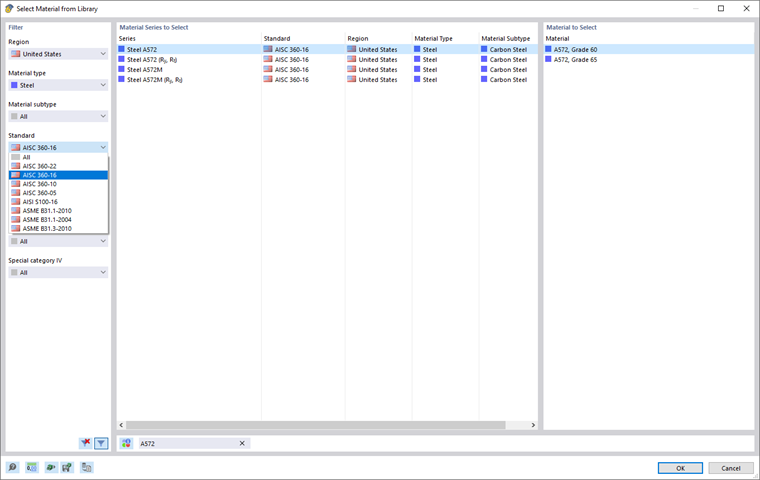
Use the
 button at the bottom of the section to control whether to also display the materials of standards that are no longer valid.
Material Series to Select
In the middle section, you define the material series in which the material is filed. The series are sorted by standard, region, and material type.
Use the
 button at the bottom of the section to check the properties of the selected material.
Material to Select
In the right section, you can select the material whose properties you want to use in the model.
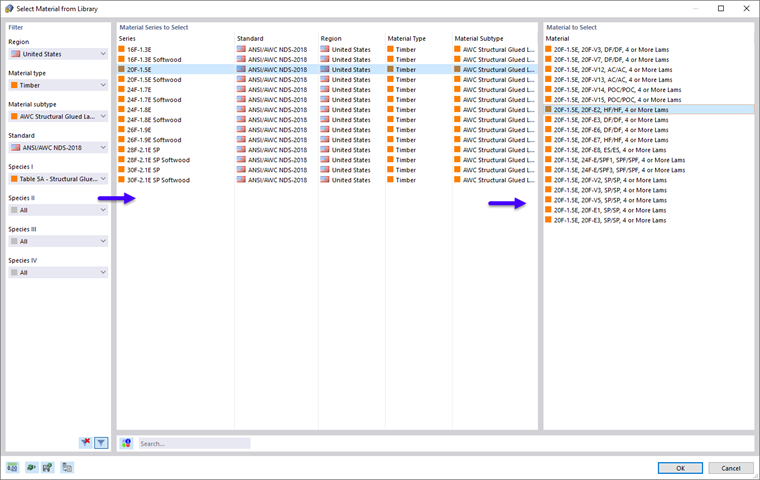
Click OK or use the Enter key to transfer the selected material to the "New Material" dialog box.
Adding Material
If the suitable material is not available in the library, you can add it as user-defined material and then use it across projects.
Click the
 button at the bottom right of the library.
The “New User-Defined Material” dialog box appears.
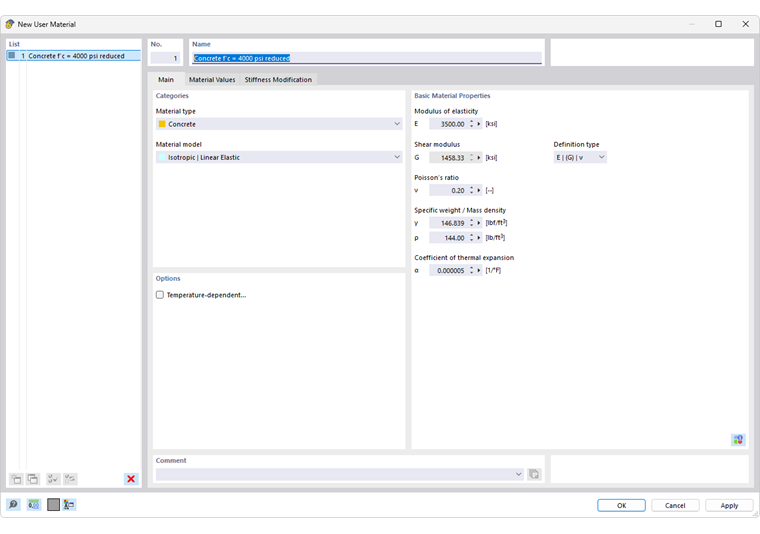
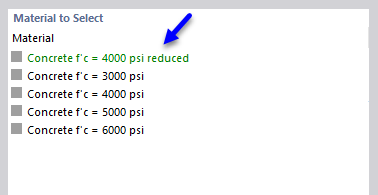
Enter the name of the material in the “Name” text box. Define the material properties and then click OK to save the material in the library. It is displayed in green in the “Material to Select” list; the material series is also displayed in green.