Answer:
If you encounter problems with the graphical display in RFEM, please refer to the following FAQ:
- To resolve problems related to the graphics card:
- To ensure that RFEM 6 and RSTAB 9 use the dedicated graphics card in your computer:
- To update the graphics card driver and find an updated driver version:
- To identify the graphics card used by RFEM 6:
- For problems related to antivirus software:
- If your graphics card or virtualization environment does not support Open GL4.2, you may need to switch to the MESA Software renderer:
- To restore the screen settings to the Dlubal standard:
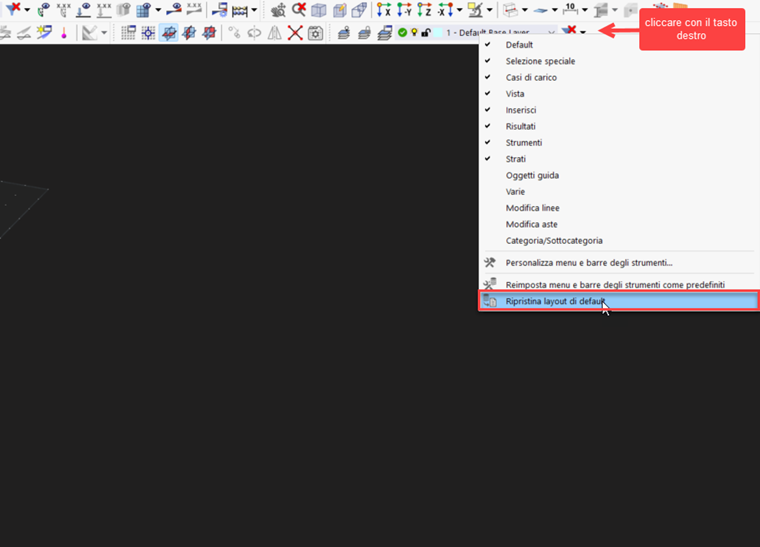
- To restore the default toolbar commands, right-click anywhere on the toolbar:
- To restore the default graphics settings:
- Close RFEM 6 and all related processes;
- Access the “configs” folder located in the working directory as indicated in FAQ 5379 below and rename it (for example, “config_00”):
- Finally, restart RFEM 6.
- To restore the CAD toolbar:
- Close RFEM 6 and all related processes;
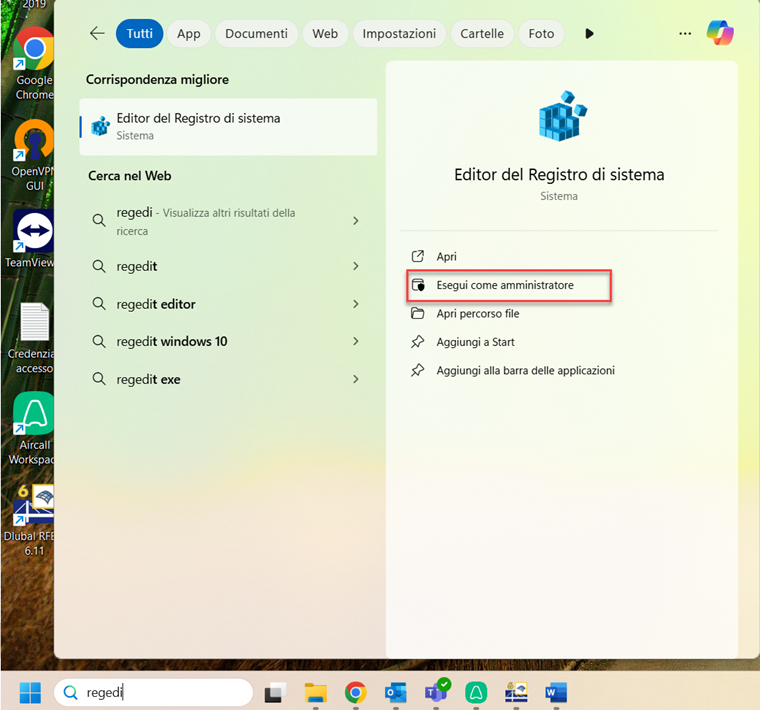
- Type regedi in the Windows search bar;
- Click on Run as Administrator;
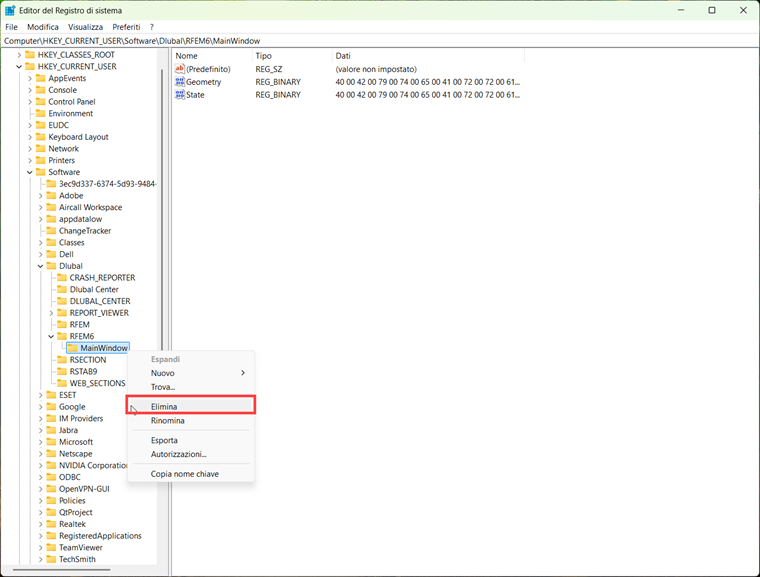
- Click on the main window and then on Delete;
- Finally, restart RFEM 6.