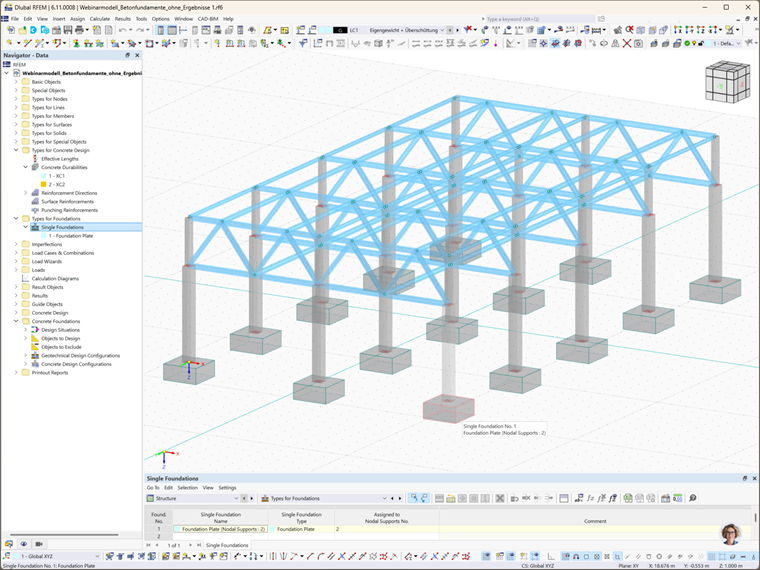
Foundations are a crucial element in structural design, providing essential support and stability for buildings and infrastructure. Whether you're designing a concrete foundation for a metal building, working on a wind turbine foundation design, or simply exploring reinforced concrete design, understanding the basics of concrete foundation design is vital. For more insights on this topic, check out our Knowledge Base article:
This article will explore the process of creating concrete foundations using the Concrete Foundations add-on for RFEM 6. By utilizing this powerful tool, engineers can ensure compliance with international standards such as Eurocode 2 and Eurocode 7. The add-on optimizes foundation types, material selection, and geotechnical checks, streamlining the design process and ensuring transparency.
Key Features of the Concrete Foundations Add-on
The Concrete Foundations add-on enhances the foundation design process by offering several key features, such as:
- Foundation Types: Design reinforced and unreinforced foundation plates, bucket foundations, block foundations, and stepped foundations with ease.
- Geotechnical Design Checks: Conduct essential checks for ground failure, sliding design, equilibrium limit state, uplift limit state, and more, all in accordance with Eurocode 7.
- Reinforced Concrete Design: Perform in-depth checks for bending design, punching shear, and minimum reinforcement in compliance with Eurocode 2.
- Graphical and Tabular Output: Receive clear visualizations and detailed tables for reinforcement requirements.
- Design Transparency: Ensure accuracy and clarity with ultimate and serviceability limit state checks.
Step-by-Step Guide to Creating Concrete Foundations in RFEM 6
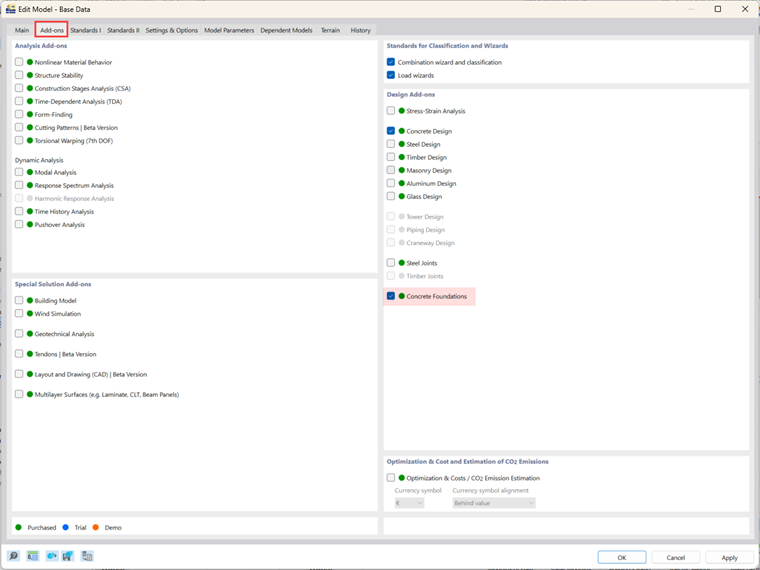
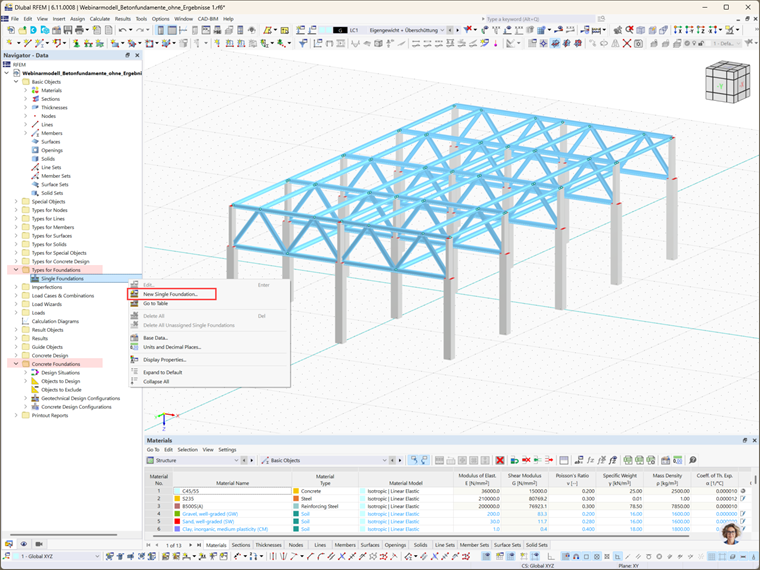
Designing concrete foundations using the Concrete Foundations add-on is intuitive and efficient. Once activated (Image 1), the add-on becomes available in RFEM 6’s Data Navigator under the Types for Foundations and Concrete Foundations folders (Image 2).
Step 1: Select the Foundation Type
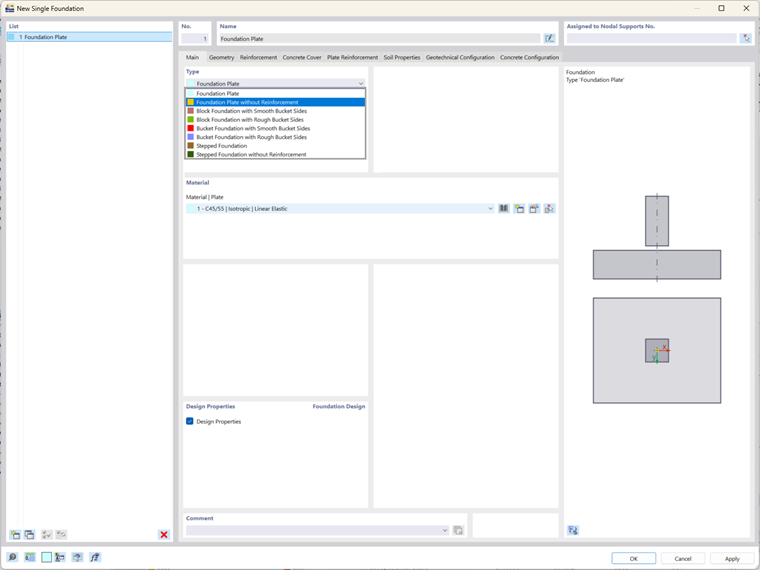
To begin, open the New Single Foundation window from the Types for Foundations folder in RFEM 6's Data Navigator (Image 2), and select the appropriate foundation type from the drop-down menu (Image 3). Available foundation types include:
- Foundation Plate (with or without reinforcement)
- Block Foundations (with smooth or rough sides)
- Bucket Foundations (with smooth or rough sides)
- Stepped Foundation (with or without reinforcement)
For this example, we’ll choose the reinforced foundation plate.
Step 2: Define Foundation Geometry
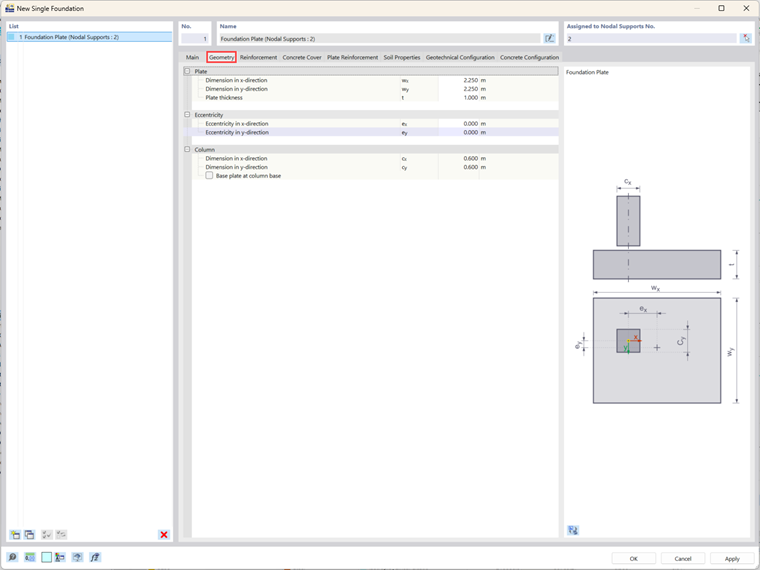
After selecting the foundation type, define its geometry. For the selected foundation plate, set the dimensions in both the X and Y directions and specify the plate’s thickness (Image 4). You can also define the eccentricity of the column above the foundation and the column dimensions. If the foundation is assigned to nodal support, these details are automatically retrieved from the existing model. This ensures that the geometry integrates seamlessly with other RFEM 6 tools, such as the Steel Joints add-on when designing foundations for a steel building.
Step 3: Concrete Cover and Durability
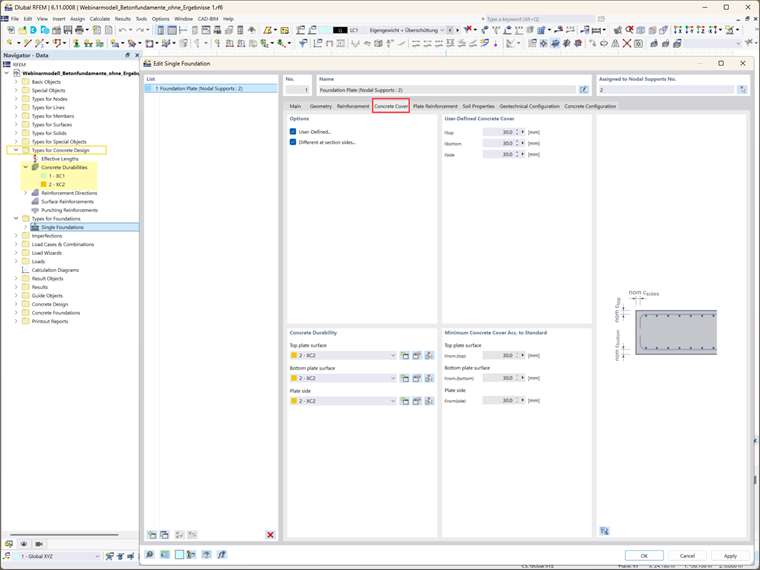
The concrete cover is determined by the concrete durability settings. These settings can be accessed from the Concrete Durability folder in the Data Navigator. If these settings have already been defined, the concrete cover is determined automatically. The minimum required concrete cover, as specified by the relevant standards, is displayed. Alternatively, you can manually define the cover by selecting the “User-defined” option, allowing for custom values for each side of the cross-section.
Step 4: Reinforcement Definition
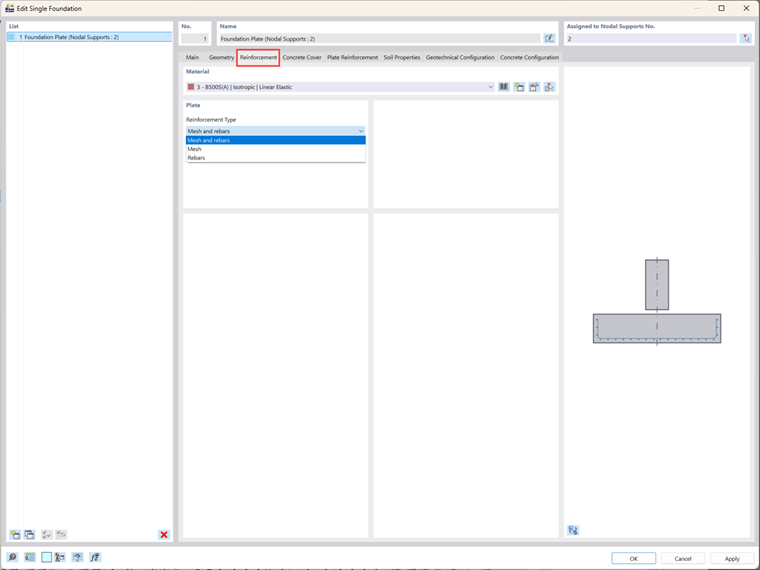
In this step, select the reinforcement options (mesh, rebar, or both) and the corresponding material (Image 6). Reinforcement plays a vital role in structural foundation design, ensuring that the foundation can support the required loads. Once the reinforcement type is selected, you can further specify the reinforcement details.
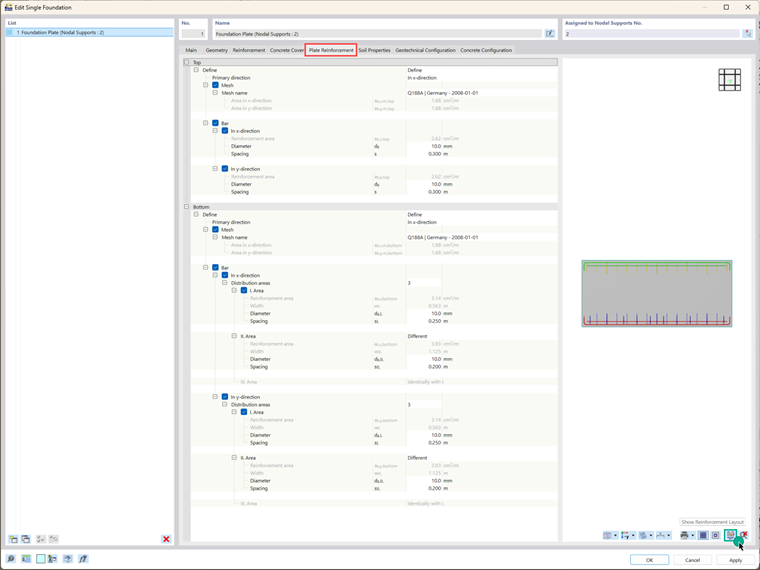
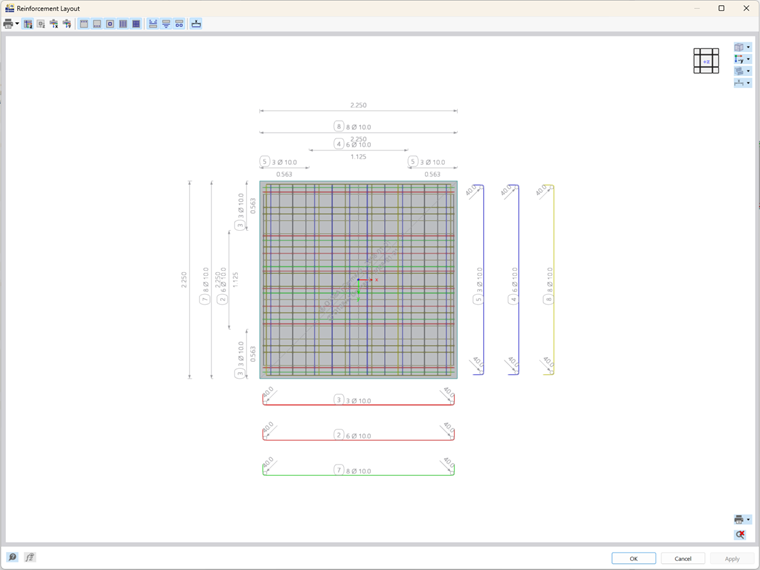
For instance, in the case of reinforced foundation plates, both top and bottom slab reinforcement can be defined (Image 7). The reinforcement type selected in the previous tab determines the available input options in this section. For this example, both mesh and rebars were selected, and their corresponding properties were defined for the top and bottom layers (Images 7 and 8).
Step 5: Define Soil Properties
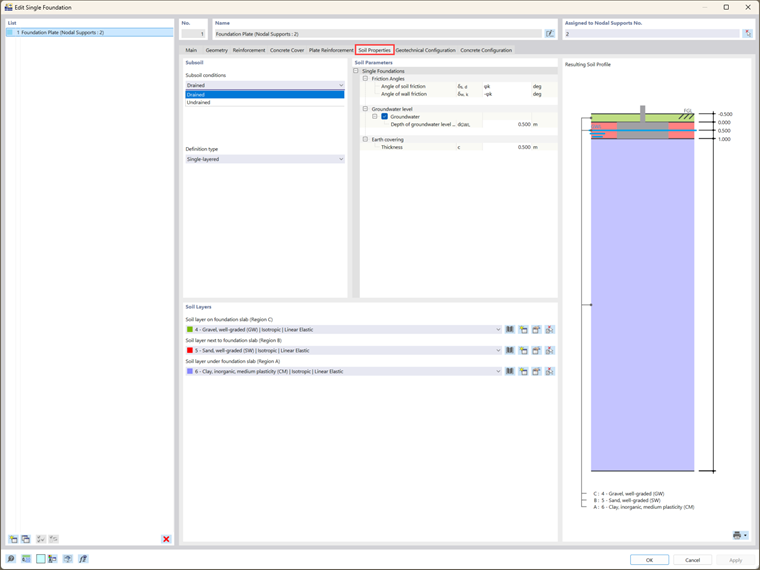
The Soil Properties tab allows you to define critical soil properties. You can model the soil as single-layered (or multi-layered in future releases) and specify subsoil conditions such as drained or undrained soil (Image 9). Different soil materials can be assigned to regions surrounding the foundation slab, such as regions beneath, beside, and above the slab. The Soil Parameters section enables you to define additional soil characteristics, including friction angles, groundwater levels, and earth cover thickness.
Step 6: Configure Design Settings
Two essential design configurations must be specified:
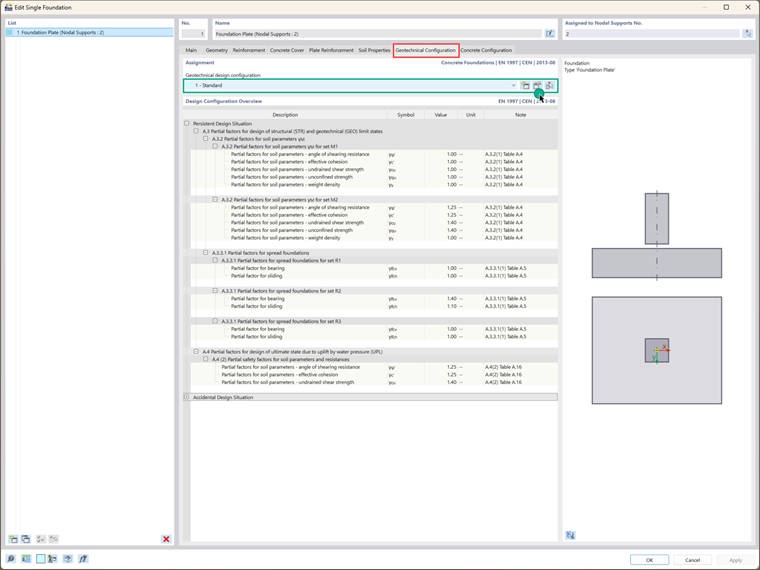
- Geotechnical Design Configuration: This includes parameters like design load, ground failure, sliding, equilibrium limit state, uplift limit state, and eccentricity loading. You can select an existing geotechnical configuration, edit it, or create a new one. The overview will then appear as shown in Image 10.
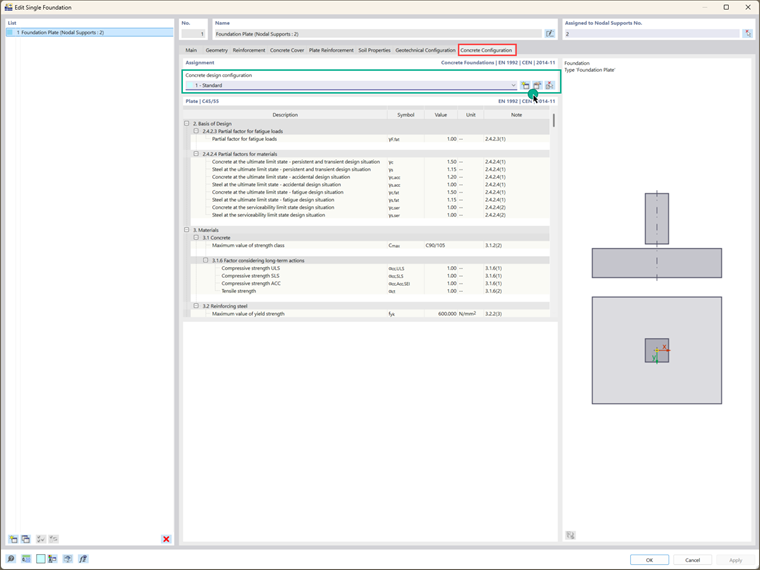
- Concrete Design Configuration: Here, define the concrete design parameters, including punching shear, minimum and maximum reinforcement, and the positioning of design sections. Again, you can select an existing geotechnical configuration, edit it, or create a new one (Image 11).
Final Words
In this way, the concrete foundations have been successfully created and the essential design parameters have been defined. Future articles will explore the next steps in the analysis and design process, including considerations for additional foundation loads, corresponding load combinations, and the specific design calculations and checks required for various foundation types. These insights will help you fully optimize your foundation designs to meet the unique requirements of different structural conditions and benefit from the excellent features the Concrete Foundations add-on for RFEM 6 offers you.