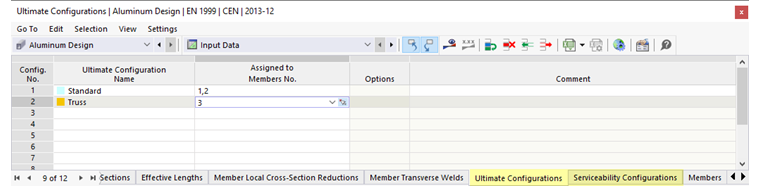
In the "Aluminum Design" category of the Navigator – Data and in the corresponding table, you can define the design properties for the aluminum design. Here you can define types for design parameters, such as effective lengths, local member section reductions, and transverse welds, and assign them to the corresponding objects. Furthermore, you can select the combinations and objects to be designed and assign specific design configurations to them.
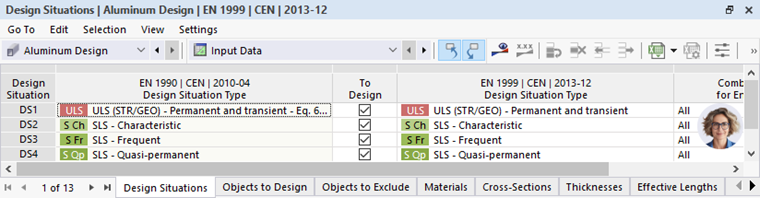
The functions known from RFEM are available for working in the input tables. Further general information can be found in the chapter Tables of the RFEM manual.
Global Settings
Basic settings for the aluminum design are managed in the Global Settings dialog box. You can access this dialog box using the
 button in the input tables or the shortcut menu in the navigator entry.
Design Types
The design types are organized as types that are tailored to the respective standard. A detailed description of the individual design types can be found in the following chapters:
You can create several types for each design type and assign them individually to members or member sets.
Assigning Design Type
There are several ways to assign types to the objects to be designed:
- Enter the numbers of the relevant objects in the Assigned to section of the dialog boxes for the individual types.
- Enter the numbers of the objects in the Design Types input tables.
- Assign the type in the Design Types tab in the member or member set dialog box or define a new type.
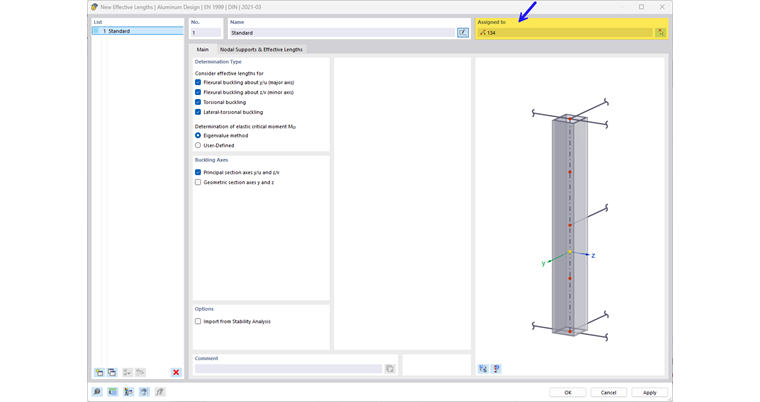
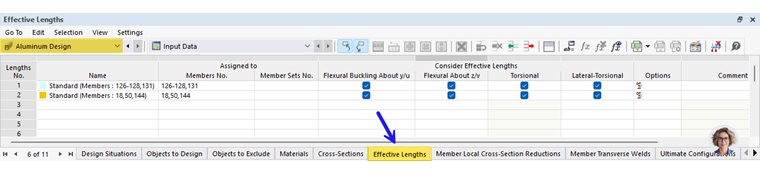

In the Design Types tab, you can select a predefined type from the list and assign it to the corresponding member or member set. The
 button provides the option to create a new type. Click the
 button to graphically select another object to adopt its properties for the aluminum design. If you want to edit the selected type, use the
 button.
Graphical Display of Design Type
All design types can be displayed graphically in the work window. You can find the corresponding display options in the “Aluminum Design” menu item in the Navigator – Display. This allows you to easily check the correct assignment and provides clear documentation via the graphic printout.
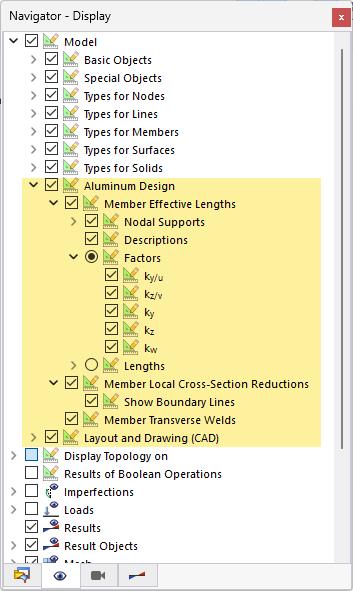
The selected types for the design types are also displayed in the lower area of the editing dialog box for the member or member set.
Design Objects
You can define the combinations and objects to be designed according to various criteria in the corresponding tables. A detailed description of these options can be found in the following subchapters:
Design Configurations
Detailed settings for the individual design checks are defined in design configurations. For each limit state, there is a separate design configuration that manages the standard-specific regulations and where you can specify limit values or various design options, for example. Only those design configurations are available that are activated in the Global Settings.
The design configurations are also organized as types. You can create different types for each design configuration and assign the appropriate configuration to each object.
Assigning Design Configuration
You have the following options for assigning object to the Aluminum Design configurations:
- Enter the numbers of the relevant objects in the Assigned to section of the dialog boxes for the individual configurations.
- Enter the numbers of the objects in the input tables of the Configurations.
- In the member, member set, or surface dialog box, assign the configuration in the Design Configurations tab or define a new configuration.
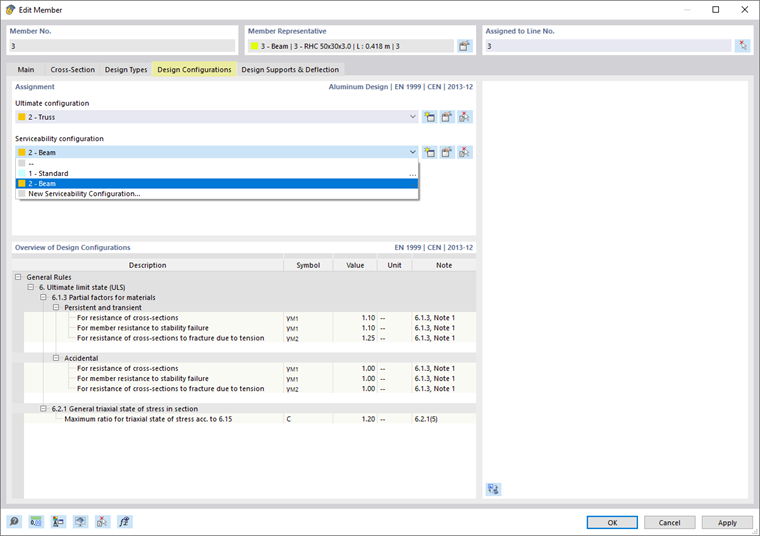
In the member, member set, or surface dialog box, you can select an existing configuration from the list. Use the
button to create a new configuration. The
button allows you to graphically select another object, from which the respective configuration is adopted. Click the
button to open the edit menu of the selected design configuration.
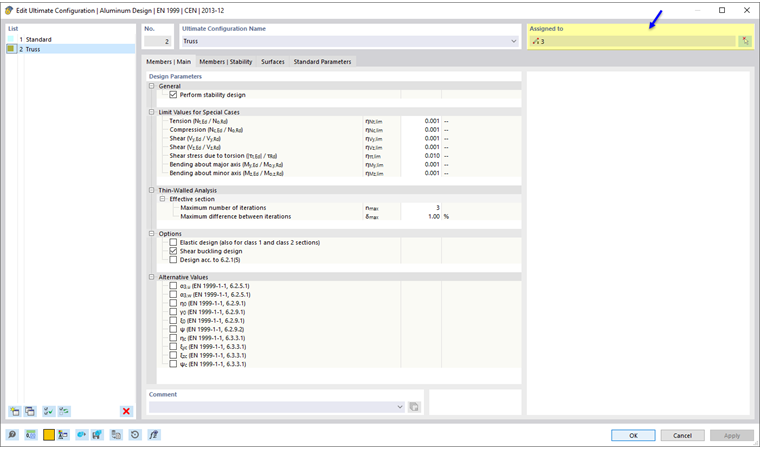
The list on the left side of the dialog box shows all configurations of this limit state in the model. Use the
button to create a new configuration based on the default values of the selected design standard, or copy an existing configuration using the
 button. You can delete a configuration by using the
 button.
You can assign the configuration to the respective objects individually. To do this, use the assignment function by clicking the
 button in the dialog box at the top right, the Aluminum Design input table for the corresponding configuration, or the selection option in the editing dialog box for the object to be designed.
For an object with no configuration assigned to a particular limit state, no design checks are carried out in this limit state. This means that you can simply deactivate the serviceability limit state design for the individual members by not assigning the serviceability limit state configuration to these members.