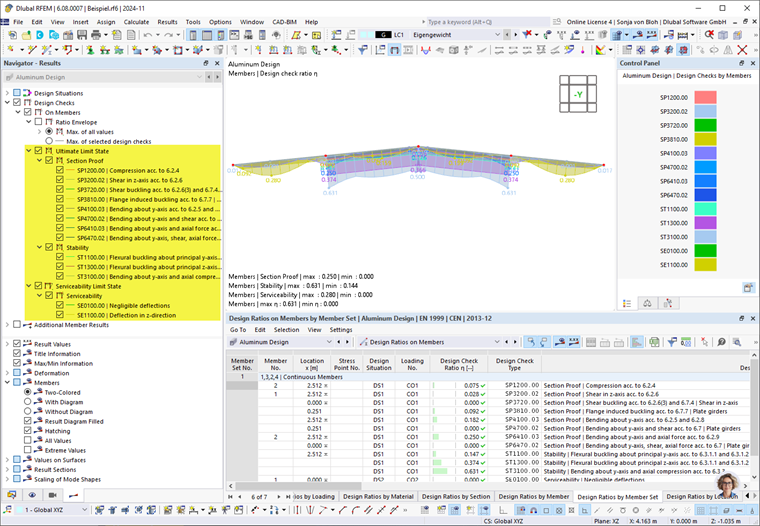
The results of the design add-on can be displayed graphically in the work window. The same selection and #/en/downloads-and-information/documents/online-manuals/RFEM 6/002205 evaluation options as for the structural analysis. For example, you can use 6/000075 visibilities for members and 6/000084 result sections for surfaces.
Navigator – Results
As with the structural analysis results display, you can specify the results to be displayed in the Navigator – Results . Select the Aluminum Design result type at the top of the list to switch to the aluminum design results.
In the Design Situations category, you can specify whether the maximum results from all design situations (the “envelope”) or the maximum values of specific design situations should be displayed.
In the Design Checks category, select the result type for members or surfaces. Multiple selections are possible; the selected results are then displayed simultaneously on the model (see the image Displaying Multiple Result Types).
The Additional Member Results category allows for the display of mode shapes on the model. In the Values on Surfaces category, you can define the result values for display on the surfaces (see the chapter Result Values on Surfaces of the RFEM manual).
In the lower section of the navigator, you will find additional settings. Here, you can show or hide the result values or result sections. The Members category provides important control options for the display of result diagrams and the displayed values (see also the images in the chapter Design Checks).
Control Panel
The Control Panel is also tailored to the results of the Aluminum Design for RFEM 6. There you can adjust the colors of the Result Diagrams. This may be necessary if you are displaying multiple result types.
You can also define value ranges for the graphical results using user-defined color scales.
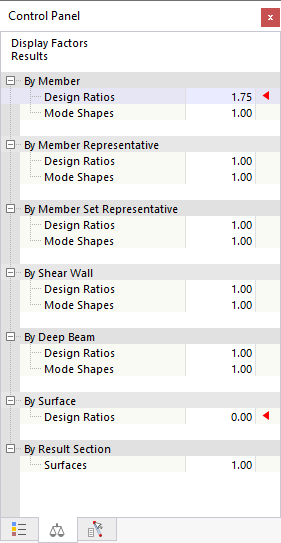
Furthermore, you can scale the resultFactorsTab factors of the result diagrams or specify certain objects for the display of results.