


The stress diagrams in section represent the results on stress points of a cross-section. To access this graphical representation, click the button
 . It is available in the result tables of the "Stress-Strain Analysis" category for member objects, but not for surfaces.

The "Stress Diagrams in Section" window appears.
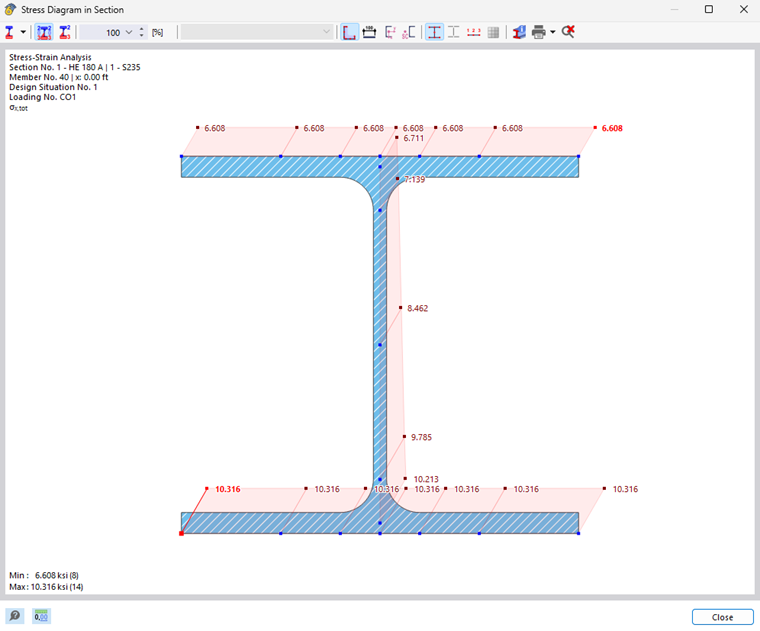
The graphic shows the stress state available for the result of the current table row.
You can control the graphics with the mouse as usual, for example, zoom it.
It is also possible to adjust the result display by using the buttons in the toolbar. The buttons have the following functions:
| Button | Function |
|---|---|

|
List button with the selection option for result types |

|
Show or hide the values in stress points |

|
Display only the extreme values of positive and negative stresses |

|
Scaling of stress diagrams with a factor in [%] |

|
Show or hide the section outline |

|
Show or hide the dimensions |

|
Show or hide the axis system |

|
Show and hide the shear center |

|
Show or hide the stress points |

|
Show or hide the numbering of stress points |

|
Open the "Information About Section" window |

|
Print the current display |

|
Display the full view of the stress diagram |
Types of Results
Use the
list button to select results that should be displayed in the cross-section.
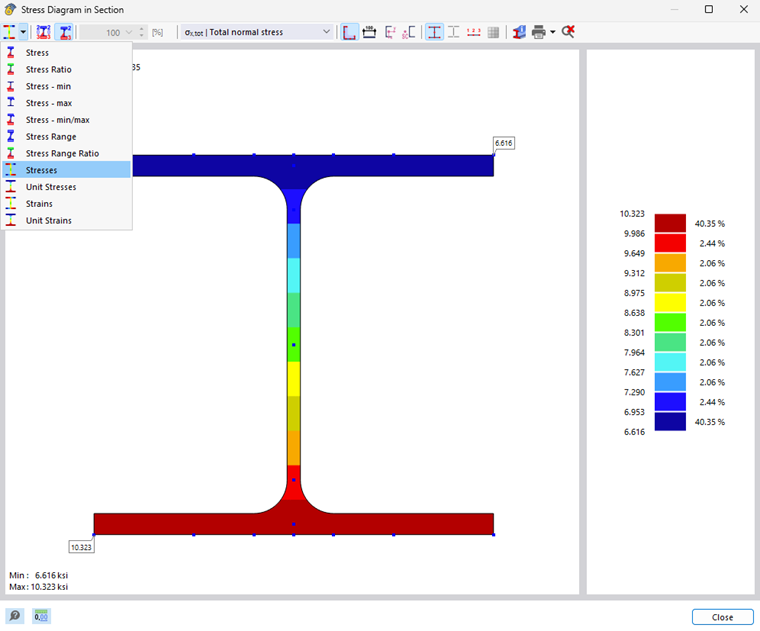
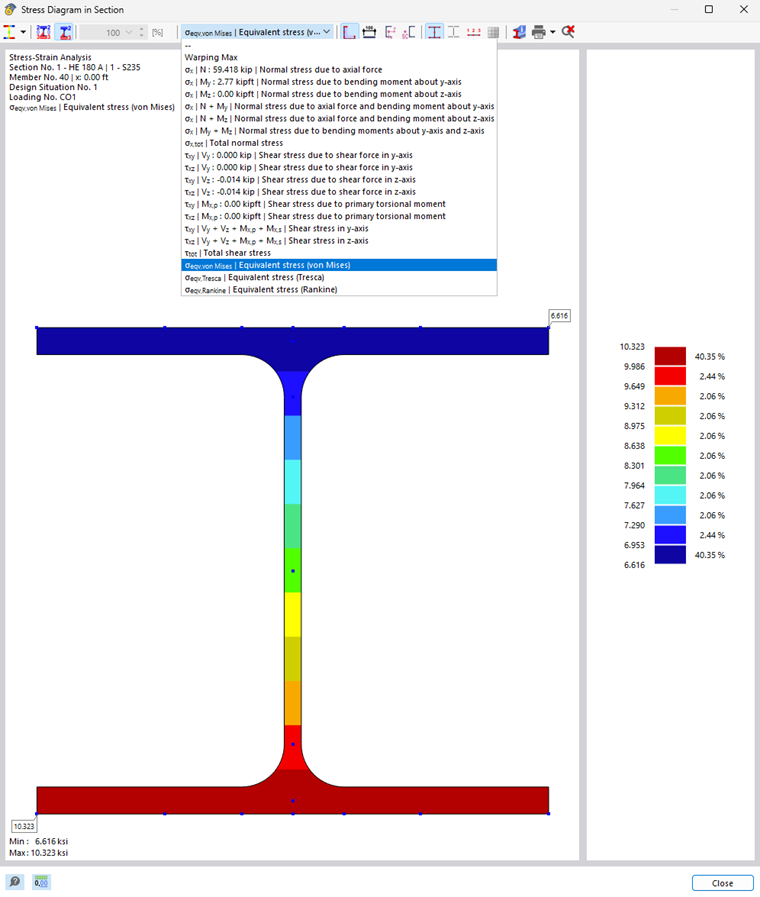
The lower options with the colored buttons allow you to display the result diagrams on the cross-sections in color. To do this, set the relevant result type in the middle list.
Graphic Printout
You can use the
list button to directly print the current graphic, save it as PDF, or transfer it to the printout report. You can also specify the details to be displayed in the print preview.

Graphs that you print to the printout report are automatically updated after a recalculation using the new input data.