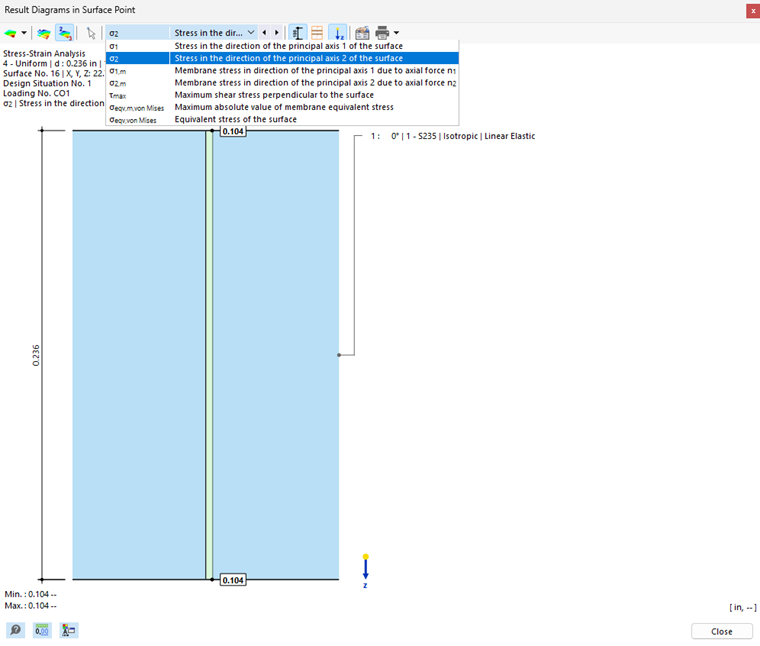
The result diagrams in the surface point represent the results in a surface cross-section. To access this graphical representation, click the
 button. It is available in the result tables of the "Stress-Strain Analysis" category for surface objects.

The "Result Diagram in Surface Point" window appears.

The graphic shows the stress state available for the result of the current table row. Depending on the setting in the Global Settings dialog box, these are the results for a mesh node or a grid point. They are displayed as linear diagrams from the results of the surface or layer sides (top, bottom, middle).
You can adjust the graphic using the buttons in the toolbar. The buttons have the following functions:
| Button | Function |
|---|---|

|
List button with the selection option for result types |

|
Show or hide the values of the surface sides |

|
Display only extreme values of the positive and negative results |

|
Show or hide the dimensions |

|
Show and hide the layer outlines |

|
Show or hide the local z-axis |

|
Open the "Edit Thickness" dialog box |

|
Print the current display |
If you have defined a surface using layer elements with the Multilayer Surfaces add-on, the numbers of the layers with the respective result diagrams are displayed.
Types of Results
Use the
list button to select results that should be displayed in the surface section.

In the middle list, you can then define the type of stress or strain for which you want to check the diagrams.
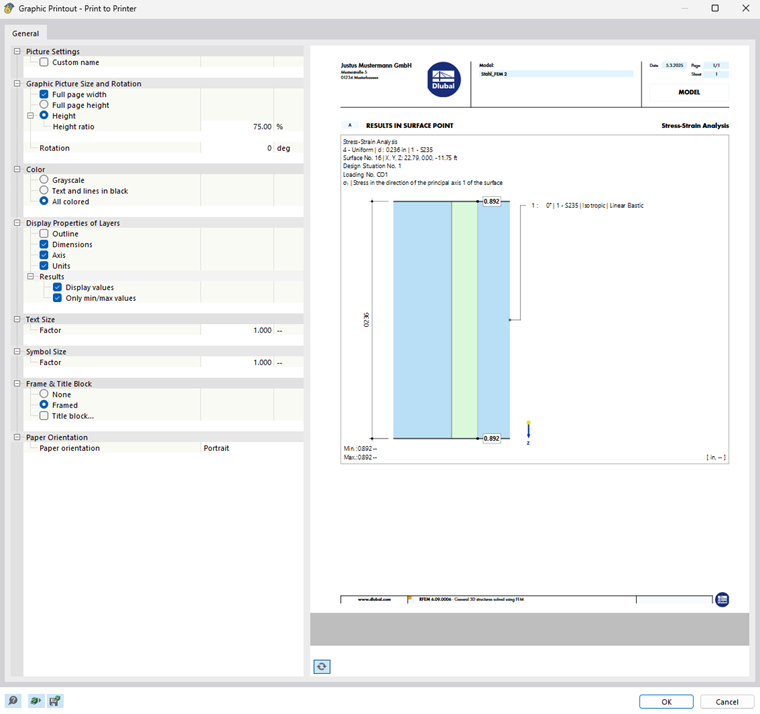
Graphic Printout
Use the
list button to directly print the current graphic, save it as PDF, or transfer it to the printout report. You can also specify the details to be displayed in the print preview.