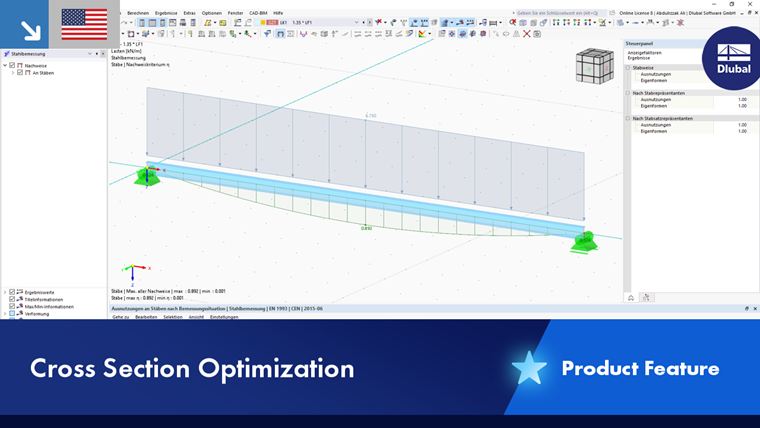
The result tables in the Ratios on Members category contain the result data for the design checks performed with the respective design ratios.
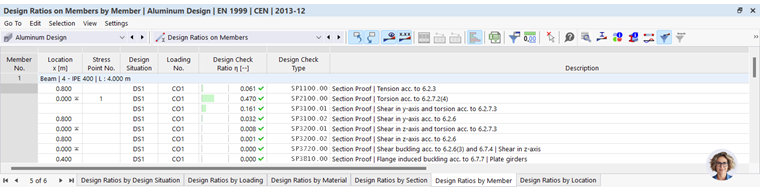
The member results are sorted in the tabs according to the following criteria:
- Loads (design situations, load combinations)
- Member properties (materials, cross-sections)
- Objects (member sets, members, member locations x)
Member Set No. / Member No.
For each design criterion, the number of the member set (if designed) and the member with the highest design ratio is specified.
Location x
The x-location in the member for which the maximum design ratio was determined is specified. The following x-locations are relevant for the output in tables:
- Start and end nodes
- Member result intermediate points (if defined)
- Member division according to Mesh Settings for members
- Extreme values of internal forces
Design Situation
This column lists the numbers of the design situations for which the individual design ratios are available.
Loading
The numbers of the load or result combinations that are governing for the respective design checks are specified.
Design Criterion
This column specifies the verification conditions according to standard. The design ratio is expressed by the length of the colored bar.
Design Type
Each design check is identified by a number. For example, cross-section checks according to Eurocode are identified by “SP”, stability analyses by “ST”, and serviceability limit state design checks by “SE”. The type of design is explained in the Description column.
Design Check Formula
You can activate this column in the Result Table Manager. It specifies the equations of the standard according to which the design checks are performed.
Description
Each design check is explained by a brief description with reference to the chapter in the standard.
You can display the design check details for a specific design ratio by clicking the
 button or double-clicking the line.
Filter Results by Limit State
If you only want the results for certain limit states or types of design to be displayed in the table, set the corresponding filters in the Result Table Manager. For example, you can display only the results for stability analyses by deactivating all “rows” except “Stability.”
The buttons in the table toolbar also provide the ability to quickly show or hide the results of specific limit states. They are accessible if design checks for the corresponding limit states are available.

|
Show or hide results for the ultimate limit state |

|
Show or hide results for the serviceability limit state |
Filter Results by Design Ratio
The list on the right in the table toolbar provides the ability to filter the tables according to design ratios. With the Max option, only the governing design is displayed for each object.
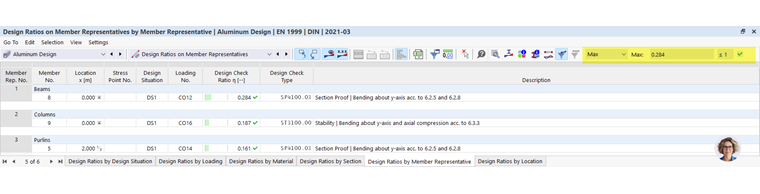
You can also use a user-defined filter criterion. To do this, use the Define option in the list. The Result Table Manager dialog box opens with the Criteria – Values tab. Define the condition—for example, to display only design ratios that are greater than a certain value.
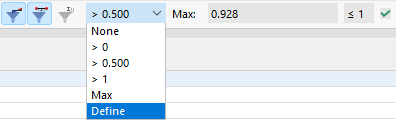
The chapter Filtering Result Tables of the RFEM manual describes how to define conditions for the table values.
Optimize Cross-Section
If the design checks for a cross-section are not fulfilled, you can have the program optimize the cross-section. The program will search for the smallest possible cross-section within the same cross-section series that fulfills the requirements. Proceed as follows:
- Set the table category Input Data for Aluminum Design.
- Switch to the Sections table.
- Click in the corresponding cell of the table column Use Other Section for Design.
- Open the list and select the Optimize option (see the image Optimizing Cross-Section).