The Objects to Design table lists all object types in the model that are eligible for timber design:
- Members
- Member sets
- Member representatives
- Member set representatives
- Surfaces (RFEM only)
- Surfaces | Beam panels (RFEM only)
- Surface sets (RFEM only)
- Surface sets | Beam panels (RFEM only)
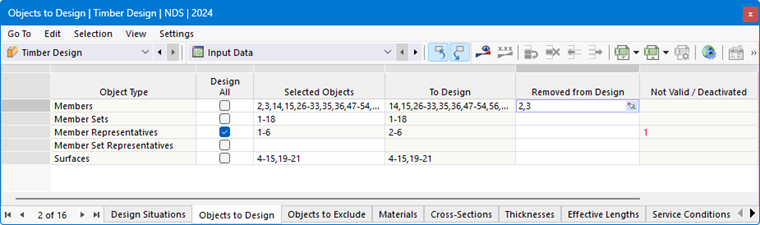
Objects to Design
The check box in the “Design All” column allows you to quickly select all available objects for design. This disables the input option in the “Selected Objects” column. The numbers of all objects of that object type are automatically entered there—for example, all members or all surfaces.
However, you can also manually specify which objects are to be designed: Deselect the “Design All” check box and then enter the numbers of the relevant objects in the “Selected Objects” column. You can also select the objects graphically using the
 button at the end of the cell.
Removing Objects from Design
If you want to exclude a (valid) object from the design, enter its number in the “Removed from Design” column. The entries in the “To Design” column will be reduced accordingly.
Not Valid / Deactivated Objects
The “To Design” and “Not Valid / Deactivated” columns are usually filled in automatically. This ensures that all objects with properties unsuitable for timber design are identified and deactivated for the design. These include, for example, steel or concrete members, members with a thin-walled cross-section, or surfaces with variable thickness. Likewise, all members and surfaces that are designed as member or surface sets (see the chapter [ [000460#set-design Member Sets]] and Surface Sets).