


Opening Global Settings
Basic settings for the steel design are managed in the "Global Settings" dialog box. This dialog box is essentially independent of the standard that you select in the model's Base Data. However, the default values may differ from each other.
You can access the global settings in one of the following ways:
- Shortcut menu in the "Steel Design" navigator entry
- Button
 in the toolbar of the steel design tables
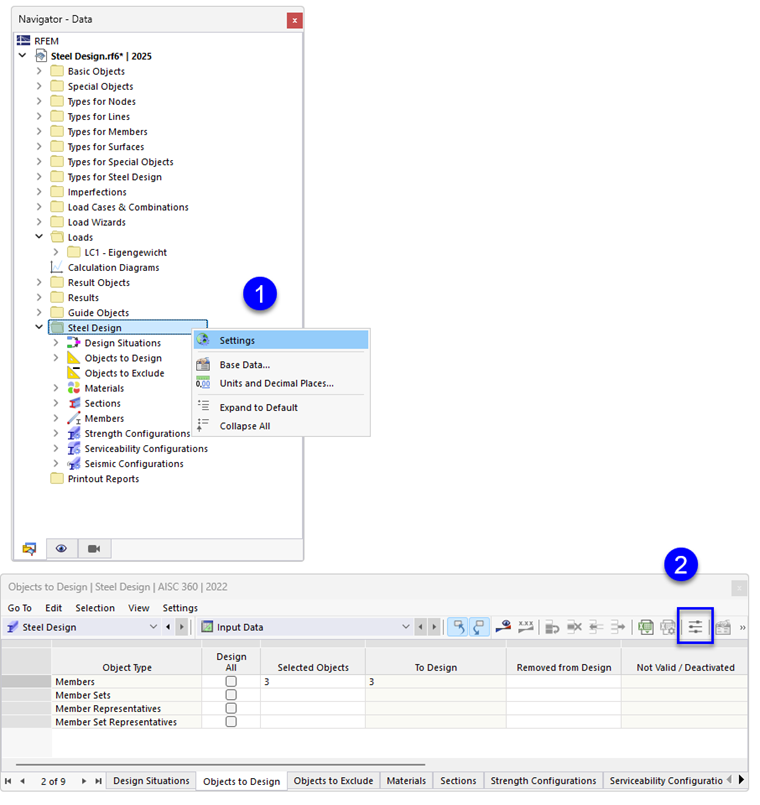
Global Settings
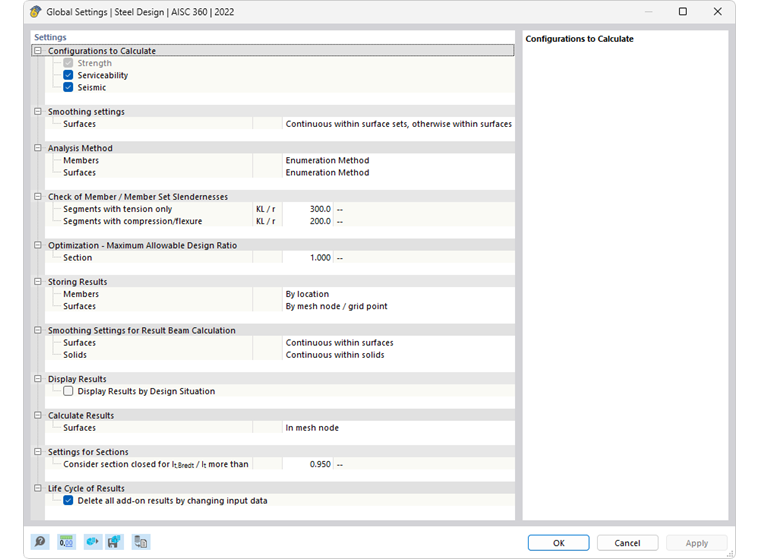
You can restore the default settings for the standard using the
 button.
Configurations to Calculate
By default, all available configurations are designed. However, if you do not want to perform the analysis of serviceability, for example, deactivate the "Serviceability"option. This means that no serviceability limit state design is performed; the input data for steel design is reduced accordingly.
Design situations assigned to a deactivated configuration are not taken into account in the design. The assignment of design situations is specified in the [000106 Design Situations] table.
Smoothing Settings
The smoothing settings are relevant for the design of surfaces. The stresses are determined for the nodes of the FE mesh and then smoothed using an interpolation method. This allows you to see a continuous distribution of the results in the graphic.
The following smoothing settings can be selected from the list:
- Constant in mesh elements
- Not continuous
- Continuous within surfaces
- Continuous within surface sets, otherwise within surfaces (default setting)
- Continuous within all surfaces
The individual options are described in the chapter Result Smoothing of the RFEM manual.
Design Methods
In this section, you can control how the internal forces of load and result combinations are transferred to the design. There are three design methods to select from in the list.
- Enumeration Method
All load and result combinations of a design situation are calculated individually. This approach usually provides the most accurate results, but may lead to longer calculation times.
- Envelope Method
First, the enveloping internal forces (max/min) of all load and result combinations of a design situation are calculated. The design checks are then performed with these internal forces. Compared to the enumeration method, this reduces the calculation time. However, it cannot be ruled out that all constellations are covered.
- Mixed Method
This approach provides a compromise between the other two methods: You can specify an upper limit for the variants of a design situation for the members and surfaces, which are then designed using the enumeration method. As soon as the number of load and result combinations exceeds this limit, the design is performed using the envelope method.
Checking Member/Member Set Slendernesses
As part of the steel design, the slenderness of members and member sets subjected to tension, compression, or bending are checked. You can specify the limit values (λlim, KL/r etc.) here. If there are effective lengths defined for the members or member sets for the segments, they are taken into account when calculating the slenderness. The evaluation is carried out in the Slenderness result tables.
Optimization – Maximum Allowable Design Ratio
The add-on can also carry out an optimization of standardized cross-sections (see the chapter Cross-Sections). When checking the possible variants, the utilization of the variant is compared with the maximum value defined here.
Saving Results
For models with several thousand objects, the result files may become very large. The list allows you to select two options that you can use to influence how the design results are saved.
- By location or By mesh node/grid point
The maximum results are saved for all stress points of the members or FE mesh nodes and grid points of the surfaces. This has a corresponding effect on the file size.
- By object
Only the maximum results for each member or surface are saved. The result file is significantly smaller.
Smoothing Settings for Result Beam Calculation
A result beam integrates the internal forces of members, surfaces, or solids. For the design in the add-on, you can control which smoothing setting is applied when integrating the results. The following options can be selected from the list:
- Constant in mesh elements
- Not continuous
- Continuous within surfaces or solids
- Continuous within surface sets or solid sets, otherwise within surfaces or solids
- Continuous within all surfaces or solids
The individual options are described in the chapter Result Smoothing of the RFEM manual.
Displaying Results
If the “Display results by design situation” check box is selected, the results are shown separately in the tables for each design situation.
Calculating Results
The results of the surfaces are based on the results in the FE mesh nodes, which are prepared for graphical output taking into account the smoothing settings. As in the case of the static analysis results, you can select in the Navigator – Results whether the values are displayed in the FE mesh nodes or in the grid points of the surfaces (see the chapter Result Values on Surfaces of the RFEM manual).

The two options in the list refer to the results in the tables and design check details: You can use them to control whether the resulting values of the mesh nodes or the grid points are displayed. The grid of the surfaces represents an output independent of the FE mesh in result points with regular intervals (see the chapter Surfaces of the RFEM manual). These options do not affect the graphical results.
Settings for Cross-Sections
In some design standards, there are sections that only apply to closed or open cross-sections. The distinction between the open and closed cross-sections with a general cross-section shape is made by considering the Bredt component of the total torsional moment of inertia. In the case of closed cross-sections, the total torsional moment of inertia results almost entirely from the Bredt component.
Life Cycle of Results
Once you modify the input data, the Steel Design results are deleted. This ensures that the design is based on the correct boundary conditions. However, in some cases it may be convenient to retain the results (for example, to make a change in a complex model that does not affect the design). In this case, deactivate the check box. No recalculation will be performed when a change is made. All results affected by this change will then be displayed in red. They may no longer be valid. They will only be updated after a new design.