


Selecting contents as described in the chapter Printout Report Manager involves a lot of effort. Therefore, it is possible to save a compilation, including graphics, as a template and use it for other models. This allows you to efficiently create printout reports from templates. Some templates are set up during the installation.
Importing Templates
To use a template for the current printout report, go to the bottom left of the
Printout Report Manager
dialog box and click this button:
 . The "Printout Report Templates" dialog box appears.
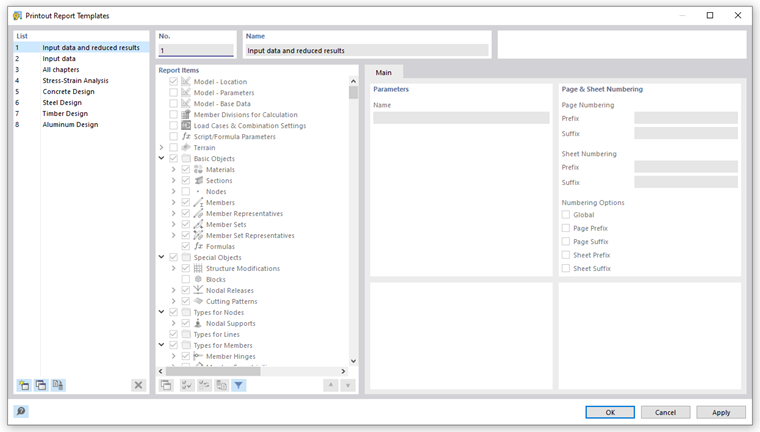
The "List" includes various templates for the printout of the structural analysis and the design add-ons. The preset printout report templates cannot be modified.
If you have created user-defined templates (see the section Creating Templates), you can select one of these entries in the list and, if necessary, adjust the report items. Click OK to apply the settings of the template to the current printout report.
The buttons below the "List" have the following functions:

|
Create a new printout report template |

|
Copy the selected printout report template |

|
Define settings of the selected template as default for new printout reports |

|
Delete the selected user-defined printout report template |
Creating Templates
To save the settings of the current printout report, including graphics, as a template, click Edit Printout Report in the Edit menu of the printout report. Alternatively, click the
 button in the printout report toolbar. The "Printout Report Manager" dialog box appears. Click this button at the bottom left:
 .
.
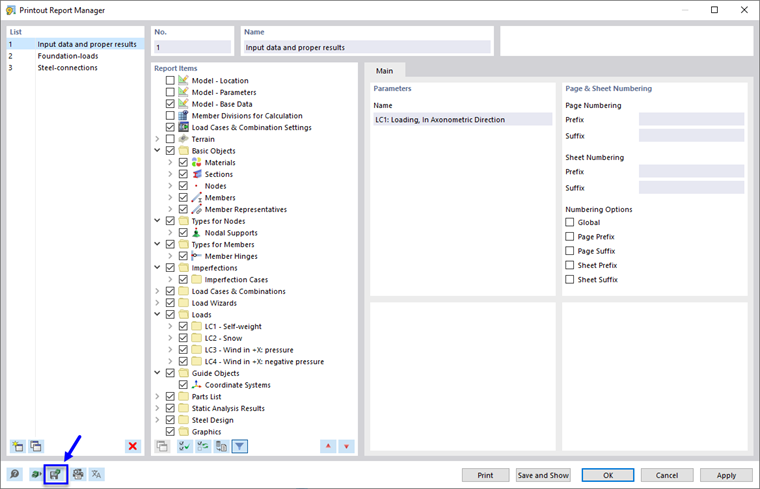
The "Printout Report Templates" dialog box appears.
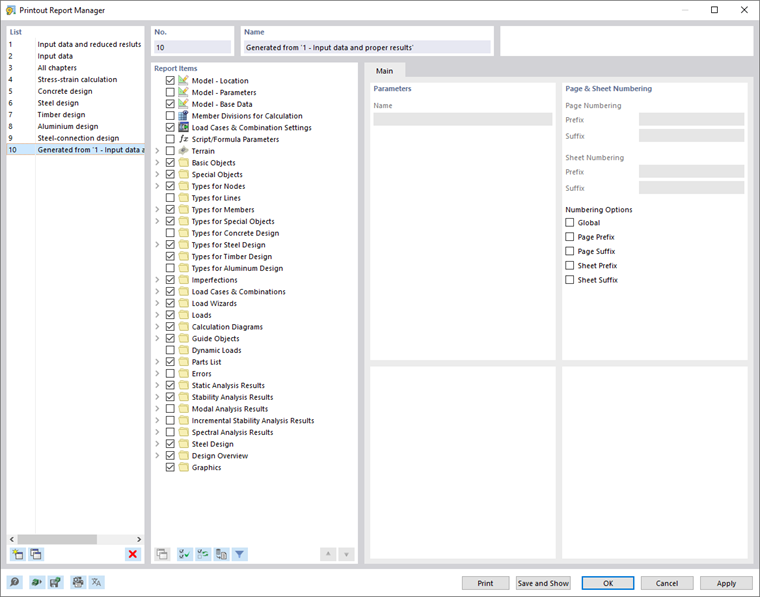
The new template appears as the last entry in the list. You can change the preset description in the "Name" section.
Save the new printout report template by clicking OK.