


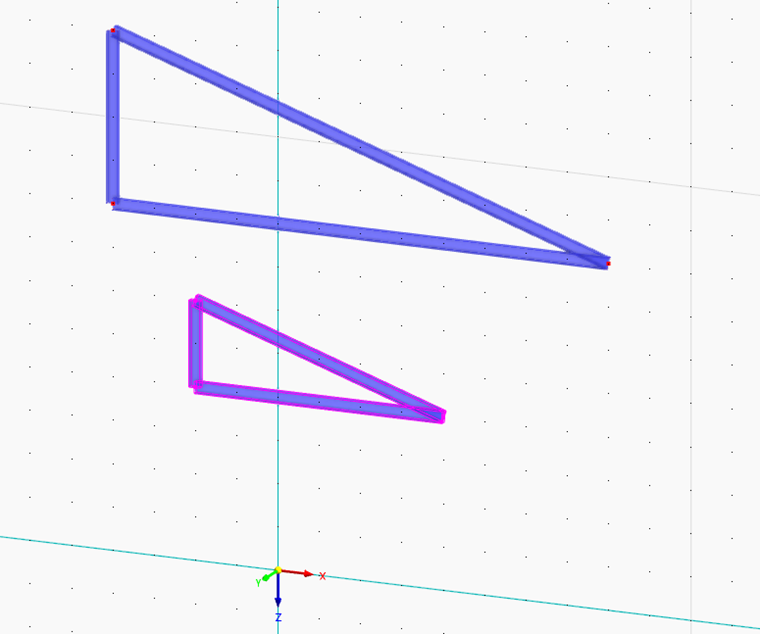
The Scale function in the Edit menu → "Manipulation" provides various options for evenly changing the dimensions of selected objects. The following image shows a bracket structure and its copy that has been stretched by a factor of 2 in relation to the origin.
Main
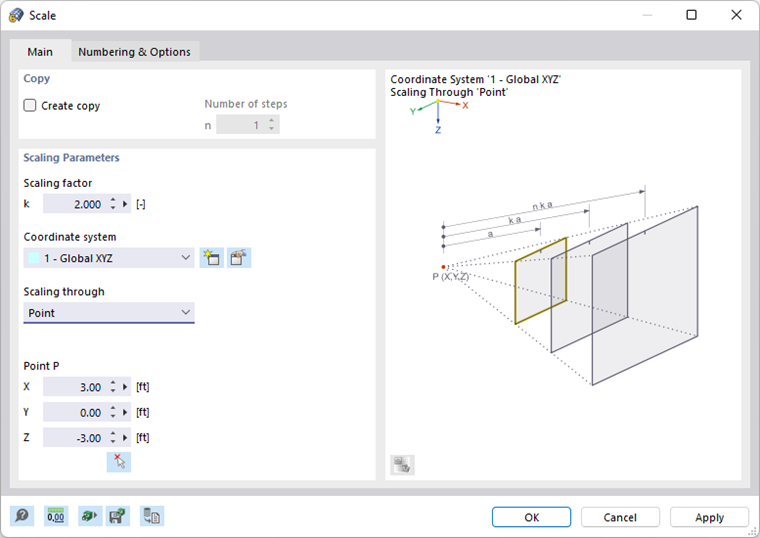
The Main tab manages the basic parameters for scaling objects.
Copy
If the "Create copy" check box is not selected, the selected objects will be scaled. If you want to create one or more copies, select the check box. Then, enter the "Number of steps" that describes the quantity of copies.
Scaling Parameters
Enter the "Scaling factor" k. This way, you define the scale factor by which the distance of the selected objects from the reference point is multiplied (see the dialog graphic).
Define the "Coordinate system" in which the objects are to be scaled. You can select a user-defined coordinate system from the list or create a new one using the
 button.
The "Scaling through" list provides three options for defining the direction of scaling:
- Point: All object coordinates (X, Y, and Z) are scaled in relation to one "point" whose coordinates need to be defined.
- Direction and point: Only one object coordinate is scaled. In the list, select the "Direction" whose coordinates you want to adjust, and define "Point P" as the reference point.
- 2 points: The scaling direction lies anywhere in space. Enter the coordinates for "Point P1" and "Point P2" to define the direction. Use the
 button to define the points graphically.
Numbering & Options
The Numbering and Options tab is only displayed when copying. Here, you can influence the numbering of new objects and make useful settings for copying. The functions are described in the chapter Move and Copy .
Step Links
The Step Links tab is displayed if the "Step links" check box in the Numbering & Options tab is selected. The functions are described in the chapter Move and Copy .