This load wizard facilitates the task of placing snow loads on members of the model in compliance with standards.
Main
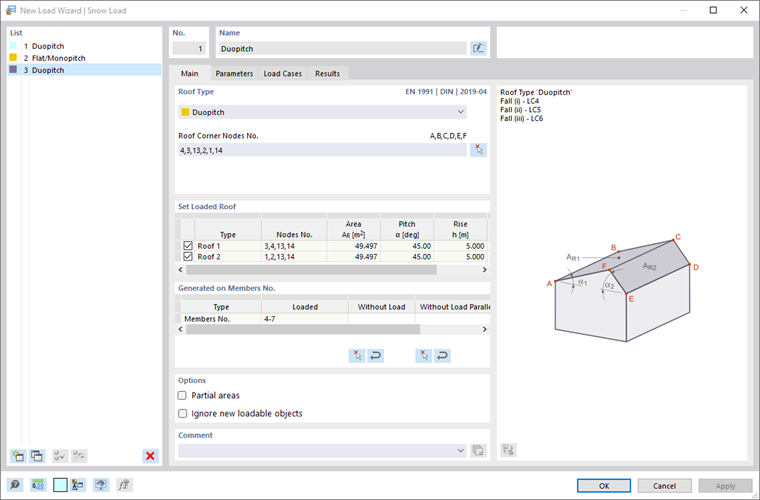
The Main tab manages the geometry parameters of the roof.
Roof Type
Two basic roof shapes are available for selection in the list:
- Flat/Monopitch Roof
- Duopitch Roof
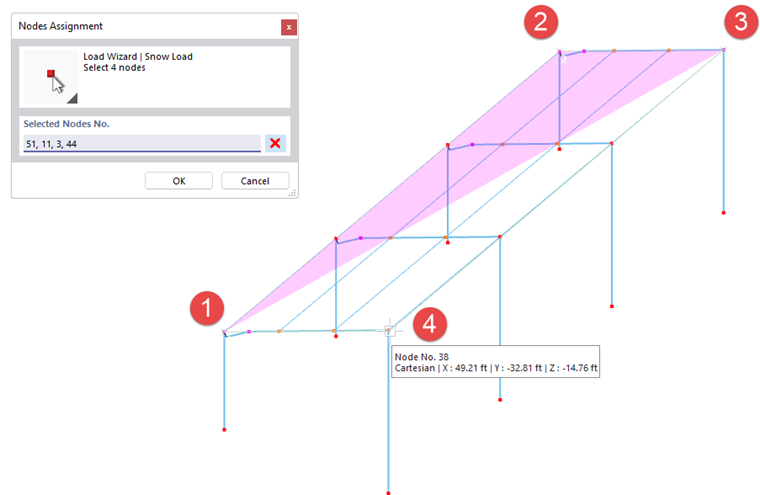
Define the boundary of the roof plane by clicking the four or six corner nodes of the plane(s) one after the other in the work window. To do so, use this button:
 .
.
Set Loaded Roof
The table provides an overview of the properties of the roof plane(s). For a duopitch roof, both roof pitches are set. If necessary, you can use the check boxes to exclude a roof side from the load assignment.
Generated on Members Nos.
This dialog section shows the members that get a proportional snow load. The entry in the "Loaded" column is available once the snow load has been generated from the complete data using the
 button.
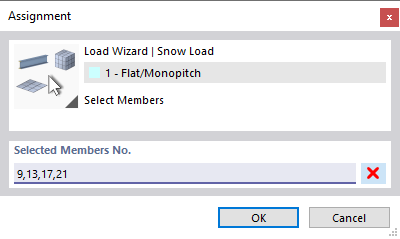
To exclude certain members from the load transfer, click into a text box of the "Without Load" column. Using the
button, you can then select the members in the work window that are load-free, such as bracing or purlins. You can also specify a template member that runs parallel to the unloaded members. This way, you do not need to select the members individually.
Options
The “Partial Areas” check box allows you to generate loads for specific zones of the building envelope. The snow load is only applied to the elements of the areas that you can specify in the Partial Areas tab.
If you select the “Ignore new loadable objects” check box, the snow load will only apply to the objects specified in the Generated on Members No. section. Members that you add later to the load plane will not receive any component of the snow load.
Partial Areas
In the Partial Areas tab, you can define zones of the roof area where the snow load acts. The loads are only generated for the elements of these partial areas. The remaining areas do not bear any snow loads.
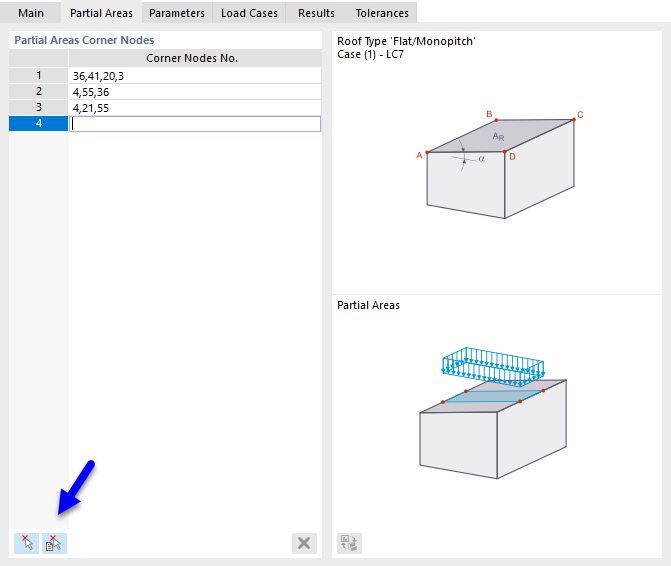
Define the partial areas line by line by entering their "corner nodes" You can also define the partial areas graphically using the two buttons at the end of the table.
|
|
Click on the corner nodes of a partial area in sequence (see the image Defining Nodes). |

|
Click on the cells one after the other (see the image Selecting Cells). |
Parameters
In the Parameters tab, you can define the load parameters and take special boundary conditions for the generation into account.
Definition
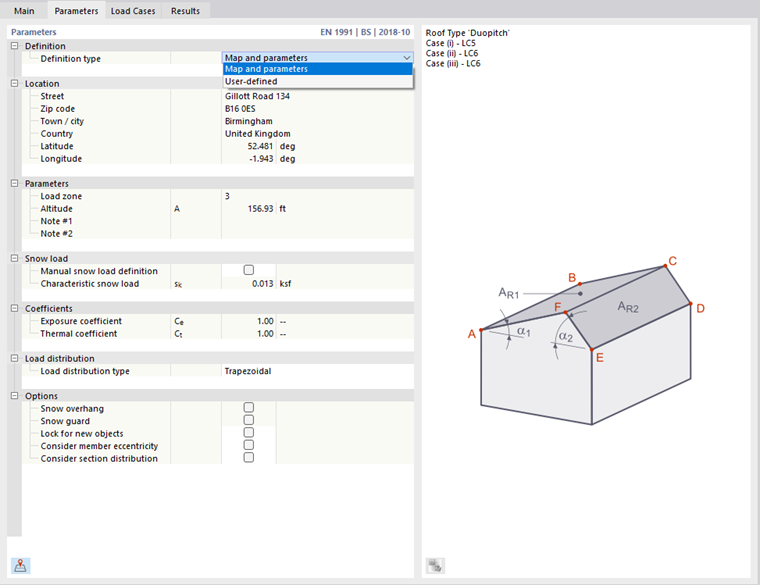
If you have adopted the location from the online map in the Model Parameters tab for the base data, the "Map and parameters" definition type is preset. The snow load is determined automatically. You can also use the
 button to open the snow load map in this tab.
The "User-defined" definition type allows you to manually define the snow load zone, the ground elevation, and the value of the characteristic snow load.
Parameters
If the "Load zone" (for the German National Annex) is not entered automatically, you can select it in the list. The entries are aligned with the standard you defined in the Standards I tab of the model base data.
The "Altitude" is usually preset from the model parameters, but can also be defined manually. It affects the characteristic value of the snow load.
Snow Load
The characteristic value of the snow load sk on the ground at the structure is preset from the geographical data. If you want to change the value, select the "Manual snow load definition" check box.
Coefficients
The "Exposure coefficient" Ce indicates the decrease or increase of the snow load acting on the roof of the building. EN 1991-1-3, Table 5.1 provides recommendations for different topographies.
The temperature coefficient Ct allows you to take into account reduced snow loads on roofs with higher thermal transmittance.
Load Distribution
Currently, only trapezoidal loads resulting from the load components are generated on members.
Options
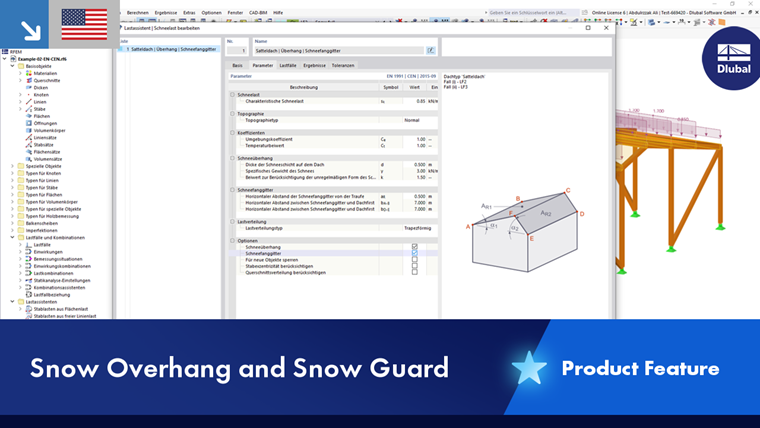
You can use the check boxes in this section to control whether additional snow loads, such as the "Snow overhang" on the eaves or loads on a "Snow guard", are taken into account (only for Eurocode).
If you select the "Lock for new objects" check box, the snow load acts only on the currently available members of the roof plane(s) according to the definition set in the "Main" tab. Any members you add to the roof plane later will not get any components of the snow load.
The "Consider member eccentricity" option controls whether the snow load acts on the members in the plane without considering eccentricities (default setting). If you activate the check box, the load is not applied to members for which an out-of-plane offset is available.
With the "Consider section distribution" check box, you can control whether the snow load resulting from a taper definition also acts on the inclined members (default setting). If you select the check box, the snow load is not applied to members in the load plane that have a non-uniform cross-section distribution (see the chapter Section ).
Load Cases
The Load Cases tab controls the load cases where the snow loads are stored.
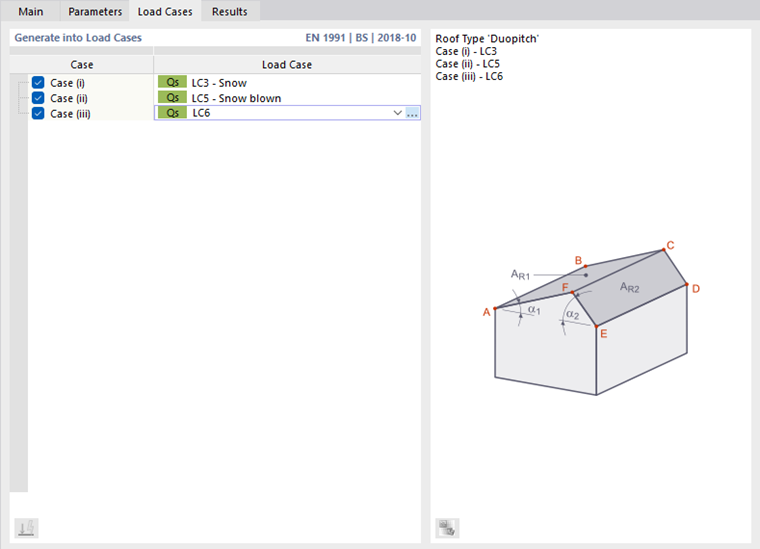
In the list, enter the load case number(s) for generating the snow loads. Alternative load cases occur when additional snow loads or shape coefficients for snow loads on duopitch roofs apply (see EN 1991-1-3, Figure 5.3). You can create the corresponding load cases using the
 button.
Results
In the Results tab, you will find an overview of the parameters used for generating snow loads.
.png?mw=760&hash=d48e0231f870dbde5006d8b4d8c6e14d32797864)
The table shows the "Shape coefficient" μ and the "Snow load" s. In the case of a duopitch roof, you can check the values for each load case and each roof side.
Tolerances
In the Tolerances tab, you can influence the criteria according to which members and nodes are evaluated as belonging to a plane or line. The parameters are described in the chapter Member Loads from Area Loads.