


Data exchange with MS Excel is based on the Dlubal API (SOAP). It allows you to import both structural and load data into the current table and export results as an Excel file.
For data exchange with MS Excel, there are three buttons available in the table toolbar.
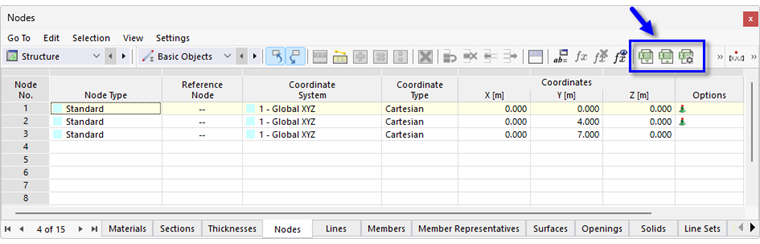
Settings for Import and Export
Click the
 button to open a dialog box where you can configure general import and export settings.
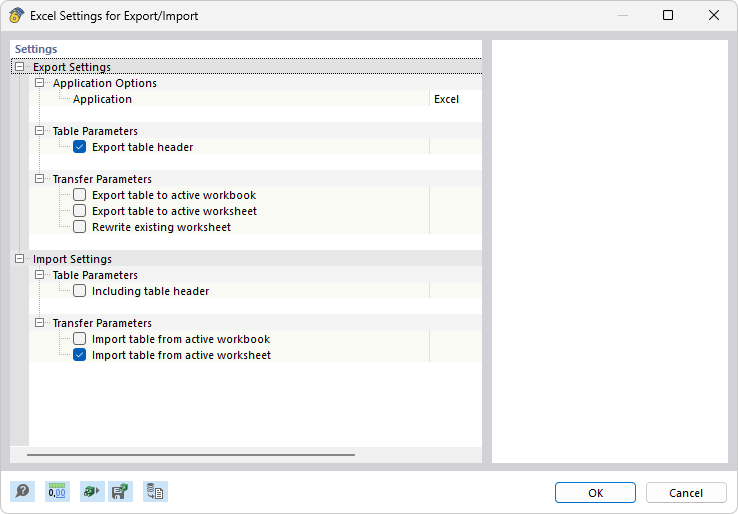
In the “Table parameters” category, you can specify how the table header should be processed during data exchange. The “Transfer parameters” category contains control options for direct communication with MS Excel.
Import Table
Open the Excel workbook. If the worksheet has headings, deactivate the “Include table header” check box in the Excel Settings dialog box. This causes the header rows to be ignored during the import and only the lists are transferred to the table. When importing a complete workbook, the order and structure of the worksheets must correspond exactly to the RSTAB tables.
Click the
 button to start the import.
Export Table
The options of the list button
 allow you to export the current table to MS Excel or in the JSON format.
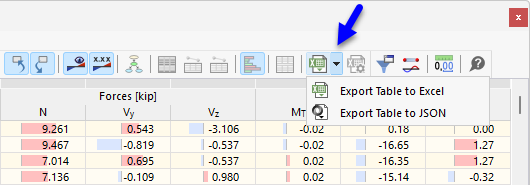
To export the current table to MS Excel, click the
 button.

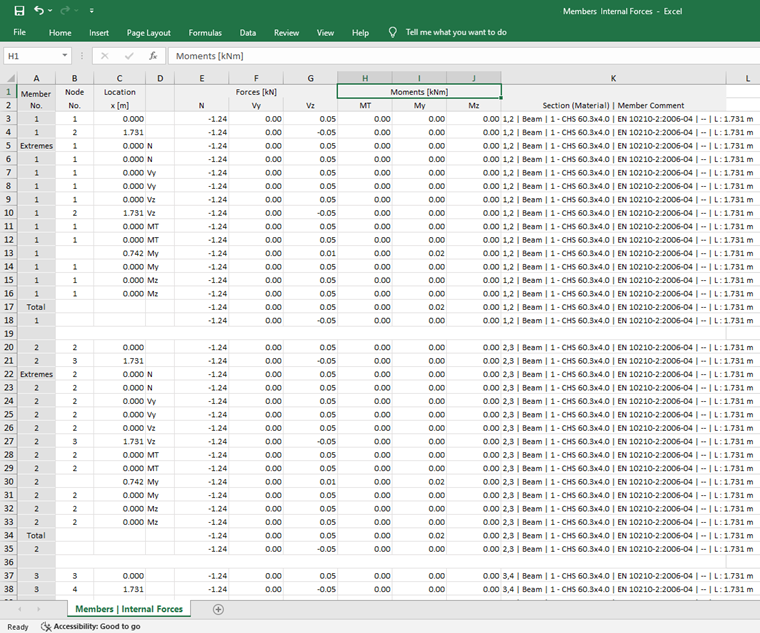
MS Excel is opened automatically. The worksheet contains all content of the RSTAB table including headers.
When exporting to JSON, specify the storage location of the file.
The
button is also available in some dialog boxes. You can use it to export material or cross-section properties, for example.

