You can save your individual configuration settings as a template and transfer them to other computers. This allows you to use printout report templates consistently throughout the company (see FAQ 5256).
Exporting GUI Settings
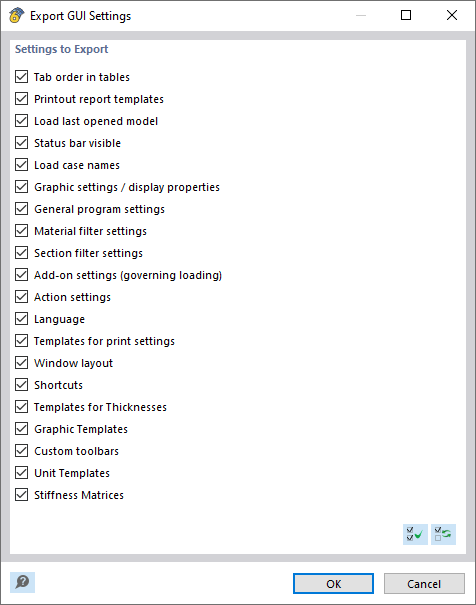
Open the Options menu and click the Export GUI Settings entry. In the “Export GUI Settings” dialog box, specify which settings you want to save. In addition to display properties and individual templates, there are various program settings to select from.
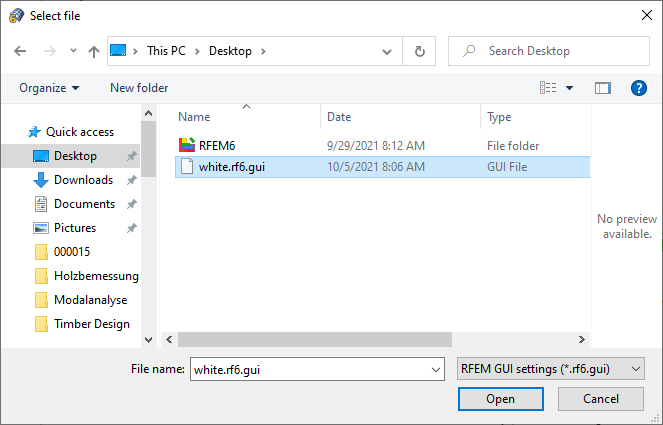
After clicking OK, the “Select File” Windows dialog box appears. Specify the storage location and enter a file name. Click Save to create the configuration file in *.rf6.gui format.
Importing GUI Settings
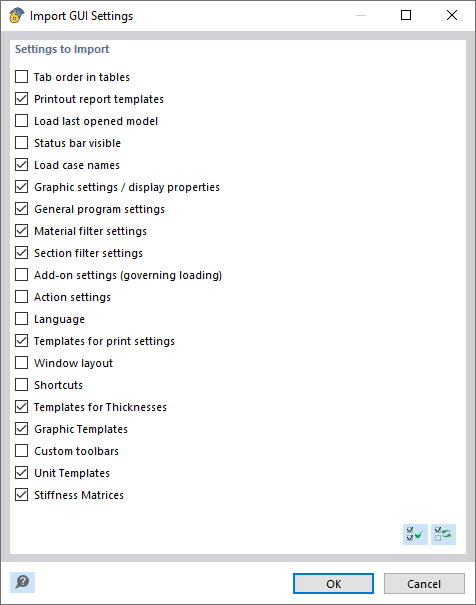
To import a configuration, open the Options menu and click the Import GUI settings entry. In the “Select File” Windows dialog box, select the configuration file (format *.rf6.gui) and click Open.
In the “Import GUI Settings” dialog box, specify which settings you want to import. Click OK to apply the new display properties, templates, and parameters as the default.