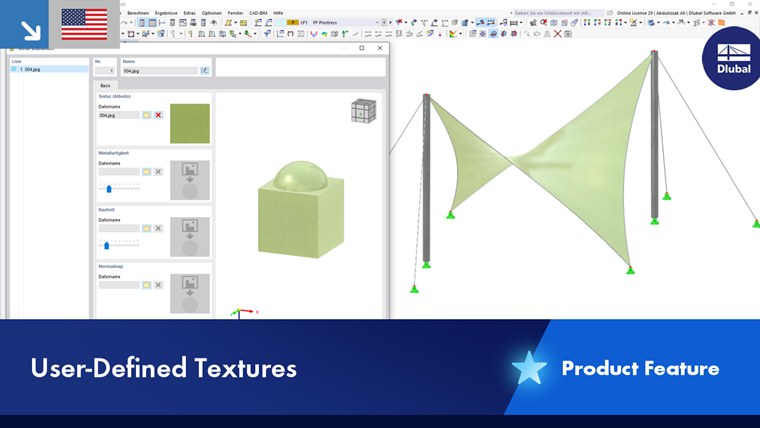
Textures allow you to assign superficial structures to materials, making the model appear very realistic in the rendering. This option also facilitates input and evaluation.
Defining Texture
In the “New Texture” dialog box, you can define the properties of textures.
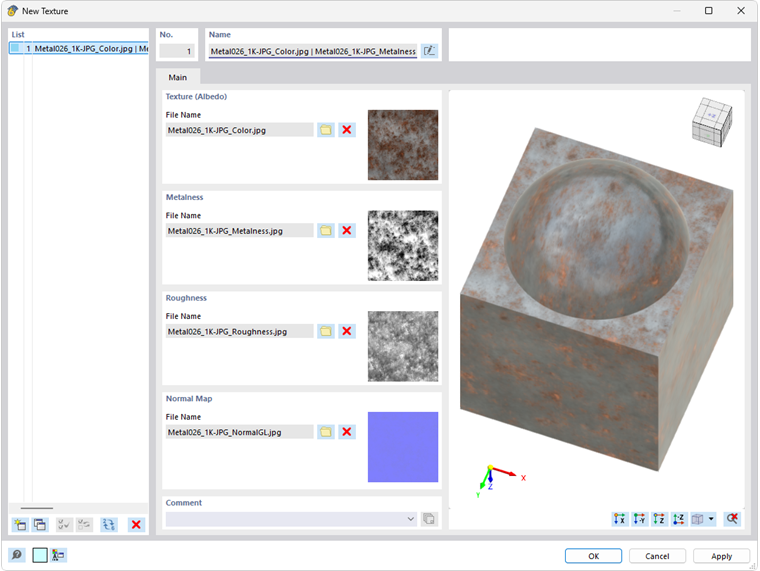
The surface properties are imported from image files, which have to be in JPG format. In the “Texture” section, use the
 button to specify the directory path and the name of the file that models the material color and the reflectance of the surface. This information is mandatory.
You can further influence the appearance of the texture using the sliders in the “Metalness” and “Roughness” sections.
The following texture properties are optional:
- Metalness: Properties of a metallic material
- Roughness: Unevenness of the surface
- Normal Map: Level of detail of the surface structure
Assigning Textures
You can assign textures in the “Edit Material” dialog box: Select the material. In the “Options” section, select the User-defined texture checkbox.

You can then assign the texture in the User-Defined Texture tab.
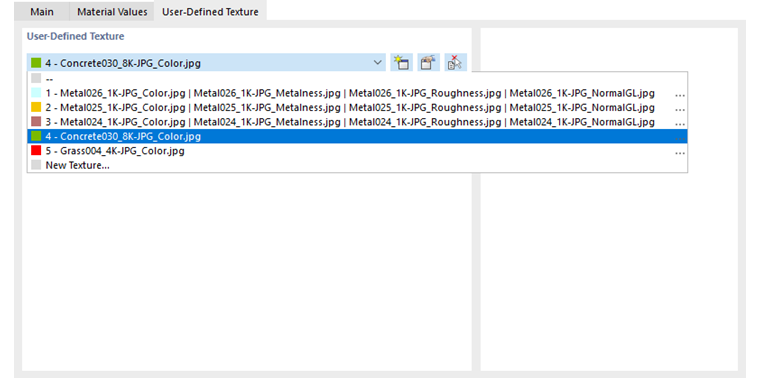
Use the
 button to create a new texture and the
 button to adjust the selected texture. The
 button provides the option to apply the texture from an object in the work window.
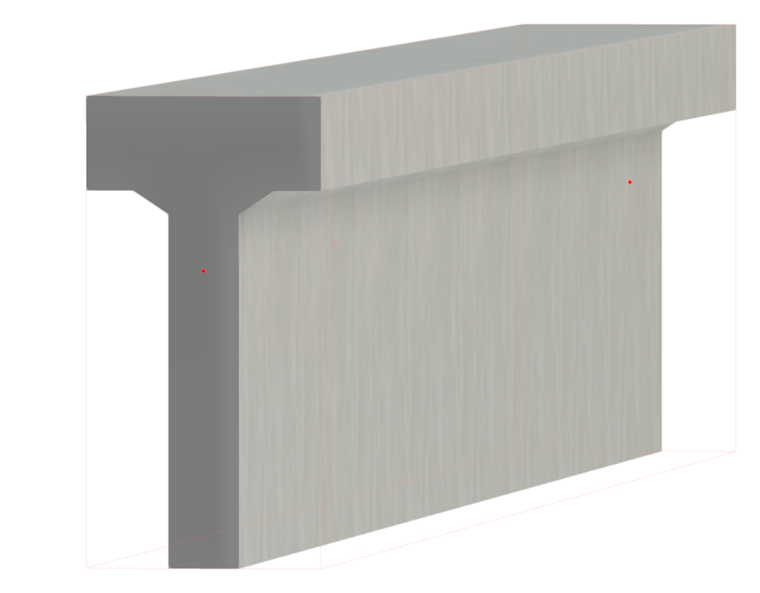
After assigning it, the texture is displayed in the rendered model.
Show and Hide Textures
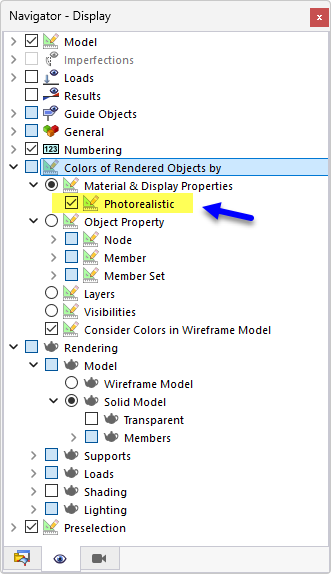
You can show and hide the textures of the rendered materials in the Navigator – Display. To do this, use the check box under “Colors of Rendered Objects by” → “Material & Display Properties” → Photorealistic.