


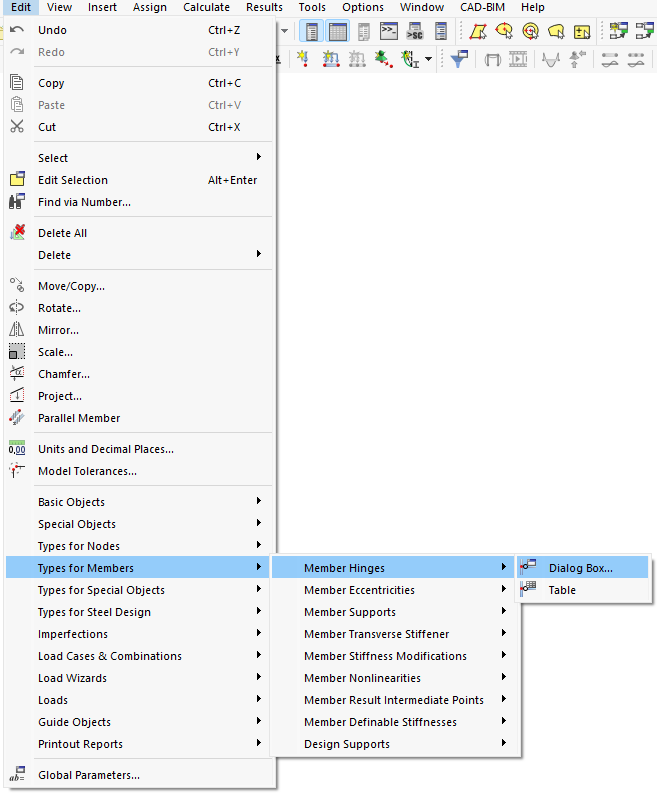
As for the input dialog boxes, there are different ways to open the dialog box for editing an object:
- Menu "Edit"
- Shortcut menu or double-click in graphics
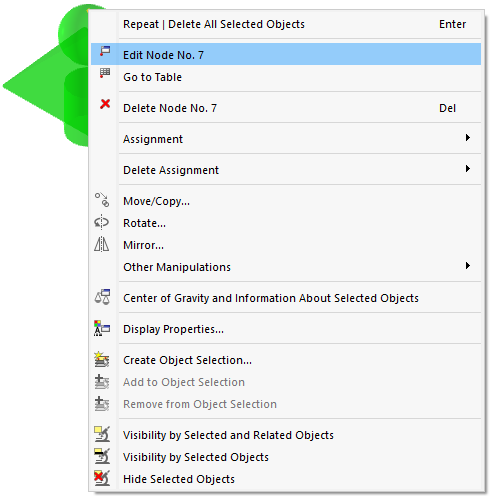
Double-click the object in the work window. Alternatively, you can use the object's shortcut menu.
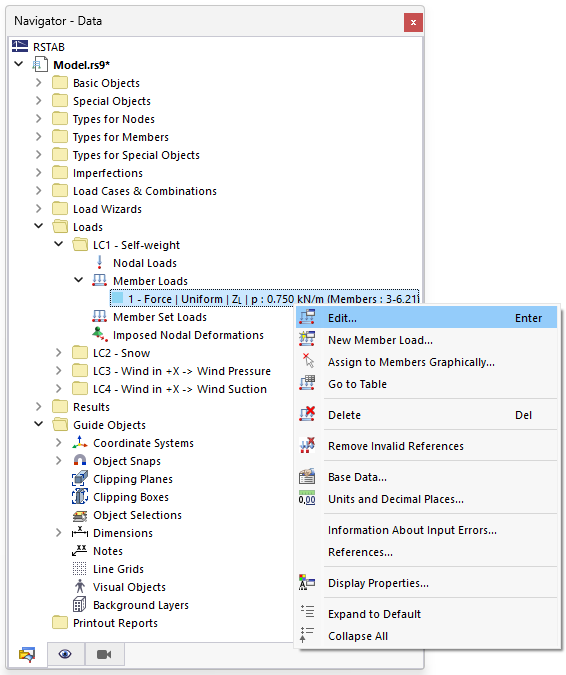
- Shortcut menu or double-click in Navigator
- Shortcut menu or double-click in Table
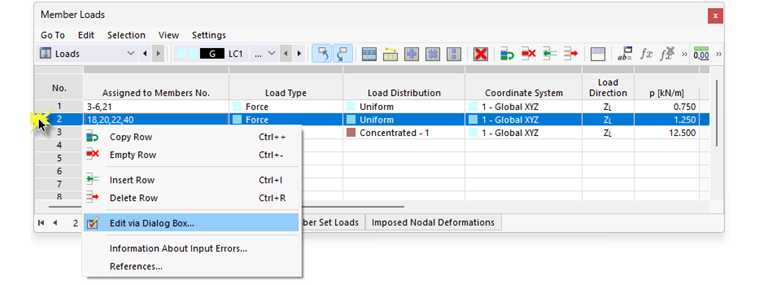
Double-click the row of an object. Alternatively, you can use the shortcut menu of the row number.
- Button
 in Dialog Box
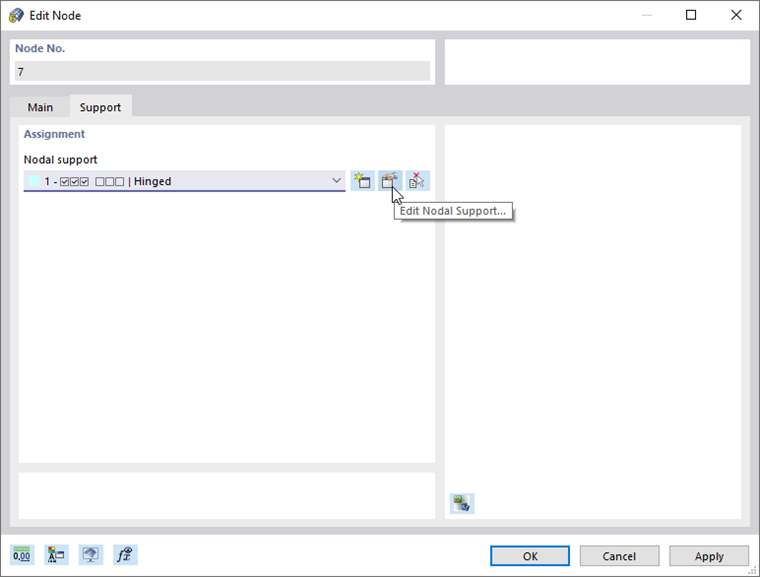
The input dialog boxes are aligned with the objects or types. In some dialog boxes, you can only adjust selected object properties, but in other dialog boxes you can also create new assignments or new object types.
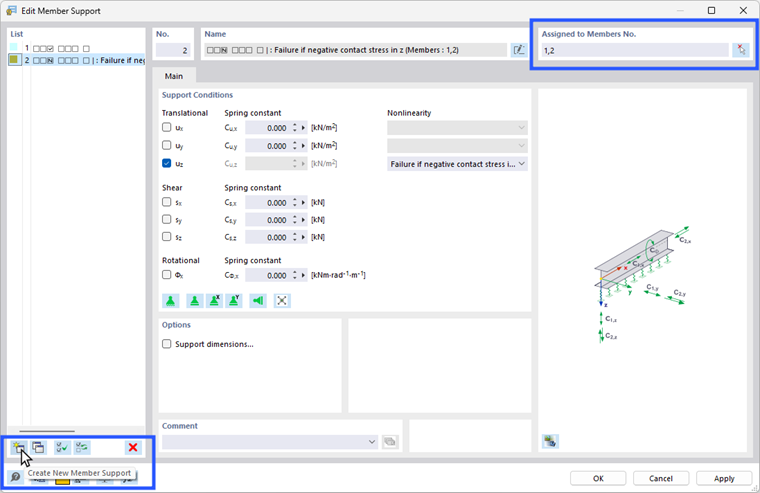
The image above shows the edit dialog box for member supports. Various support types are defined on the left in the "List". Select an entry in the list, then adjust the support properties. Use the
 button to assign the selected support type graphically to one member or several members. You can also extend or reduce the list of support types. Use the buttons below the list.
Buttons for "List" of Object Types

|
Create a new object type |

|
Copy the selected object type |

|
Select all object types |

|
Reverse the selection of object types |

|
Delete the selected object type |