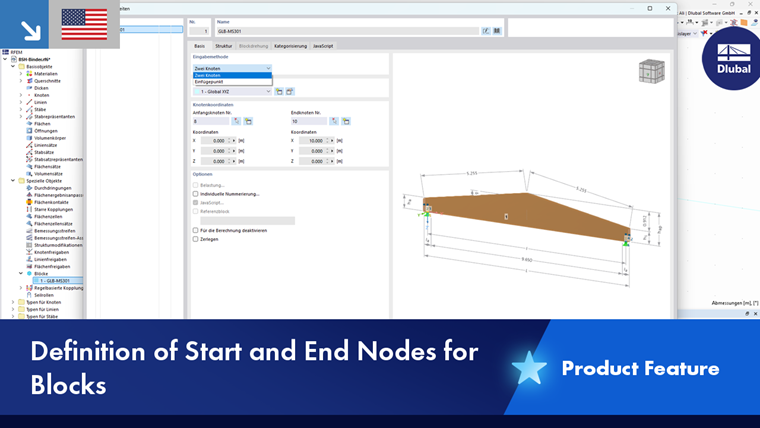
A block represents a model component with typed properties. In the Blocks category of the Dlubal Center, a variety of these components is available, created during installation. The user-defined blocks are also managed there.
To use a block, open the block catalog with the
 button.
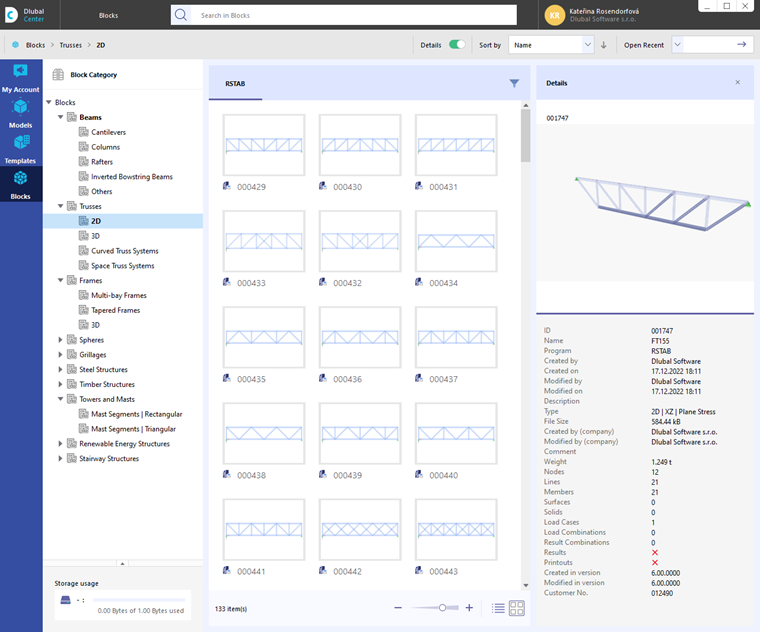
The blocks are organized by categories. Select the appropriate component and select it by mouse click. Use OK to transfer the block into the current model.
Base
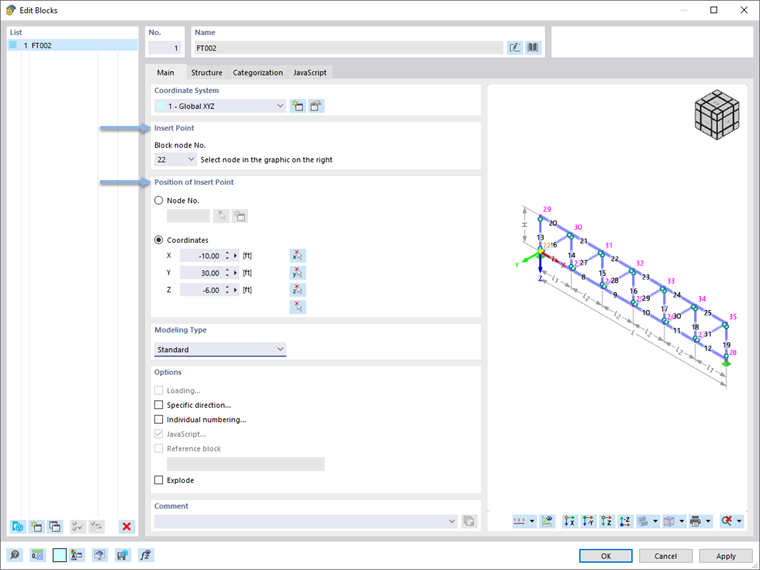
In the Base tab of the 'Edit Blocks' dialog, define the insertion point of the block. Specify where this reference point is to be positioned in the model. You can place the block at a 'Node' or at a point with arbitrary 'Coordinates'.
If necessary, rename the block in the 'Name' section.
If you use several identical blocks in the model, you can assign a reference block to selected blocks in the 'Options' section. This ensures that subsequent changes to the parameters for the reference block (geometry, material, cross-section, etc.) are also automatically applied to the linked blocks ("child blocks").
Structure
In the Structure tab, you can adjust the geometry parameters of the block and assign the cross-sections and materials. Use the
 button in the active input field to create new object properties.
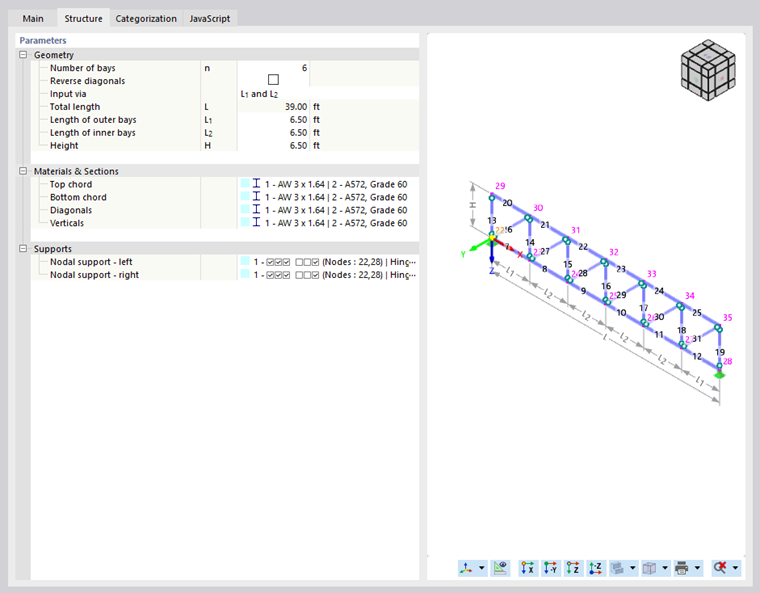
With OK, you transfer the block to the model. You can adjust the geometry parameters, as well as the cross-sections and materials of this component, at any time via the 'Special Objects' category.
JavaScript
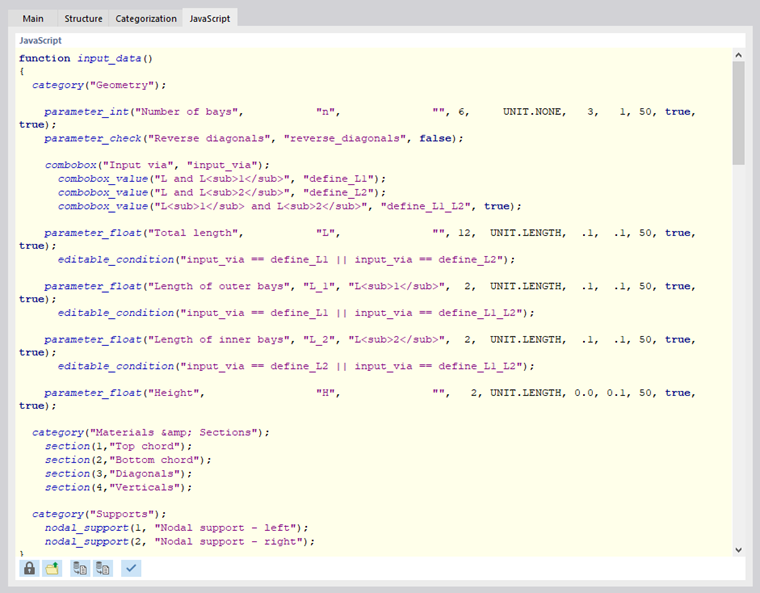
The JavaScript tab displays the code of a block created via scripting.