


In the Sensors dialog box, you can define the locations of the measurement points on the structure and enter the measurement data.
Main
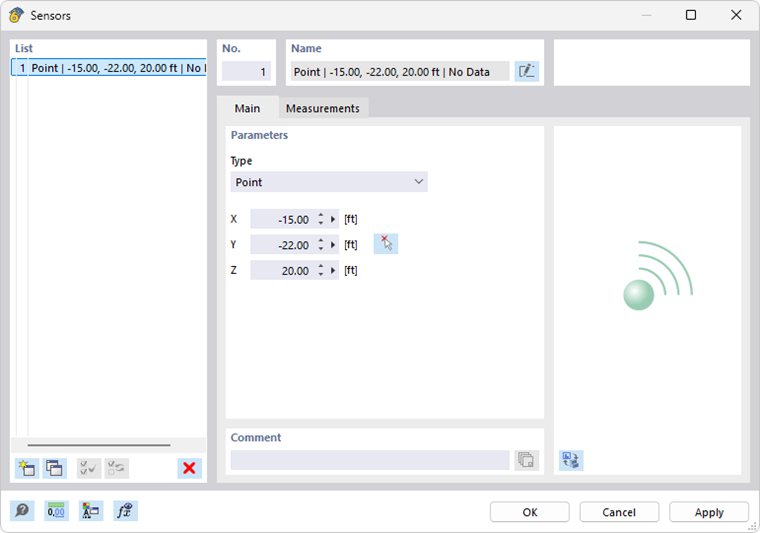
In the Main tab, specify the locations equipped with sensors. Select the type of location from the list:
- Point – Any position on a member or surface
- Node – Previously defined node in the model
Then, enter the coordinates of the sensor. Use the
 button to graphically select the location in the model.
Measurements
In the Measurements tab, assign the measurement data.
Sensor Measurement
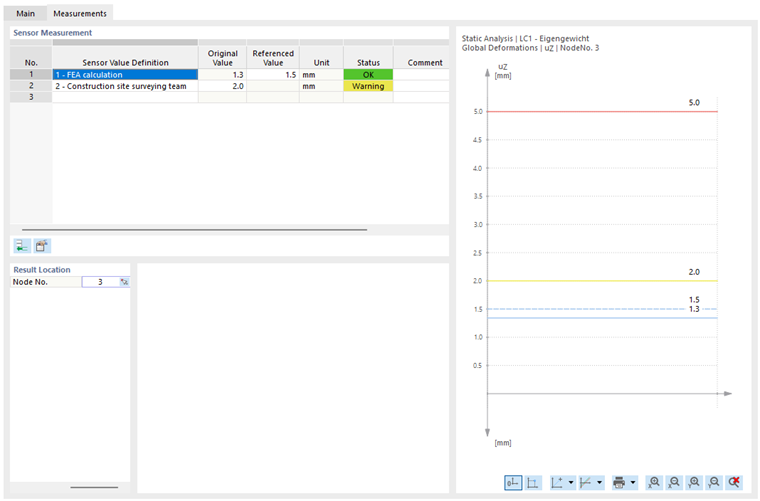
In the table, specify which sensor value definitions apply at the measurement point. The columns correspond to the “Original Value” stored in the Sensor Value Definitions.
Select a predefined entry from the list in the Sensor Value Definition column. Use the “New Sensor Value Definition” option to describe and apply a sensor’s measurement and threshold values.
Click the
 button to add another row for a sensor measurement (or simply click in the next row). Use the
 button to open the “Sensor Value Definition” dialog box to check the parameters or adjust them as needed. If you want to delete a row, use the shortcut menu with the corresponding option.
The function of the Original Value column depends on the “Original Value” of the sensor value definition:
- For RSTAB values, the results of the RSTAB calculation are displayed.
- For user-defined values, you can enter the measurement data here.
In the Referenced Value column, you can specify a reference value for RSTAB results.
The Status column indicates how the sensor’s conditions are fulfilled based on the measured values:
- OK: The value is below the warning limit.
- Warning: The warning limit has been exceeded, but the value is below the alarm limit.
- Alarm: The value is above the alarm limit.
Description
This section is only displayed for a user-defined original value. You can enter a comment and describe the measured value here.
Result Location
This section is only displayed if the value represents an RSTAB result (see the image Defining Sensor Values). Specify the node at which the value is available. Click the
 button in the activated cell to select the node graphically in the model.
Values
This section is only displayed if the original value shows a user-defined function.
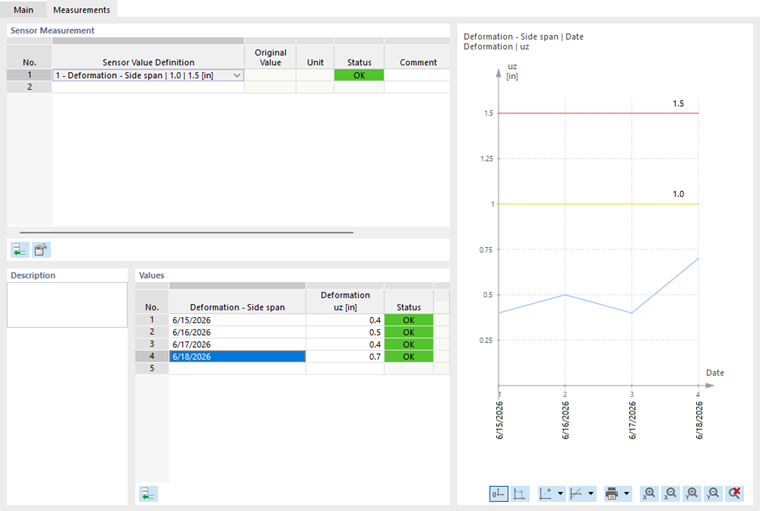
Here, you can enter the result data for the individual measurements.