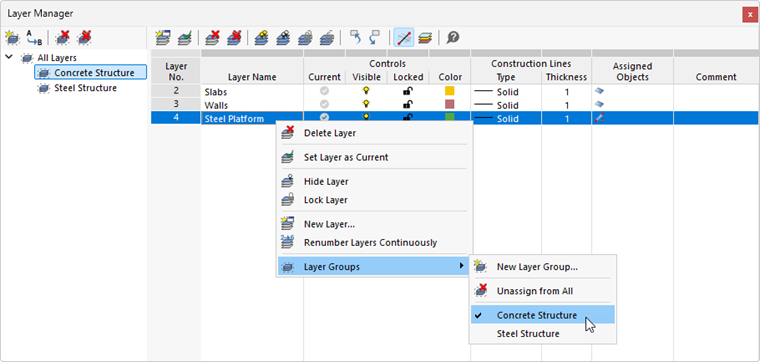
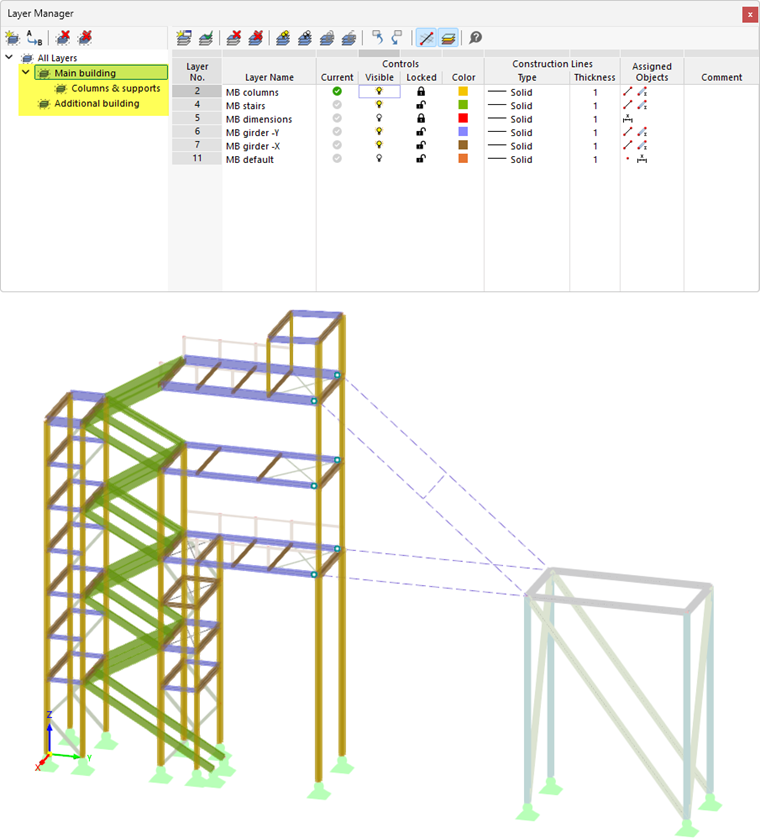
You can organize layers into layer groups to group objects on specific layers by function, material, or project section, for example. This structure also allows for sublayers. Layer groups thus facilitate the display of objects with common properties.
Layer groups can be created and managed in the Layer Manager.
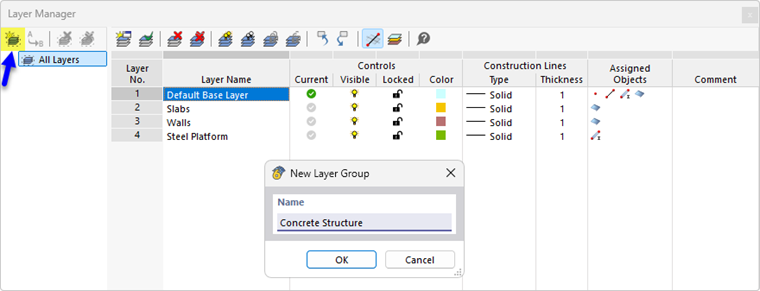
Creating Layer Group
Click the
 button in the Layer Manager toolbar. Then enter a suitable name in the “New Layer Group” dialog box.
You can create multiple layer groups in this way. If you need a subgroup, select the relevant layer group in the navigator of the Layer Manager. Then, click the
button to create the subgroup.
You can create as many layers for grouping as you need. When you assign a layer to a layer group, that layer automatically becomes part of the parent layer group as well.
Assigning Layers
To assign a layer to a layer group, click the entry in the Layer No. column (1). You can also select multiple layers. Then, drag the selected layer(s) to the desired layer group in the navigator (2).
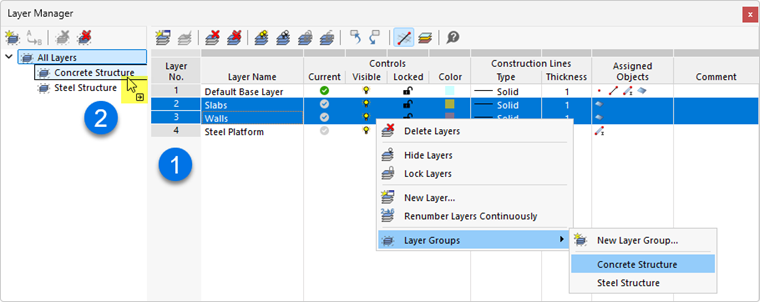
You can also assign layers using the shortcut menu of the selection.
Removing Layer from Layer Group
If you have accidentally assigned a layer to a layer group, you can remove it from the group using the layer shortcut menu. Simply click the incorrect entry: The assignment will be removed and the checkmark will disappear.