


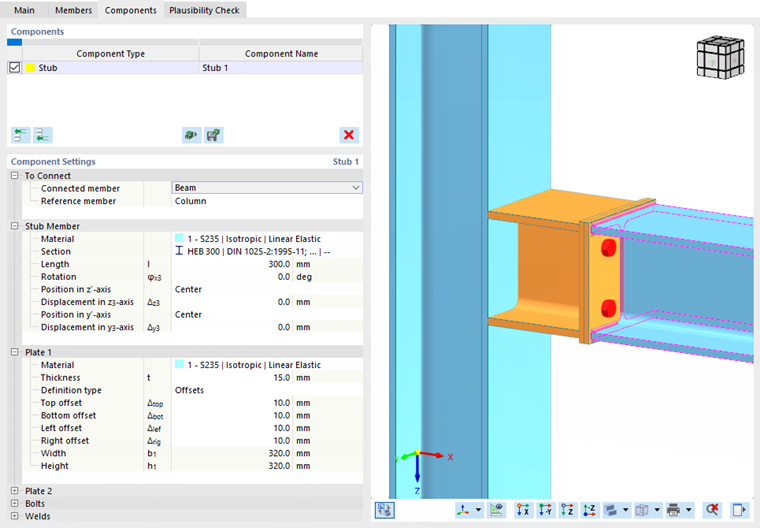
A stub is a special component used to connect two objects; for example, to connect a beam to a column with a different cross-section. This fictitious member is only taken into account in the joint design, but not in the model. The connection to the other members is achieved by welds and fasteners.
To Connect
The first category of the component settings manages the information about the members.
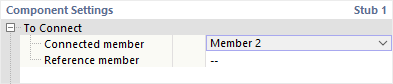
Specify which of the members connected to the node is relevant for the stub as a "Connected member". This is usually a beam. The "Reference member" is optional. However, this is useful if a beam is connected at an angle: The inclination angle is then automatically applied to shear the stub.
Stub Member
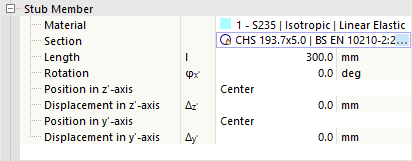
In this category, you can define the properties of the stub member. Select the relevant material from the defined materials or define a new material using the
 button. Then, define the cross-section. You can also use the
button in the text box to select the cross-section from the library of RFEM.
button. Then, define the cross-section. You can also use the
button in the text box to select the cross-section from the library of RFEM.
In the “Length” input box, specify how long the stub is. To rotate or offset this member, define the "Rotation" or specify the "Location" using the drop-down lists and offset vectors. In the graphics area, you can switch to the symbol display using the
 button, where the parameters are illustrated.
Plate 1 / Plate 2
The connection between the two sections can be achieved using the plates in the transition area between the connected member and the stub. "Plate 1" is arranged on the connected member, "Plate 2" on the stub.
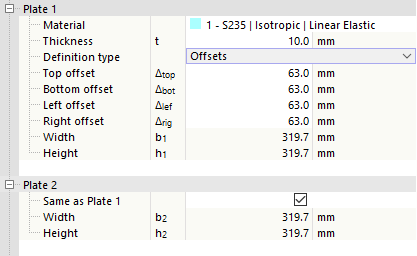
Select the relevant material from the defined materials or define a new material using the
button. Then, specify the thickness of the plate.
You can define the plate geometry using "Offsets" or "Dimensions and Position". Select the corresponding option in the list.
Offsets
The plate size results from the cross-section dimensions of the connected member. Using the “Offset” in the four directions, you can specify how far the plate protrudes beyond the boundary frame of the cross-section. The resulting width and height are indicated in the last rows; these values cannot be modified.
Dimensions and Position
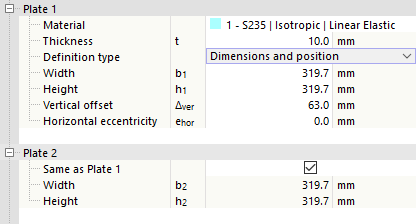
You can specify the plate size directly. The position is related to the cross-section of the connected member or stub, with the vertical offset being measured from the top edge (the cross-section side of the negative z-axis) and the horizontal eccentricity from the centroid of the member cross-section.
Bolts
If you do not define the bolts separately as Fasteners, you can specify the properties in this category.

Select the "Diameter" and the "Class" of the bolts from the lists.
Then, enter the "Number" as well as the bolt "Spacing horizontally" and "Spacing vertically". Also here, the
button in the graphics area is useful to switch to the symbol display of parameters.
Detailed explanations of the bolt definition can be found here.
Welds
The last category controls the welds used to connect the plates to the member or the stub end. If you deactivate one of the check boxes, no weld is arranged on the corresponding object.

You can open a list of weld types by clicking in the column to the right of the check box. Various types of fillet and butt welds are available for selection. For fillet welds, you have to specify the thickness of the weld.