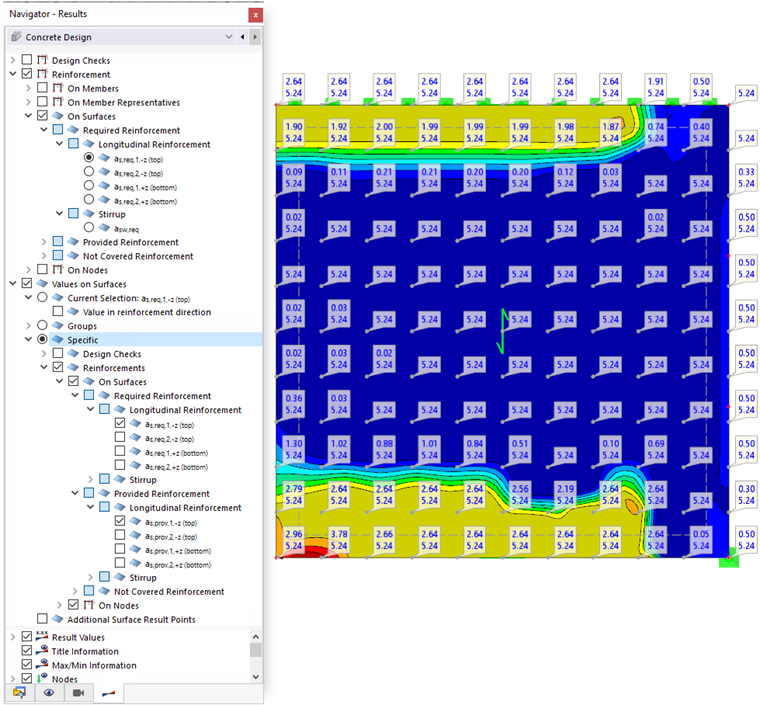
In the "Navigator – Results", specify the design results of the reinforcement section that should be displayed graphically on the surfaces. You can select specific results for the required reinforcement, provided reinforcement, and not covered reinforcement.
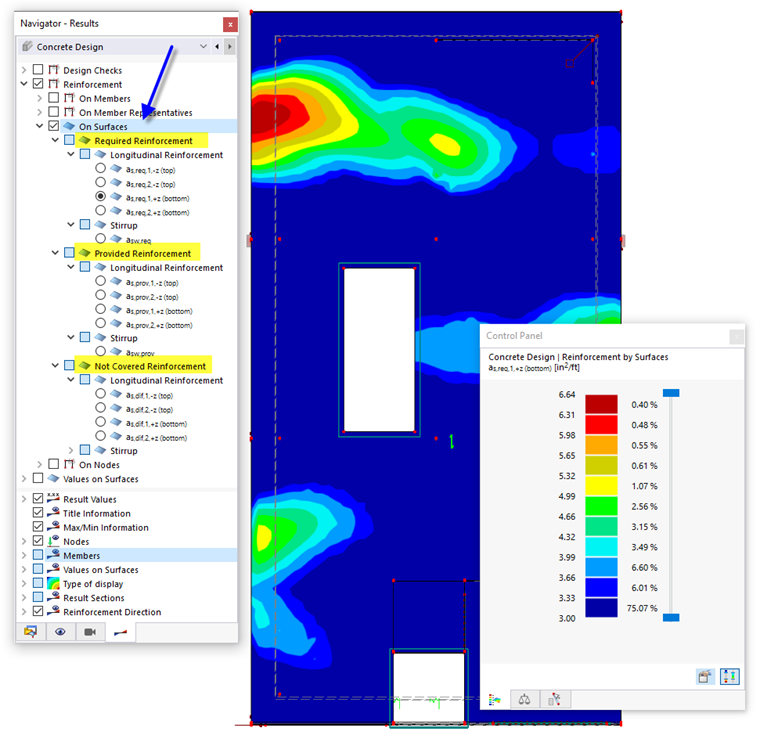
The cross-sectional area of the selected reinforcement type is displayed for each surface location.
Top and Bottom Layer
The top and bottom reinforcement applies according to the assignment that you have defined for each surface reinforcement type.
You can show and hide the surface axes using the Local Axis Systems of Surfaces on/off option in the surface shortcut menu. As an alternative, use the "Navigator Display" (Model → Base Objects → Surfaces → Surface Axis Systems x, y, z).
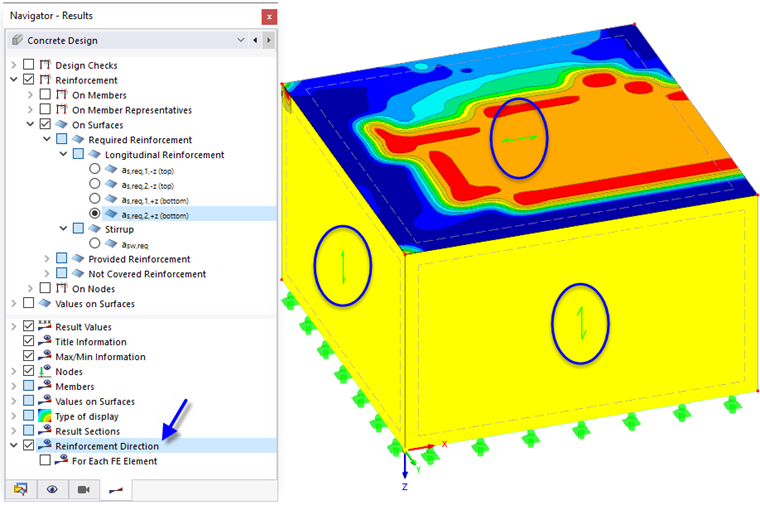
Reinforcement Direction
The reinforcement directions 1 and 2 are assigned to the surfaces in the Concrete Design Properties. You can adjust the display of the current reinforcement direction using the Reinforcement Direction check box in the "Navigator – Results".
Control Panel
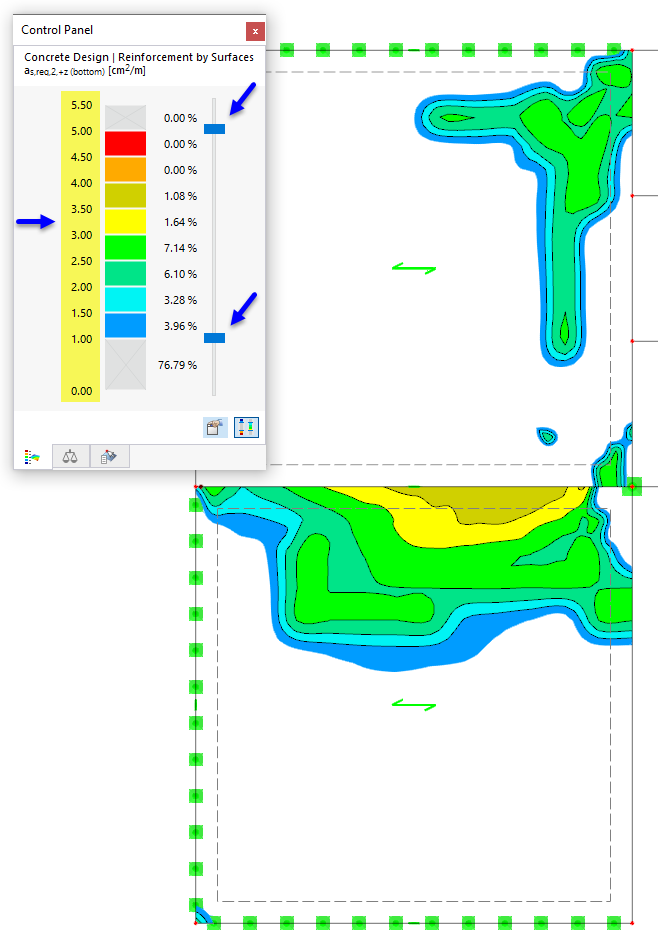
The color assignments of the reinforcement sections are shown in the control panel. If necessary, you can adjust the colors, hide color areas, and define objects for the result display (see the chapter Control Panel of the RFEM manual).
Reinforcement Description Set
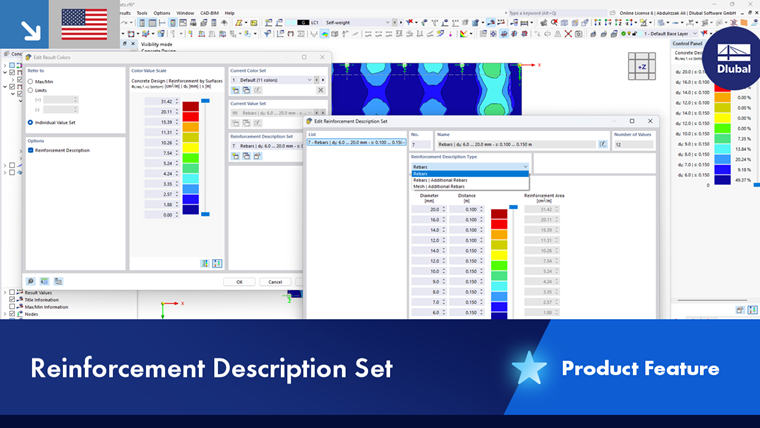
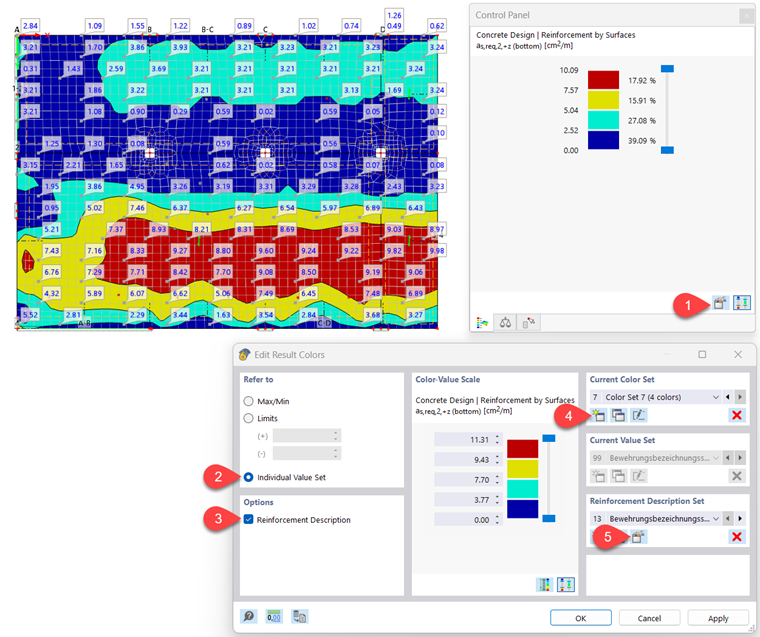
You can replace the reinforcement values in [cm²/m] or [in²/ft] in the control panel with a description of the reinforcement, such as rebar diameter and rebar spacing.
You can open the “Edit Result Colors” dialog box either by clicking the “Edit Result Colors” button
 or by double-clicking the colors in the panel ➀.
In the “Edit Result Colors” dialog box, select the “Individual Value Set” option ➁. Select the “Reinforcement Description” option ➂. You can change the number of areas to be covered using the “Create New Set” function in the “Current Color Set” dialog box ➃. Then, use the
button in the “Reinforcement Description Set” section to open the “Edit Reinforcement Description Set” dialog box ➄.
In the dialog box, you first define the basic configuration of the surface reinforcement. To do this, you can select from three options in the “Type of Reinforcement Description” list ➅:
- Rebars
- Rebars and additional rebars
- Mesh and additional rebars
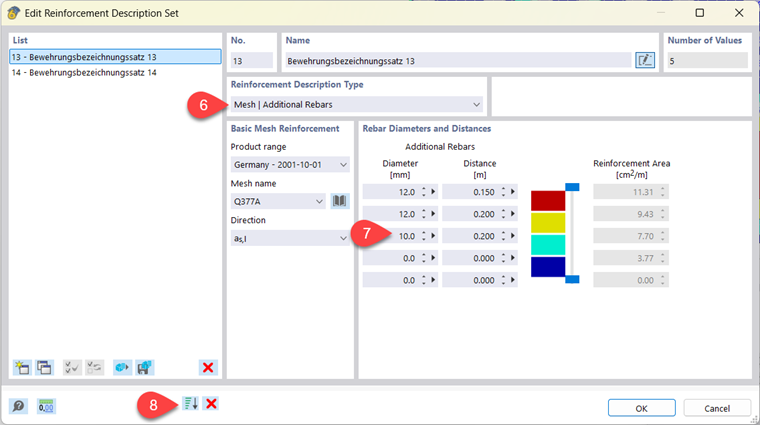
The required minimum coverage of the surface reinforcement can be achieved either with member reinforcement or with mesh reinforcement. If you select the “Mesh” option, you can specify the relevant mesh in the “Basic Reinforcement Mesh” section.
For areas with increased flexural tensile stress, it is possible to display additional required reinforcement in the shape of reinforcing bars ➆. The relevant areas can be selected using a color gradient. In the “Current Color Set” section of the “Edit Result Colors” dialog box (see ➃ in the image Using Reinforcement Description Set), you can specify how many different reinforcement areas should be taken into account.
The areas covered by the basic reinforcement and the additional reinforcing bars are visualized in “OK” according to isobands or isolines.
Use the
 button to automatically sort the additional rebars by effective reinforcement area ➇.
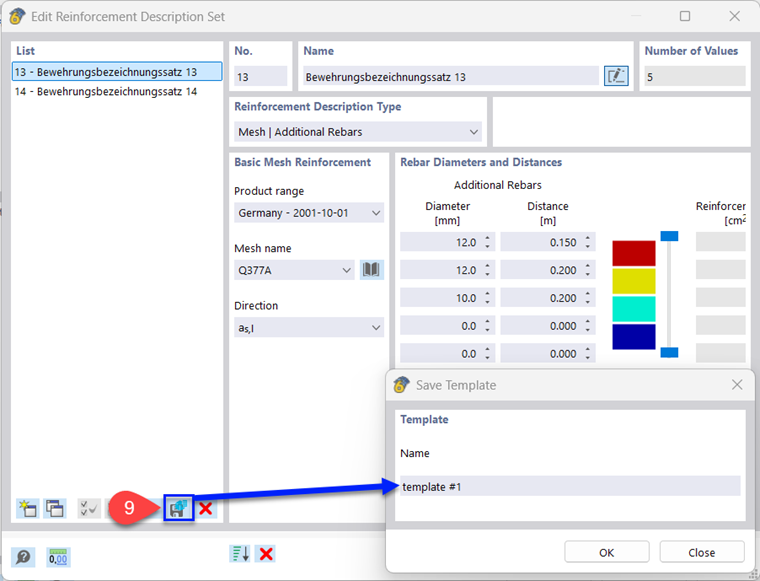
Now you have the option to save the reinforcement description set you have created across all positions using templates for future projects ➈.
Values on Surfaces
The "Values on Surfaces" category at the end of the upper navigator area provides various options for displaying result values on the surfaces ➈.
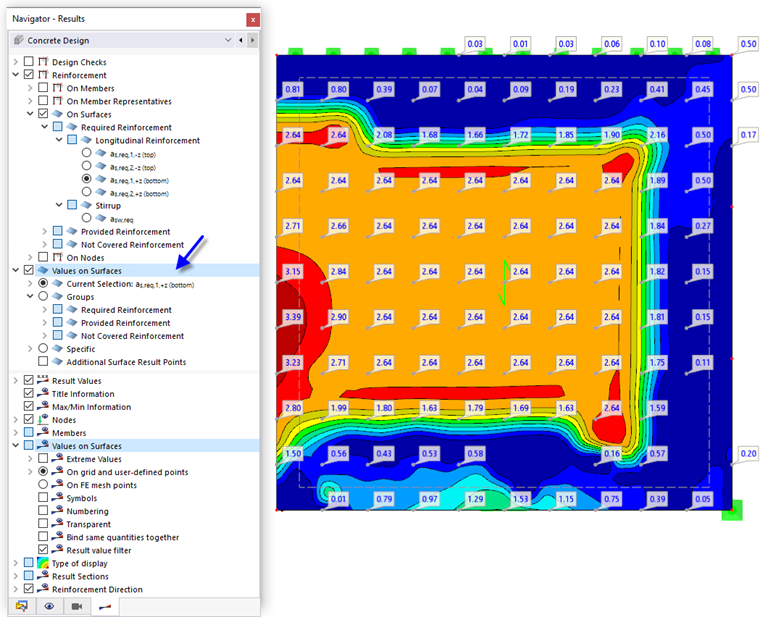
The functions are described in the chapter Result Values on Surfaces of the RFEM manual. You can also use it to evaluate the design results.
The Current Selection option displays the values of the reinforcement type specified in the Navigator above. The result values in the grid or FE mesh points, which can be set in the lower navigator area, thus correspond to the surface gradients (see the image above).
The Groups option allows you to display the reinforcement values by layer. The values are entered in the reinforcement direction. With this type of display, we recommend that you do not show any result diagrams.
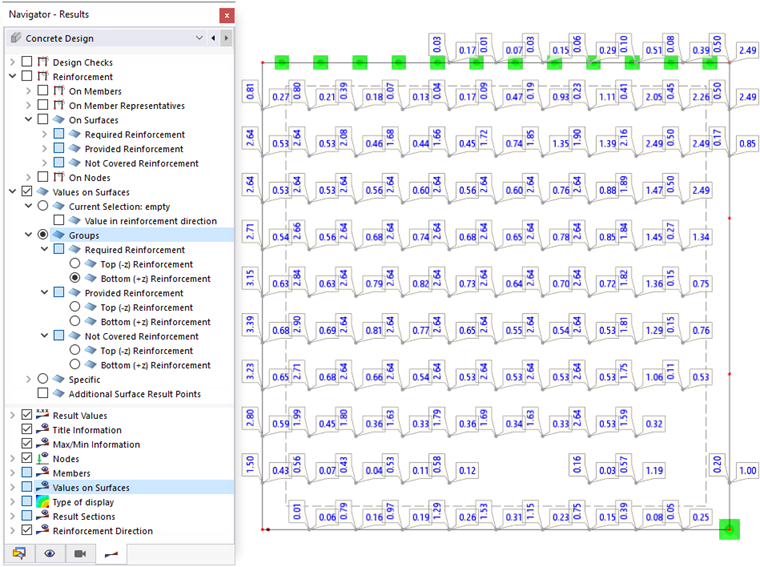
With the Specific option, you can define the result types for the reinforcement-related values yourself.