


Parts describe the geometry of a cross-section.
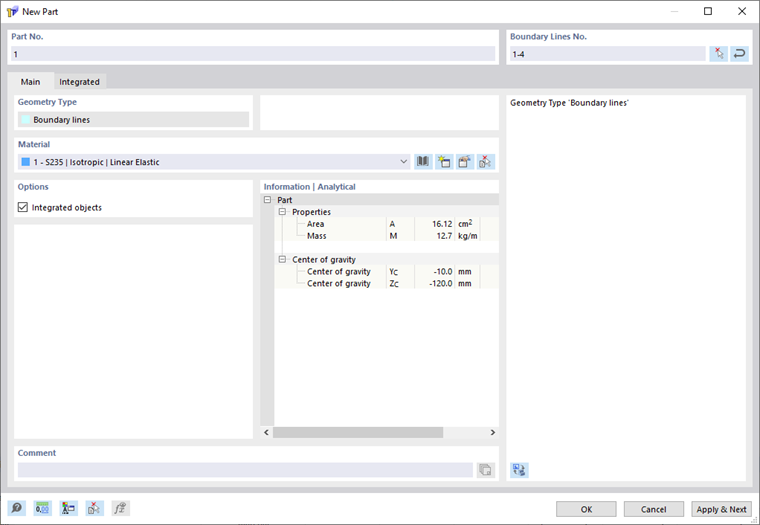
Boundary Lines
For entering parts, you can use any existing "Boundary Lines". You can also enter them graphically, with the program creating the definition lines automatically. Use the list button in the toolbar to access various shapes of the parts.
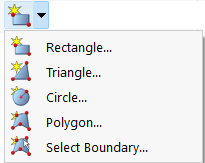
You can define the part graphically (after clicking OK in the dialog box) by drawing a rectangle, circle, and so on. If you "Select Boundary", RSECTION will automatically recognize the part as soon as a sufficient number of boundary lines is defined.
Main
The Main tab manages the basic part parameters.
Material
In the list of already created materials, you can select a material for the part, edit it, or define a new one.
Integrated Objects
Generally, RSECTION automatically recognizes all openings in the part. The numbers of the corresponding openings are specified in the "Integrated Objects in Part" section.
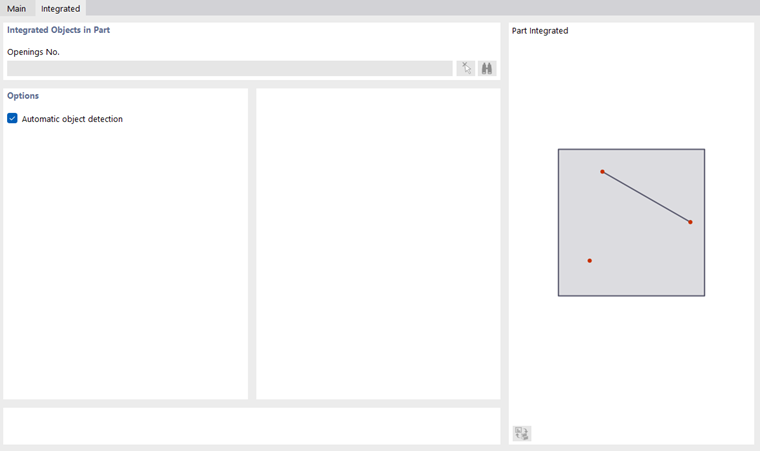
If the opening is not recognized, you should integrate it manually: Deactivate the Automatic object detection. Now, the input text boxes in the "Integrated Objects in Opening" section become accessible. Add the missing opening number, or use the
 , button to define the opening graphically.
Information | Analytical & Mesh
This dialog section provides an overview of important properties of the part, such as a surface area, mass, and the center position. If they are integrated in the part, the openings are taken into account accordingly.
@gridTab@