


Materials are required to define surfaces, cross-sections, and solids. The material properties affect the stiffnesses of these objects.
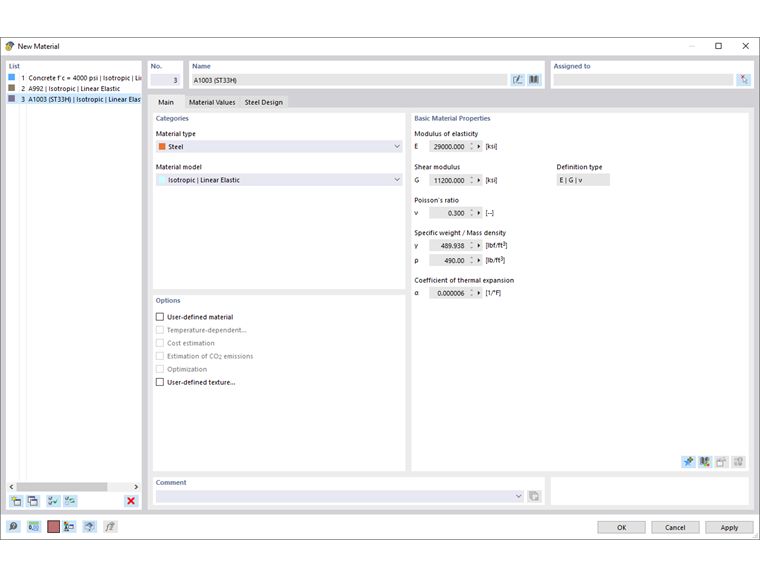
Name
You can define any name for the material. If the description matches an entry in the library, RFEM imports the stored material properties. To select a material from the library, click the
 button at the end of the input line. The import of materials is described in the chapter Material Library.
For materials from the library, the "Basic Material Properties" are set by default and cannot be changed. If you want to use user-defined properties of the material, select the User-defined material check box in the "Options" section (see the section User-Defined Material).
Main
The Main tab manages the basic material parameters. It also provides control options for special properties that you can define in additional tabs.
Categories
In this section, you define the material type and material model.
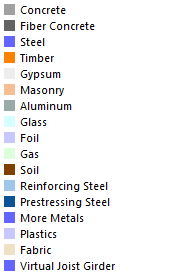
Material Type
The material type controls which parameters and factors are relevant for the design. This classification also defines the partial safety factors of the material, which are taken into account for the design, depending on the standard.
For a material taken from the library, one of the following material types is preset.
Material Model
The following material models are available for selection in the list:
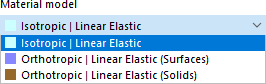
Isotropic | Linear Elastic
The linear-elastic stiffness properties of the material do not depend on directions. They can be described as follows:
|
E |
Modulus of elasticity |
|
G |
Shear modulus |
|
ν |
Poisson's ratio |
The following conditions apply:
- E > 0
- G > 0
- −1 < ν ≤ 0.5 (for surfaces and solids; no upper limit for members)
The elasticity matrix (inverse of stiffness matrix) for surfaces is the following:
Orthotropic | Linear Elastic (Surfaces)
For this type of material model you can define stiffness properties that appear differently in both surface directions x and y. This allows you to represent the properties of, for example, glass-fiber reinforced plastic, ribbed floors, or the stress directions of reinforced ceilings. The surface axes x and y are perpendicular to each other in the surface plane.
To define different material properties for the x- and y-directions, activate the User-defined material check box in the "Options" section. Then, in the Orthotropic – Linear Elastic (Surfaces) tab, you can define the parameters of the material.
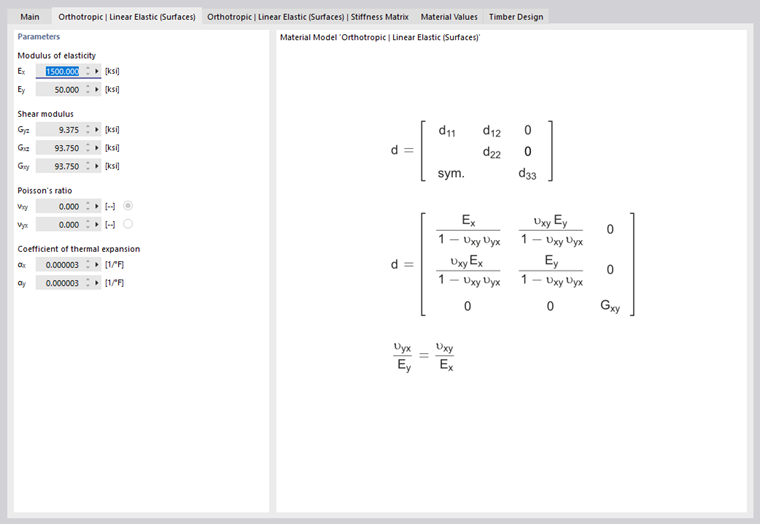
The following conditions must be met for a positively definite stiffness matrix:
- Ex > 0; Ey > 0
- Gyz > 0; Gxz > 0; Gxy > 0
The Poisson's ratio can be defined for both orthotropic directions. The indices for νxy and νyx are assigned as follows: The first index represents the strain in the stress direction, while the second index represents the negative strain transverse to the stress direction.
Orthotropic | Linear Elastic (Solids)
In a three-dimensional orthotropic material model, you can define elastic stiffnesses separately in all directions of the solid. To define different material properties for each direction, activate the User-defined material check box in the "Options" section. Then, in the Orthotropic – Linear Elastic (Solids) tab, you can define the parameters of the material.
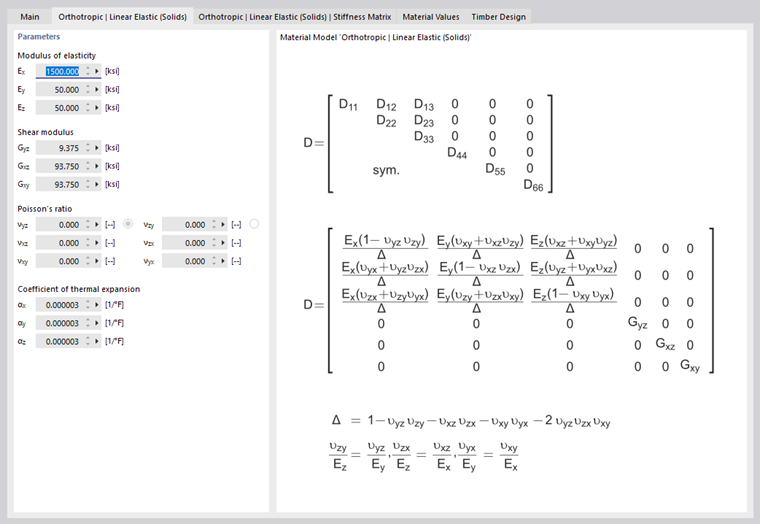
The stiffness matrix elements determined from the entered data are specified in the "Orthotropic | Linear Elastic (Solids) – Stiffness Matrix" tab.
Isotropic | Timber | Linear Elastic (Members)
This material model can be selected for materials of the "Timber" type. It allows you to represent, for example, the properties of an oriented strand board (OSB) in a member model, including different stiffnesses depending on the installation position. You can define the position of the board in the Isotropic Timber | Linear Elastic (Members) tab using the two lists.
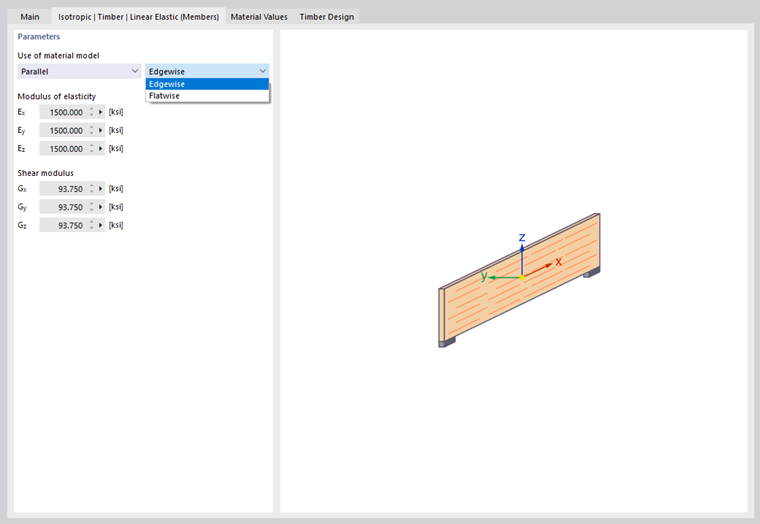
Orthotropic | Timber | Linear Elastic (Surfaces)
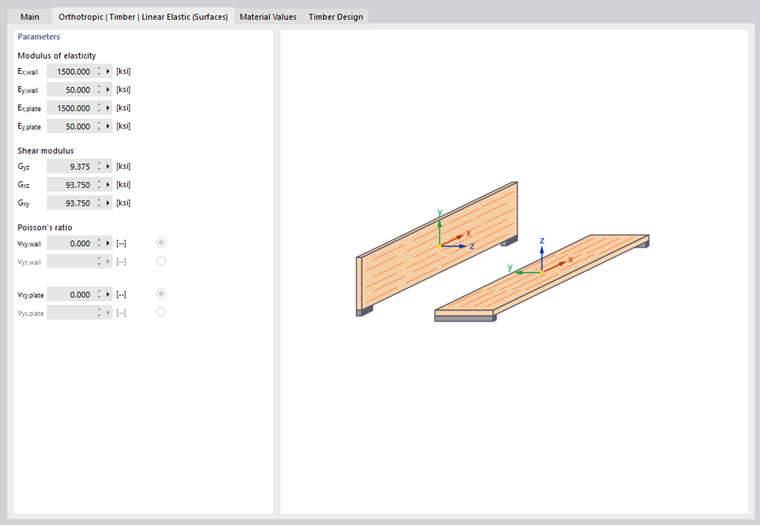
This material model can be used for "Timber" type materials to control the modulus of elasticity with regard to the load-bearing capacity as a wall or panel as well as the shear modulus Gxy: For example, oriented strand boards have directional stiffnesses depending on the position of installation in the model.
The stiffness parameters can be defined in the Orthotropic Timber | Linear Elastic (Surfaces) tab. Default values are preset for timber materials from the library. To define different material properties for each direction, first activate the User-defined material check box in the "Options" section (see the section User-Defined Material).
Basic Material Properties
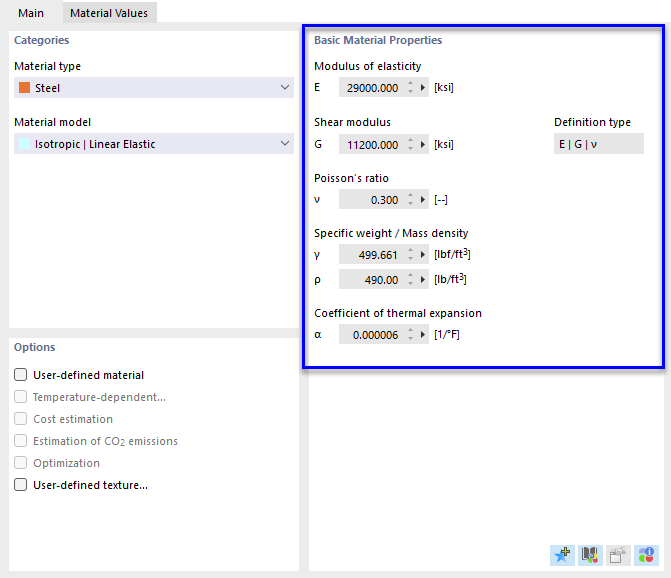
This section of the “Main” tab contains the most important properties of the material.
Modulus of Elasticity
The modulus of elasticity E describes the ratio between normal stress and strain.
Shear Modulus
The shear modulus G, also known as the sliding modulus, is the second parameter for describing the elastic behavior of a linear, isotropic, and homogenous material. In this case, the deformation is based on shear stress.
Poisson's Ratio
Poisson's ratio ν is required to determine the transverse strain. Generally, Poisson's ratio for isotropic materials is between 0.0 and 0.5. Therefore, for a value of 0.5 or higher (for example, rubber), it is assumed that the material is not isotropic.
The relation between the modulus of elasticity, shear modulus, and Poisson's ratio for an isotropic material is described in the equation Poisson's Ratio.
When entering a user-defined material with its isotropic properties, RFEM determines the Poisson's ratio based on the values of the modulus of elasticity and the shear modulus. If necessary, you can change this presetting in the "Definition type" list.
Definition Type
| E | G | (ν) | The Poisson's ratio is determined from the modulus of elasticity and the shear modulus. |
| E | (G) | ν | The shear modulus is determined from the modulus of elasticity and the Poisson's ratio. |
| E | G | ν | The modulus of elasticity, shear modulus, and Poisson's ratio are independent of each other. |
Specific Weight / Mass Density
The specific weight γ describes the weight of the material per volume unit. The specification is especially important for the "Self-weight" load type. The automatic self-weight of the model is determined from the specific weight and the cross-sectional areas of the used members or surfaces and solids.
The density ρ describes the mass of the material per volume unit. This information is required for dynamic analyses.
Coefficient of Thermal Expansion
The coefficient of thermal expansion α describes the linear correlation between changes in temperature and length (elongation of material due to heating, shortening due to cooling).
The coefficient of thermal expansion is relevant for the "Temperature" and "Temperature change" load types.
In the Material Properties tab or by clicking on the
 button, you can check further properties.
Options
The check boxes in this section of the “Main” tab allow you to influence the material properties. After activating an option, new tabs are added.
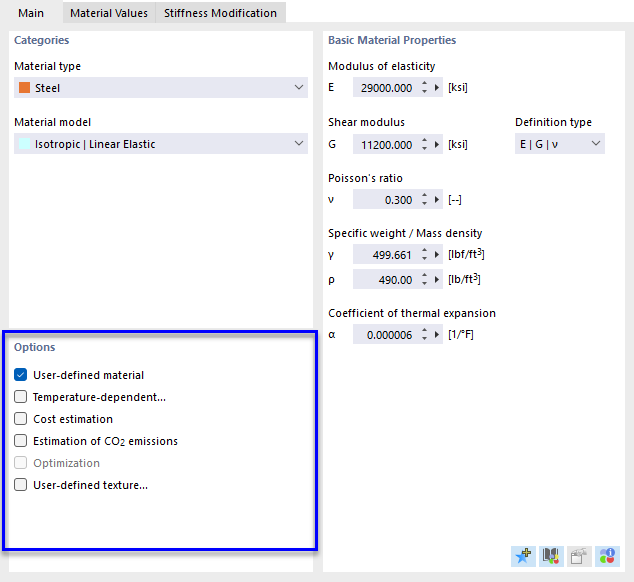
User-Defined Material
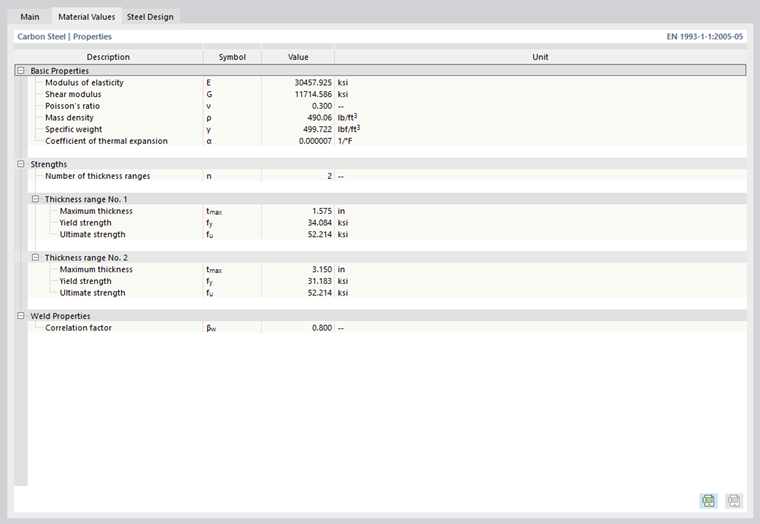
For materials from the library, the material properties are preset. Therefore, they cannot be changed directly in the input boxes. To adjust the properties of a material, activate the “User-defined material” check box. This makes the input boxes for the basic material properties accessible in the “Main” tab. You can also change the design-specific properties in the “Material Properties” tab (see the image Adjusting Material Properties). In the “Stiffness Modification” tab, you can scale the E and G moduli globally by a factor (see the image Adjusting Material Stiffness).
Temperature-Dependent
To define a linear elastic material with temperature-dependent stress-strain properties, activate the “User-defined” and “Temperature-dependent” check boxes. You can then define the temperature-dependent material properties in the Temperature-Dependent tab.
Cost Estimation
To calculate costs, the system uses the materials assigned to the individual objects. You can define the unit costs and quantities of the objects in the Cost Estimation tab.
CO₂ Emissions Estimation
The estimation of CO₂ emissions is also based on the materials assigned to the individual objects. You can specify the unit emissions and units in the CO₂ Emissions Estimation tab.
User-Defined Texture
With a user-defined texture, you can assign a surface texture to the material. The objects are then displayed very realistically. In the “User-defined texture” tab, select an existing entry or define a new texture using the
 button (see the chapter Textures).
Material Properties
The “Material Properties” tab contains all material properties that are relevant for structural analysis and design in the add-ons.
Stiffness Modification
The Stiffness modification tab is displayed if you have checked the User-defined material option in the “Main” tab. Here you can adjust the stiffness of the material globally, for example, to consider safety factors or reduced material properties.
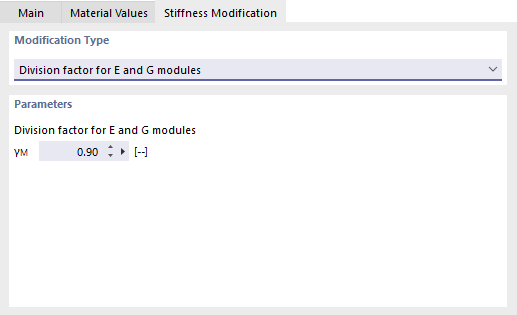
There are two options to select from in the “Modification type” section:
- Division factor for E and G moduli
- Multiplier factor for E and G moduli
In the "Parameters" section, enter the factor by which the material stiffness is to be adjusted.
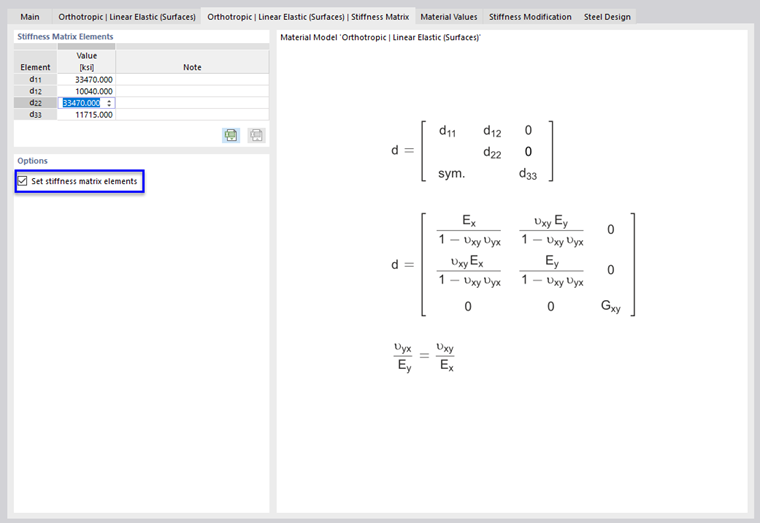
If there is a material with orthotropic properties, you can adjust the modulus of elasticity and the shear modulus, as well as the Poisson's ratios, in the Orthotropic | Linear Elastic tab (see the image Stiffness Matrix).
If you activate the “Set stiffness matrix elements” option in the Orthotropic | Linear Elastic | Stiffness Matrix tab, you can also define the stiffness matrix elements manually.
Temperature-Dependent
The Temperature-Dependent tab is displayed if you have selected the User-defined material and Temperature-dependent options in the “Main” tab. Here you can describe the temperature-dependent properties of the material. The temperature-dependent material properties are taken into account for objects that are thermally stressed by temperature or temperature change. When calculating the temperature loads, the final temperature of the respective step is used.
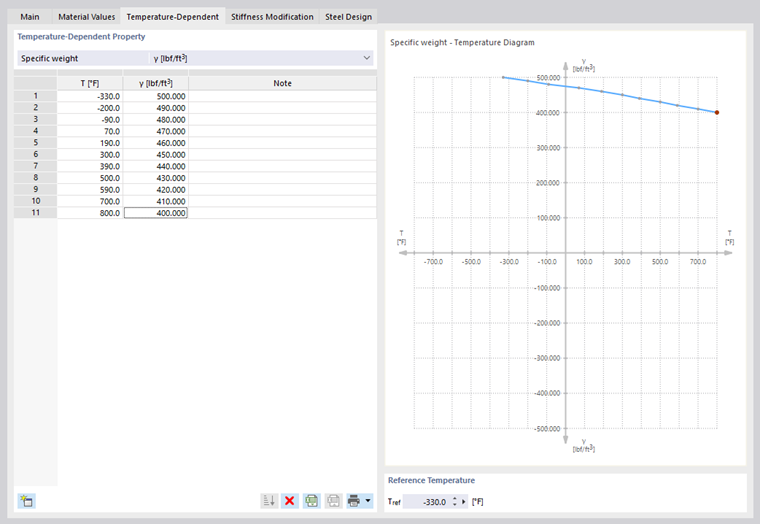
In the "Temperature-Dependent Property" list, select a material property; for example, the modulus of elasticity. Then, use the
button to create the required table rows so that you can enter the temperatures with the corresponding values row by row. You can use the
 button to import data from an Excel spreadsheet.
The "Reference Temperature" defines the stiffnesses for the objects that have no temperature loads. When a reference value, for example, of 300 °C is set, the reduced modulus of elasticity of that point of the temperature curve is applied for all members and surfaces.
User-Defined Material Library
You can save a user-defined material in a library as a template. This means that it is not necessary to define the material properties again in other projects.
Saving Material
To save the current material as a user-defined material, click the button at the bottom of the “Basic Material Properties” section after setting the material properties.
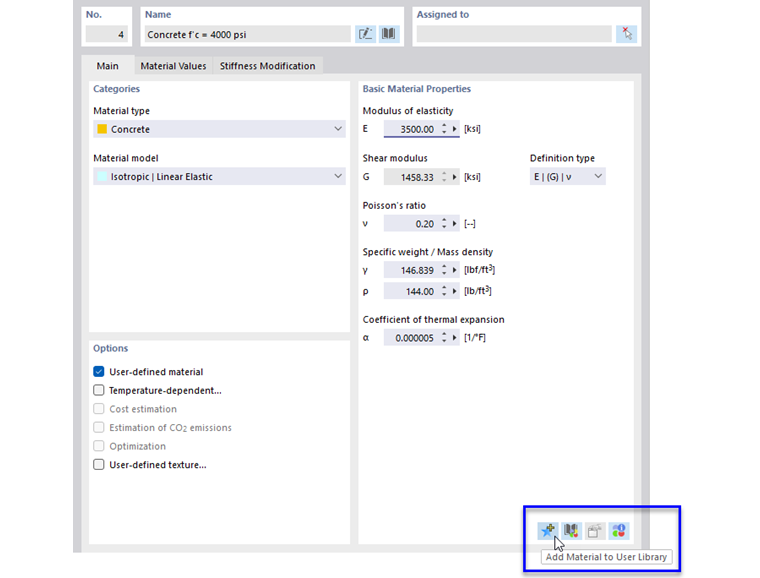
The “New User-Defined Material” dialog box appears.
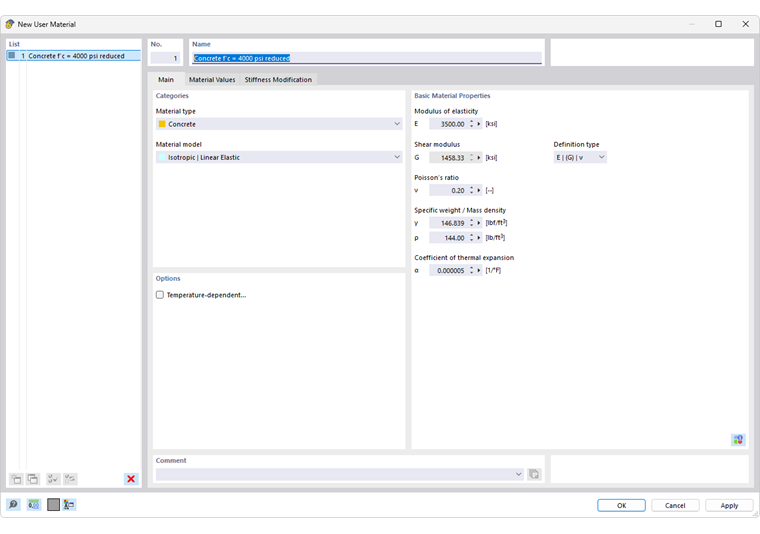
Enter the name of the material in the “Name” text box. If necessary, you can adjust the material properties. Click OK to save the user-defined material in the library.
Importing Material
To import a user-defined material from the library, click the
 button in the “Basic Material Properties” section.
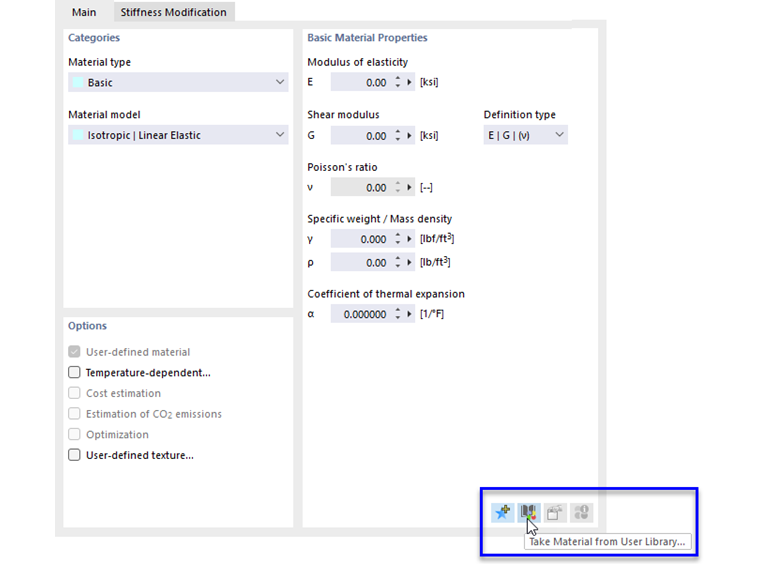
The “Edit User-Defined Material” dialog box appears. In this library with your saved materials (see the image Dialog Box “New User-Defined Material”), you can select the relevant entry and then click OK to apply it.
If you have imported a user-defined material and want to change its properties in general, you can adjust the material properties using the
 button (in the “Basic Material Properties” section) in the library.
Specifying Library Location
By default, the library with the user-defined material is stored in the “user_library_material.dbm” file in the user configuration directory. You can check this directory in the Program Options menu.
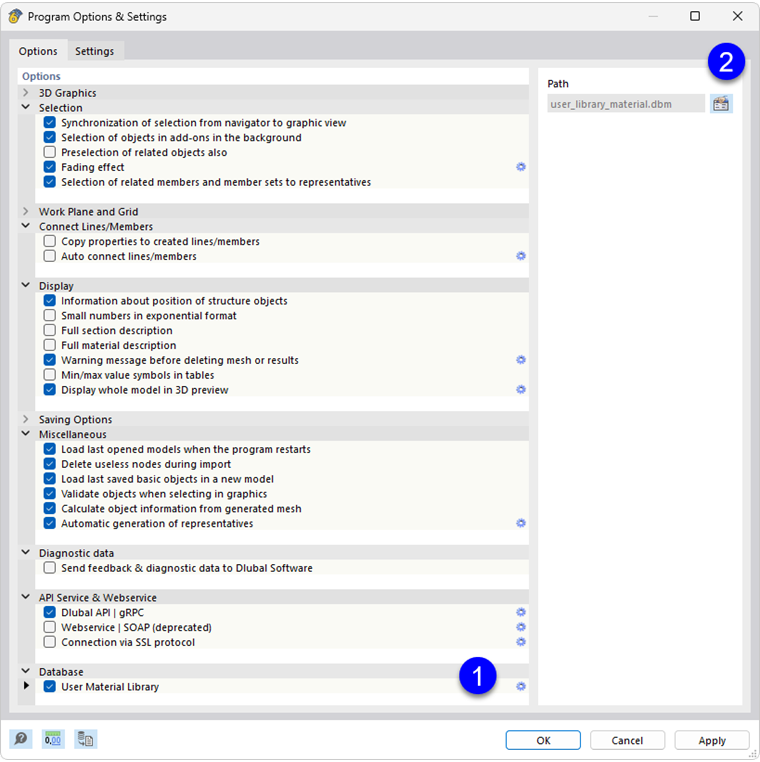
In the Database category, select the User Material Library entry (1). Then, display the folder containing the user_library_material.dbm file using the
 button (2). If you want to use a different material library located on a network drive in your company, specify the directory of the file and click “Save.” You can also transfer your file to another computer and set the storage path accordingly in the same dialog box.
Cost Estimation
The Cost Estimation tab appears if you have selected the Cost Estimation option in the ’’Main’’ tab.
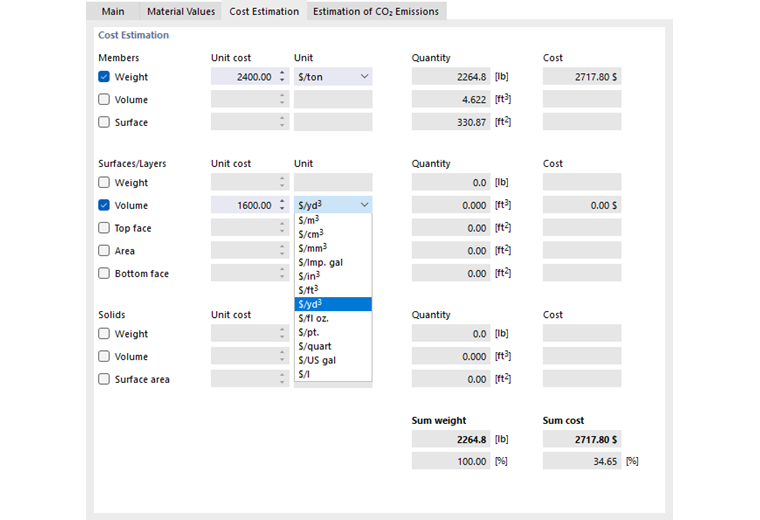
For the structural objects “Members”, “Surfaces”, and “Solids”, select which material property is relevant for the cost estimation: weight, volume, or area, and so on.
Enter the value of what one unit of the material costs in the “Unit Costs” column. The list in the “Unit” column offers various options for the unit cost.
The program directly calculates the proportional costs based on the unit costs and the properties of the structural objects assigned to the material.
The “Total Weight” at the bottom of the table shows the mass resulting from the sum of all activated partial mass weights of the material. Furthermore, the component of the total weight that this material accounts for in the mass of all materials activated for the cost estimate is shown.
The “Total Costs” show the price resulting from the sum of all activated partial costs of the material. Furthermore, the component of the costs that this material represents in the total price of all materials activated for the cost estimate is shown.
The “Total Costs” result from the sum of the total costs of all materials activated for the cost estimate.
CO₂ Emissions Estimation
The CO₂ Emissions Estimation tab is displayed if you have selected the CO₂ Emissions Estimation option in the "Main" tab.
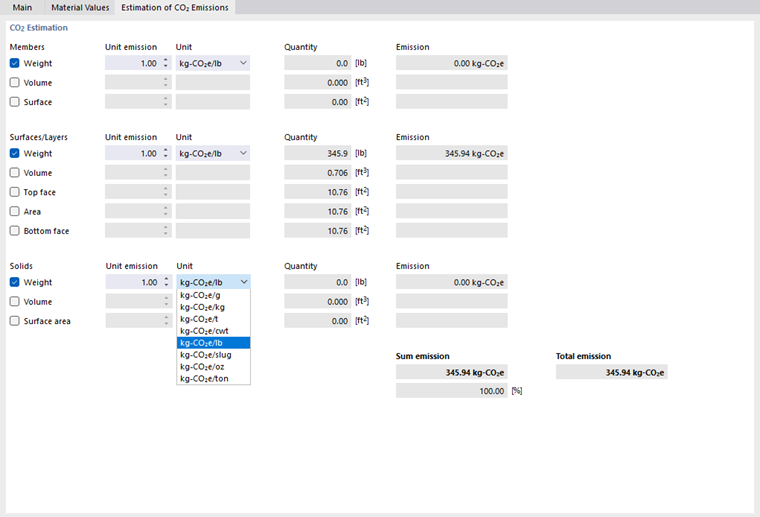
For the structural objects “Members”, “Surfaces”, and “Solids”, select which material property is relevant for estimating CO₂ emissions: weight, volume, or surface, and so on.
In the “Unit Emission” column, enter the value representing the amount of CO₂ emitted by one unit of the material. The list in the “Unit” column offers various emission units for CO₂ equivalents to select from.
Based on the unit emissions and the properties of the structural objects assigned to the material, the program calculates the proportional CO₂ emissions. The calculation is thus performed directly and not via a separate feature, as in other add-ons.
The “Total Emissions” show the CO₂ equivalents resulting from the sum of all activated partial emissions of the material. Furthermore, the program shows the component of emissions that this material contributes to the total emissions of all materials activated for the estimation.
The “Total Emissions” is calculated by adding the total emissions of all materials that are activated for the estimation of CO₂ emissions.