Surfaces describe the geometry of planar or curved components whose surface dimensions are significantly larger than their thicknesses. The stiffness of a surface is determined by its material and thickness. When generating the FE mesh, 2D elements are created on surfaces. These are used for calculations at the surface's center axis.

To input a surface, you can use existing 'boundary lines'. You can also use direct input, where the program automatically generates the definition lines.
The Basic tab manages elementary surface parameters. By checking control fields, additional tabs are added where you can provide specific details.
Stiffness Type
The stiffness type controls how internal forces can be absorbed or what properties are assumed for the surface.
Various stiffness types are available in the list.
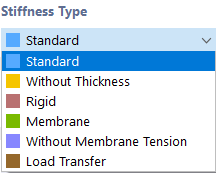
Standard
The surface transmits moments and membrane forces. This approach describes the general behavior of a homogeneous and isotropic surface model. The stiffness properties of the surface are direction-independent.
Without Thickness
The surface has no stiffness. This type is to be used for the boundary surfaces of a volumetric body.
Rigid
This stiffness type allows for modeling very stiff surfaces to create rigid connections between objects.
Membrane
The surface has uniform stiffness in all directions. However, only membrane forces in the state of tension (nx, ny) and membrane shear forces (nxy) are transmitted. Surface elements that are subjected to compression, shear forces, and moments fail.
Membrane Tension-Free
Only moments and membrane forces in the compression state are transmitted. Membrane forces that cause tension result in the failure of the affected surface elements (example: hole bearing).
Load Transfer
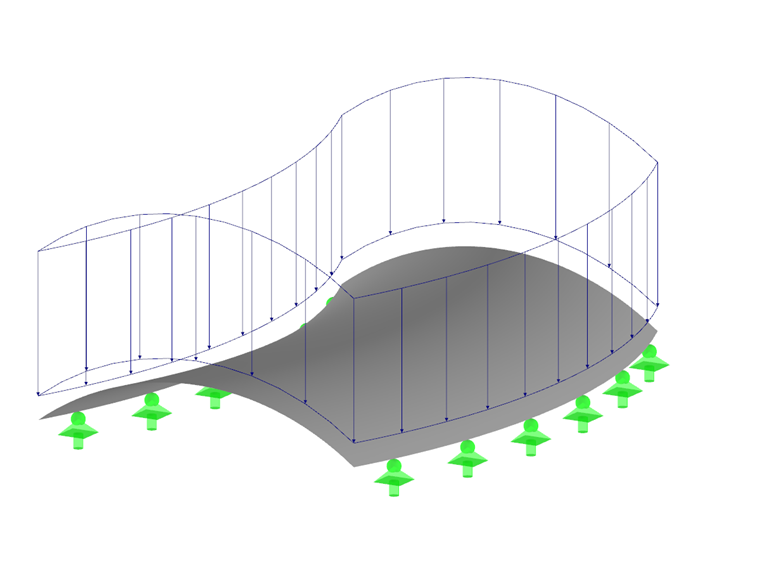
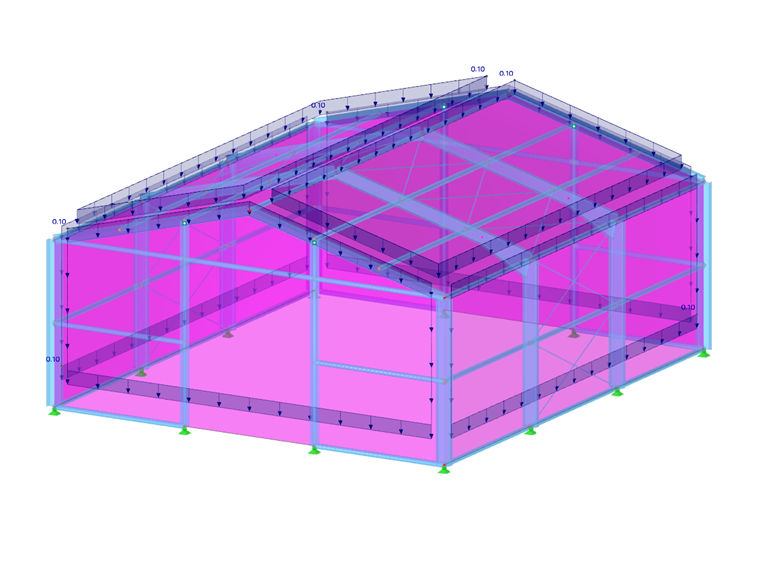
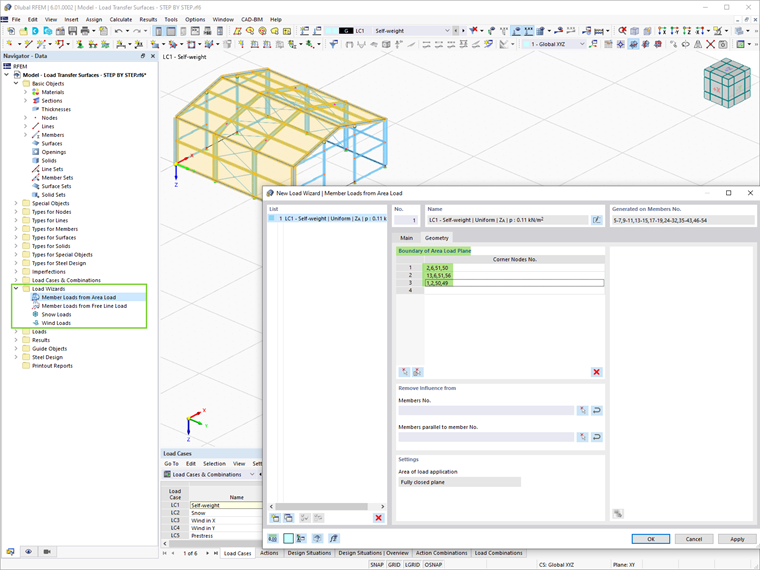
With this type, surface loads can be applied to areas that are not filled with surfaces, such as wind loads on windows or the beams of a hall. The load of this surface is distributed to the edges or the integrated objects. If member loads are generated, the load is recalculated with respect to the global directions on the true member lengths (load directions XL, YL, ZL). The surface itself has no stiffness.
You can define the criteria for load transfer in a new tab.
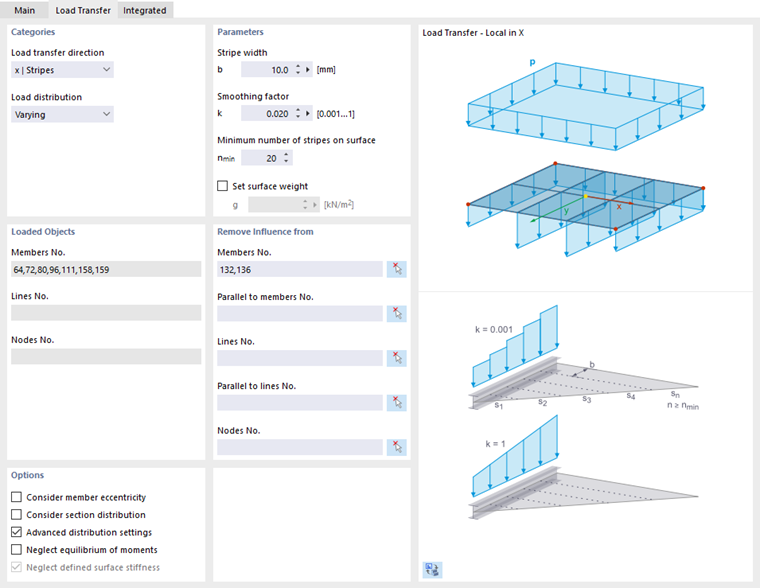
The 'Load Transfer Direction' describes in which direction(s) the load should be applied on the objects. The list offers options for an isotropic distribution based on an FEM calculation as well as for an orthotropic arrangement on surface strips, which are used to determine the load transfer width in one or both local surface axes.
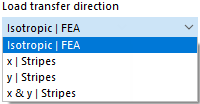
In the 'Isotropic | FEM' option, RFEM uses a separate sub-model to determine the load distribution where the surface is represented by a rigid surface element. All objects integrated into the surface (members, line and nodal supports, lines connected to model elements, couplings, or nodes, etc.) are replaced by rigid lines or rigid nodal supports. The reactions of this sub-model are then used as loads for the 3D calculation of RFEM. If certain objects should not transmit loads, you can specify them under 'Without Effect On'.
In load transfer over surface strips, you can specify how RFEM should perform the 'Load Distribution'. The load is, by default, distributed with a variable progression on the adjoining objects. However, if you want to achieve a constant load progression, select the corresponding entry in the list. The difference between the two variants is compared in the following image.
The input options for 'Surface Strip Width', 'Smoothing Factor', and 'Minimum Number of Strips on the Surface' are accessible when the checkbox 'Advanced Distribution Settings' is activated in the 'Options' section. Adjustments are only necessary for problematic load distributions. The effect of these parameters is explained in the technical article Advanced Distribution Settings in Load-Bearing Surfaces with an example.
For the load transfer surface, you can also set a 'Surface Weight', to consider the self-weight of glazing, for example.
In the section 'Without Effect On', you can exclude members, lines, and nodes from load-bearing (for example, bracings). Define the objects individually or select a pattern object that is parallel to the load-free members or lines.
When the boundary lines of the surface are defined, the loaded members, lines, and nodes are specified in the section 'Loaded Objects'. If you want a specific load distribution, check the checkbox Load Distribution Factor in the 'Basic' tab. You can then individually set the coefficients for the load-bearing objects in the register Load Distribution Factors.
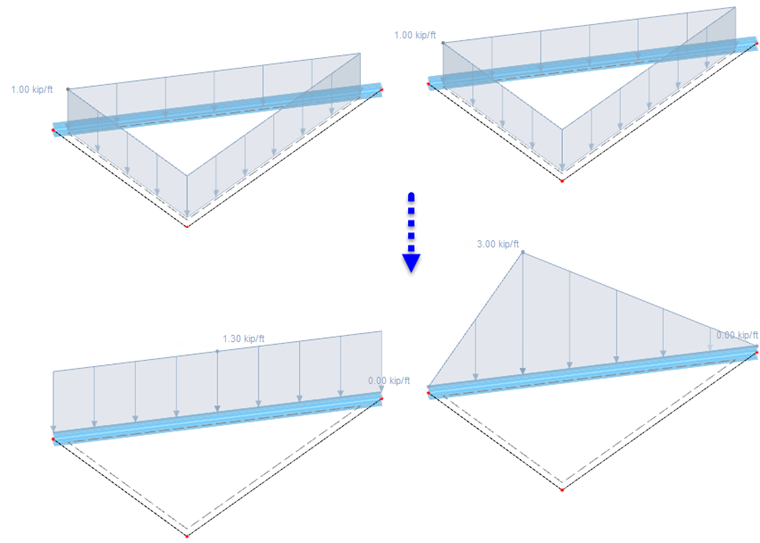
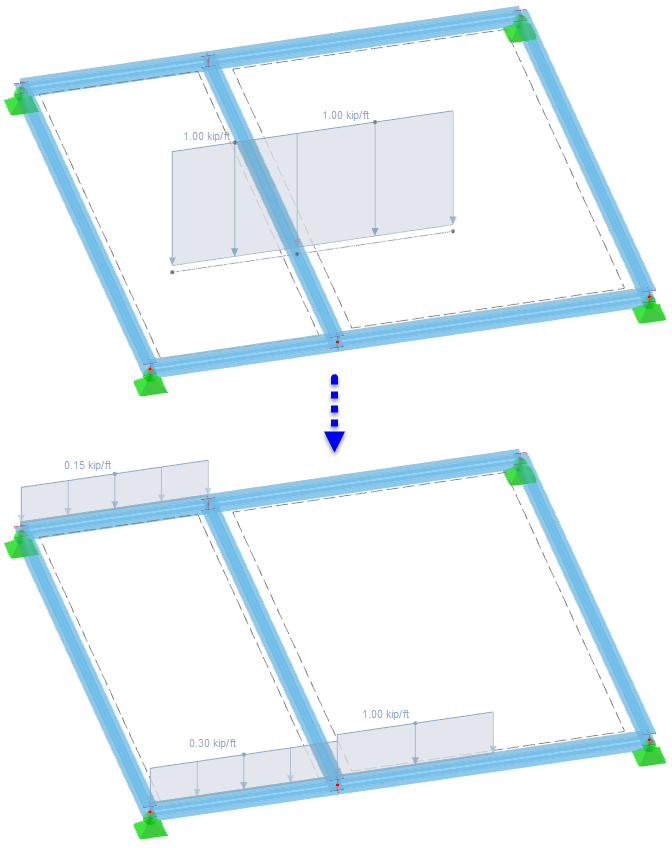
In load transfer over surface strips, you can consider the 'Member Eccentricity' or 'Cross-Section Distribution' to correctly capture the geometric position or path of a member (see chapter Cross-Section). The checkbox 'Neglect Moment Equilibrium' is disabled by default. This forms the moment from the surface loads at the center of gravity and balances it with the moment from the member loads at the center of gravity. This option, however, does not apply to nodal loads. The following image shows how a free line load is distributed to opposite members, with and without considering the moment equilibrium.
Geometry Type
The geometry type describes the formal concept of a surface. Various types are available in the list.
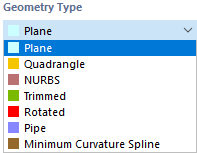
Plane
For a flat surface, all boundary lines lie in one plane. Various forms of flat surfaces are accessible via the list button.
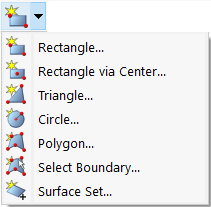
You can graphically define the surface (after OK in the dialog) by drawing a rectangle, circle, etc. If you 'Select Boundary', RFEM automatically detects the surface once a sufficient number of boundary lines are defined.
Quadrangle
This surface type describes a general four-sided surface in its basic form. Boundary lines can include straight lines, arcs, polylines, and splines. This allows modeling of curved surfaces.
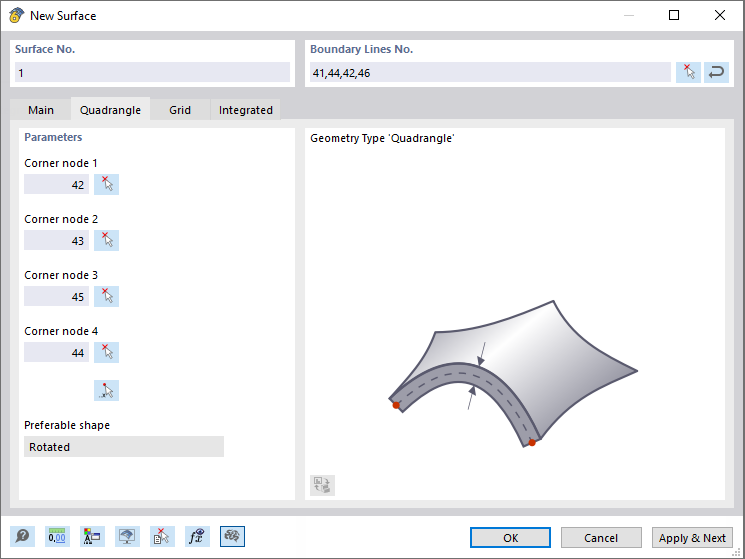
Set the boundary lines of the quadrangle surface in the 'New Surface' dialog. If the closed surface cannot be formed by four lines, more than four lines are permissible. Then, in the 'Quadrangle' tab, specify the four corner nodes. They control how the curved surface is spanned.
NURBS
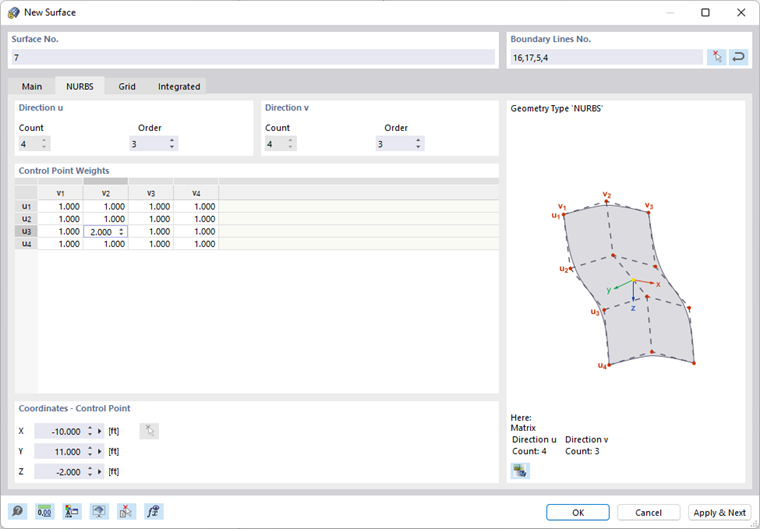
NURBS surfaces are formed from four closed NURBS lines (see chapter Lines). This allows modeling of almost any freeform surfaces.
Set the boundary lines of the NURBS surface in the 'New Surface' dialog. The opposing pairs of NURBS lines must have the same number of control points for these NURBS lines to be "compatible". In the 'NURBS' tab, you can then influence the shape of the surface via the 'Control Point Weights'. The coordinates of the selected control point are specified in the 'Coordinates - Control Point' section.
Trimmed
When surfaces intersect, you can quickly create the intersection: Select the surfaces and then open the context menu. Various options are available.
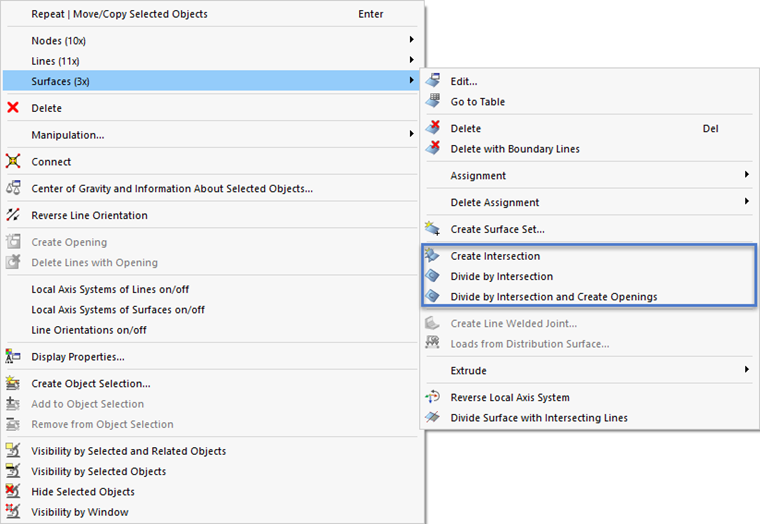
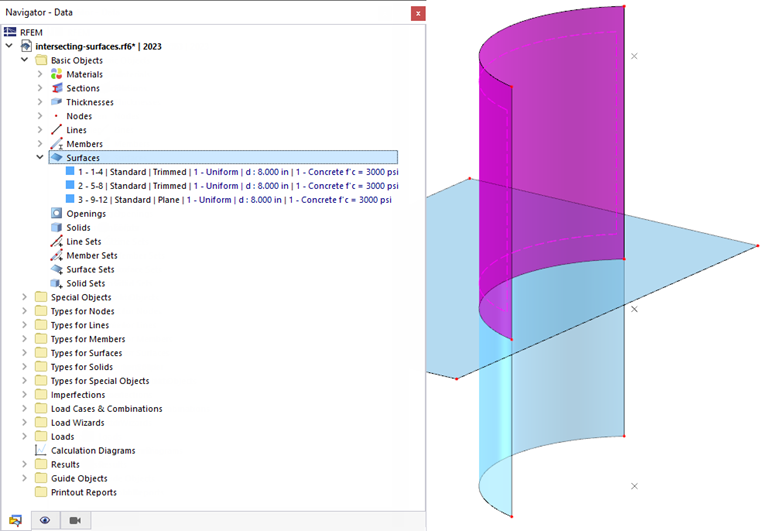
Using the 'Create Intersection' option only generates the intersection line. If you choose one of the 'Split by Intersection' options, RFEM generates sub-surfaces and assigns them the type 'Trimmed'. You can then delete components if you want to remove protruding surfaces, for example.
Rotation
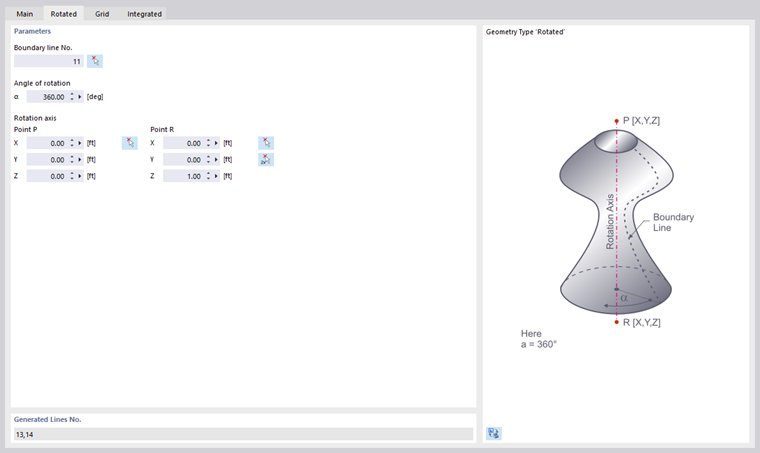
A rotational surface is created when an existing line is rotated around an axis. RFEM creates the surface from the start and end nodes and the rotated definition points of the line. New lines are generated in the process.
In the 'Rotation' tab, set the boundary line of the surface to be rotated. Specify the rotation angle α. You can determine the points of the rotation axis via coordinates or graphically using the button
 .
.
Pipe
A pipe surface is created when the pipe's center line is rotated at a radius around this axis. New lines are generated: two circles and a polyline parallel to the pipe axis.
In the 'Pipe' tab, set the pipe's radius. This value describes the distance from the pipe axis to the center of the surface. Provide the number of the center line or graphically select the pipe axis with the button
 .
.
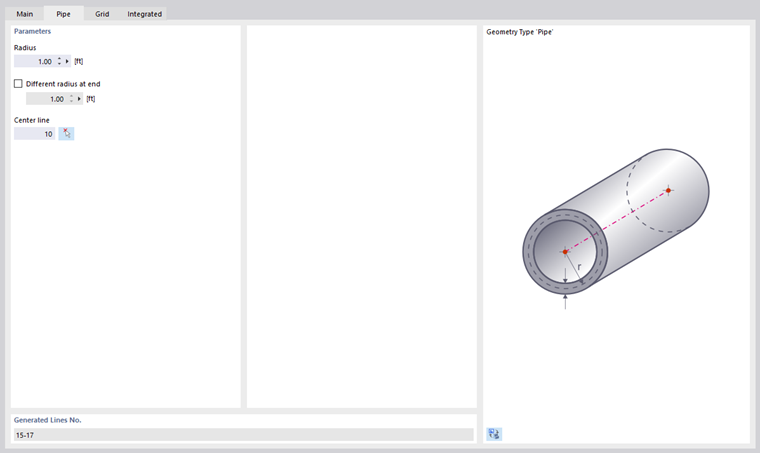
If the pipe cross-section tapers conically, check the 'Different Radius at End' box and specify the appropriate value.
Minimum Curvature Spline
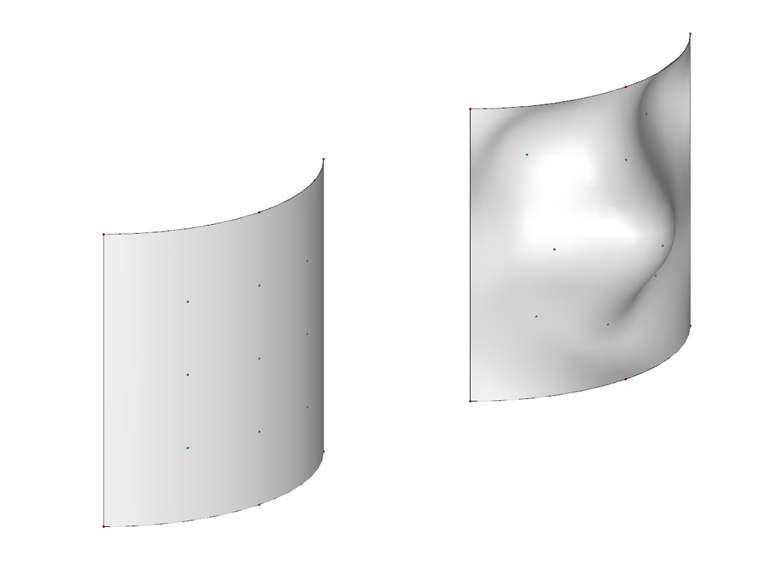
This geometry type allows you to create a curved surface using control nodes, which can be located on or outside the surface. For example, terrain surfaces can be modeled this way.

Set the 'Coordinate System' of the reference plane and provide the 'Probe Coordinates in Coordinate System'. These points represent the control nodes of the spline surface. Then set the 'Boundary Lines of the Reference Plane' or graphically select the lines using the button
.
Thickness with Material
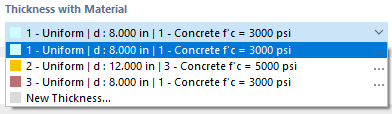
Select the appropriate type from the list of existing thicknesses or define a new thickness (see chapter Thickness).
Material of Thickness
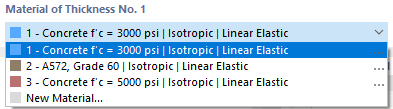
The material of the thickness set in the above section is preset. If needed, you can select another material from the list of already created materials or redefine it (see chapter Materials). This material is then assigned to the thickness type.
Hinges
With a hinge, the transmission of internal forces along a line of the surface can be controlled (see chapter Line Hinges. After checking the control field, you can set the hinge type in the 'Hinges' tab.
Supports
If the surface is elastically supported, you can select or define the surface support in the 'Supports' tab (see chapter Surface Supports).
Release
To decouple the model at the surface, you can select or define a surface release in the 'Release' tab (see chapter Surface Releases).
Eccentricity
An eccentricity allows modeling of a vertical offset of the entire surface (see chapter Surface Eccentricities). You can set the offset type in the 'Eccentricity' tab.
Load Distribution Factor
For a surface of the type Load Transfer, it is possible to set distribution factors for the load-bearing objects. When you check the control field, you can individually assign these factors in a new register.
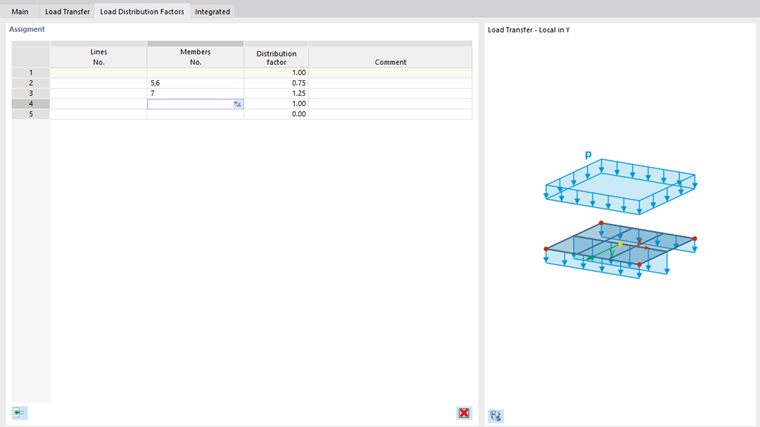
The loaded objects of the load-bearing surface are preset in one line. Each object is assigned the factor 1.00, ensuring all objects contribute equally to the load transfer. If you want a specific distribution, click into the next free line and select the line or member. Then assign the appropriate 'Distribution Factor'.
Mesh Refinement
The mesh size of the FE mesh can be adjusted to the geometry of the surface (see chapter Surface Mesh Refinements). It is thus independent of the general mesh settings. In the 'Mesh Refinement' tab, you can select or define the surface mesh refinement.
Specific Axes
Each surface has a local coordinate system. As a rule, it is aligned parallel to the global axes. However, the coordinate system can also be user-defined – separately for input and output.
Input Axes
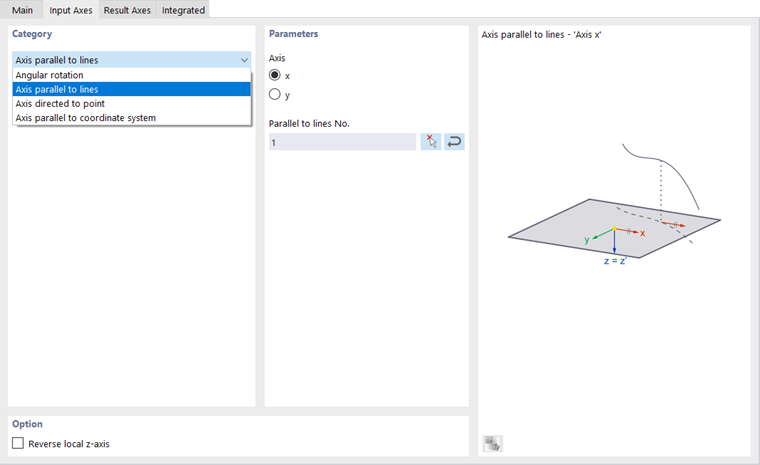
The alignment of the input axes is relevant, for example, for orthotropy and bedding properties or the effect of a surface load.
The list in the 'Category' section offers various options for adjusting the axis position:
- Angle rotation: Rotation of the xy-surface axes around the z-axis with the angle α
- Axis parallel to lines: Orientation of the x or y-axis along a line
- Axis directed to point: Orientation of the x or y-axis to the intersection of a line with the surface
- Axis parallel to the coordinate system: Orientation of the axes to a user-defined coordinate system
You can graphically determine the reference objects using the button
.
The 'Invert local axis z' control field allows reversing the axis z and y direction.
Result Axes
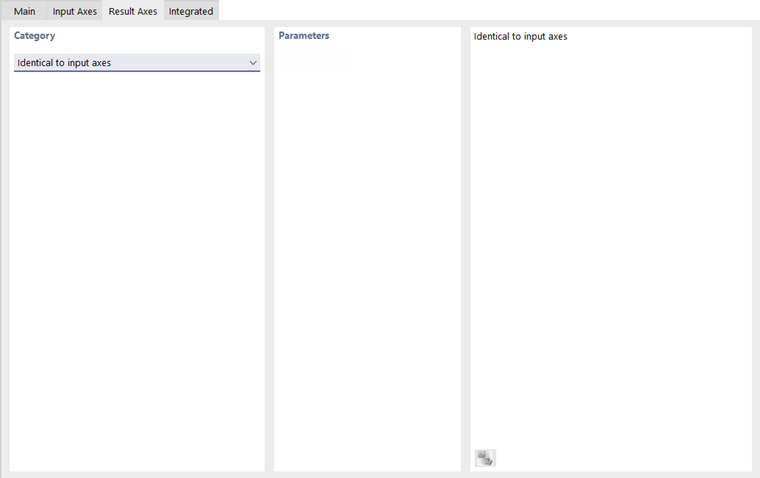
Currently, the orientation of the result axes is only possible as 'Identical to the Input Axes'.
Grid for Results
Each surface is covered with a grid used for result output in the tables. It allows an output in regular, adaptable result points, independent of the FE mesh.
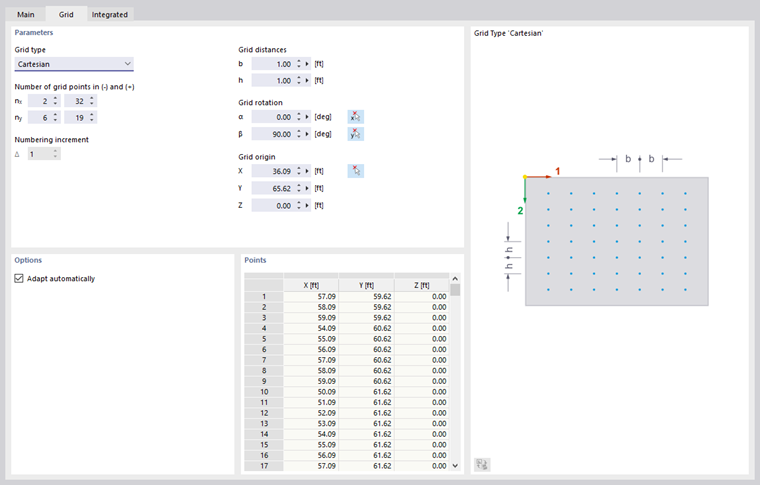
By default, a Cartesian surface grid with a uniform distance of 0.5 m for the grid points in both directions is preset. If necessary, you can adjust the 'Grid Distances' in the x-direction (b) and in the y-direction (h), perform a 'Grid Rotation', or change the 'Grid Origin'. For circular surfaces, the 'Polar' grid type offers an alternative for numerical result output.
If the 'Automatically Adjust' check box is checked in the 'Options' section, the grid points will be aligned to the new geometry when the surface is changed.
In the 'Points' section, you can check the coordinates of the generated grid points. Changes in the table are not possible.
Integrated Objects
RFEM generally recognizes all objects lying within the surface but not used for surface definition automatically.
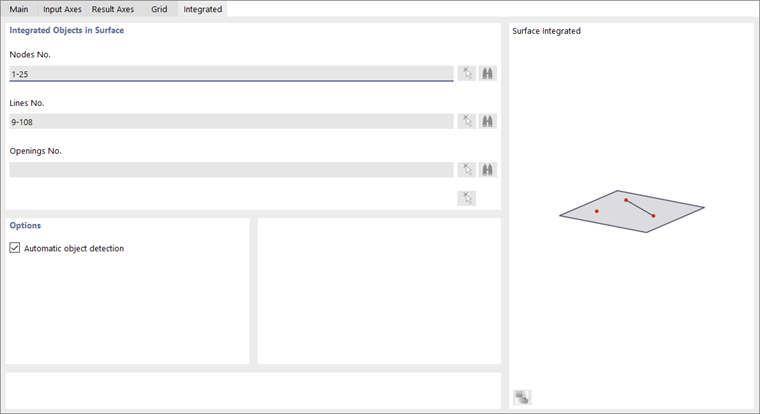
The numbers of the nodes, lines, and openings belonging to the surface are specified in the 'Integrated Objects in Surface' section.
If an object is not recognized, you should integrate it manually: Deactivate Automatic Object Detection. The input fields in the 'Integrated Objects in Surface' section are now accessible. Add the missing object number or use the button
to graphically determine the object.
Enable Load Transfer
This control field allows distributing the surface's load – regardless of its stiffness type – using a load-bearing surface. This means the surface acts in the model through its stiffness. However, the distribution of the load to the neighboring objects is controlled by the parameters you can specify in the Load Transfer tab. This function is mainly relevant for surfaces of thickness type Beam Slab.
Deactivate for Calculation
This control field allows you to exclude the surface from the calculation to simulate construction stages or examine a modeling variant. In this case, the stiffness, boundary conditions, and loads of the surface are not applied.
Information | Analytical
This section is displayed as soon as you have defined the boundary lines of the surface. It provides an overview of important properties of the surface, such as area, volume, and mass, as well as the position of the surface centroid and orientation. Openings are considered accordingly.