


A line link facilitates the task of connecting lines to an adjacent surface. The program searches for lines and surfaces within a specified area and establishes the connection using rigid links. This allows you to quickly connect free members to the structural system or link isolated surfaces.

Main
Define the type of line link in the Main tab. In the “Assigned to” section, you can specify the lines that are relevant as the “origin” for the search.
Allow Connection to
There are two object types to select from when searching for connection options:
- Lines
- Surfaces
You can use the checkboxes to restrict the connection options to specific object types. The Options section provides another way to control the search for objects.
Search Conditions
The program searches for the object (line, surface) within the defined radius that has the shortest distance to the line. This object is then connected to the relevant length with a rigid link.
Parameters
Enter the “Search radius” r to limit the search area.
Connection Type
A line link creates a rigid link between the original line and the nearest line or surface. These links are connected as rigid by default. You can also make the link articulated.
- To do this, select one of the already defined line hinges from the list or define a new joint type using the
 button.
Options
You can use the feature in this section to influence the search.
Exclude Objects
Select the check box if you do not want certain objects to be linked. This adds the Exclude Objects tab, where you can enter further details.
Exclude Objects
The Exclude objects tab is available if the corresponding check box has been selected in the Options section. Here you can specify certain objects—lines or surfaces—that should not be linked within the search area.
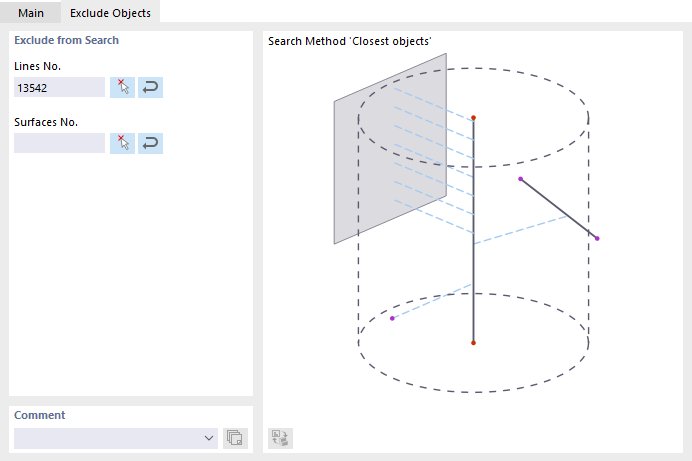
Enter the numbers of the relevant lines or surfaces. You can also select the objects graphically using the
 button. The
 button allows you to transfer the lines or surfaces from Object Selections. To do this, select the relevant object selection (OS) in a separate dialog box.