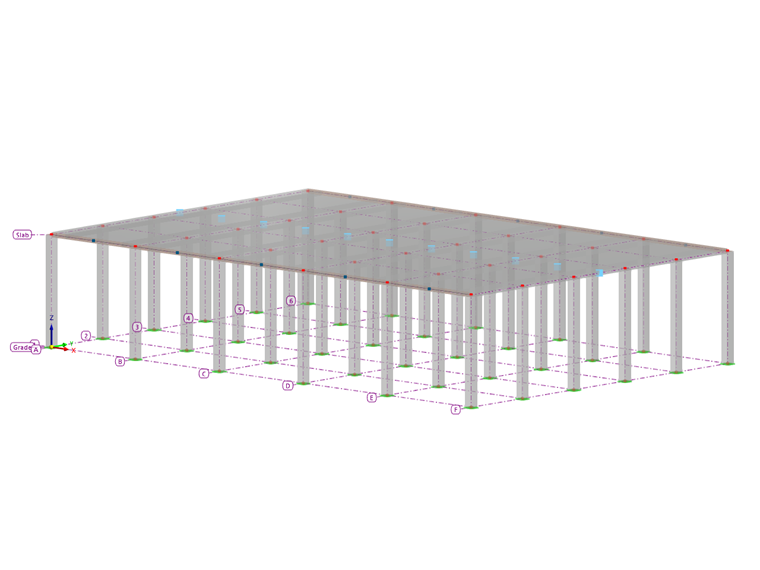
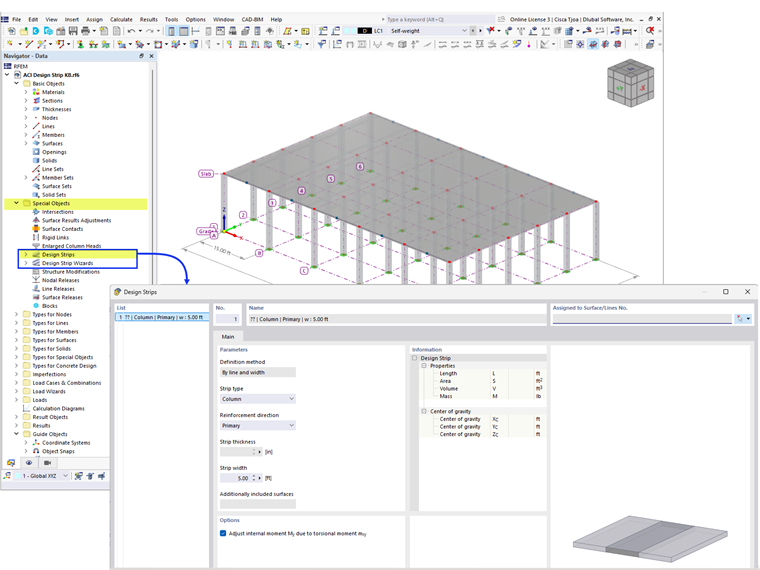
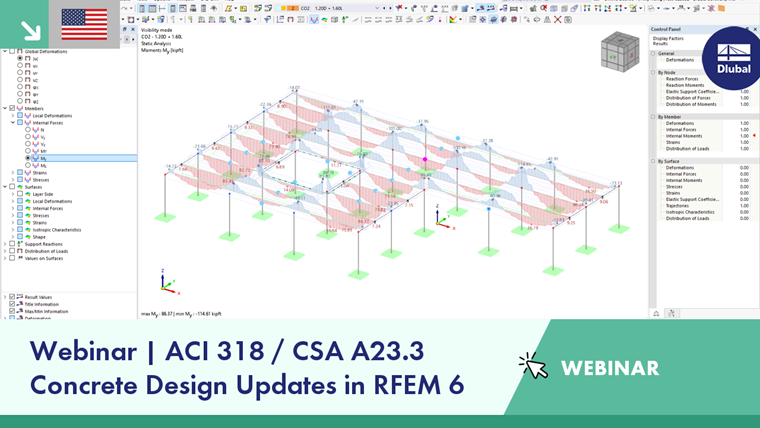
Design Strip Wizards simplify the task of creating a design strip for surfaces based on a building grid.
Main
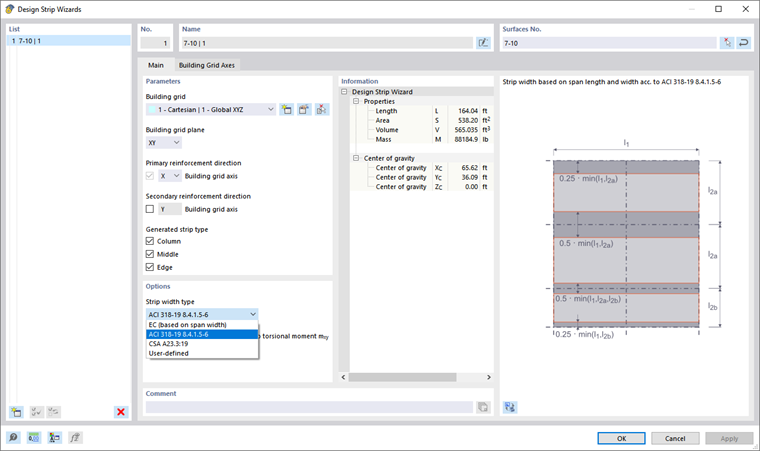
In the Main tab, you can define the boundary conditions for generating design strips.
Parameters
The wizard generates design strips for the surfaces of a building grid. Select the corresponding building grid from the list or define a new building grid using the
 button. Click the
 button for editing the selected building grid, or click the
 button to select the grid graphically in the working window.
Define a “Building grid plane” that is relevant for the design strips. The strips can only be created in one plane. This plane refers to the previously selected building grid.
Specify the “Primary reinforcement direction”. The options in the list are tailored to the specified plane of the building grid. If, for example, the X direction is specified, the wizard creates the design strips parallel to the X axis (definition of the building grid). The generated design strips are given the additional designation “Primary.” If you also want to generate design strips in the “Secondary reinforcement direction,” select the check box. The axis is set automatically. These design strips are given the designation “Secondary.”
The check boxes for “Generated strip type” allow you to control whether strips for column rows and mid-spans are generated in addition to edge strips along the boundary lines of the surfaces (see the chapter Design Strips).
Options
In this section, you can specify the “Strip width type” that will be used when creating the design strips. The list provides the following options (see the image Dialog Box “Design Strip Wizard”):
- EC (based on span width) – Edge strips with 0.25 ℓ, support strips with 0.5 ℓ, mid-span strips between the edge and support strips
- ACI 318-19 8.4.1.5-7 – Recommendations according to ACI 318-19 [1]
- CSA A23.3:19 – Recommendations according to CSA A23 [2]
- User-defined – Manual specification of a strip width
The “Adjust internal moment My by torsional moment mxy” option allows you to distribute the torsional moment in the orthogonal directions using the Wood-Armer method for the design.
Information
In addition to the geometric properties of the design strips, this section displays information on solids, mass, and center of gravity, which are derived from the material properties.
Building Grid Axes
The axes defined for the building grid are specified in the Building Grid Axes tab.
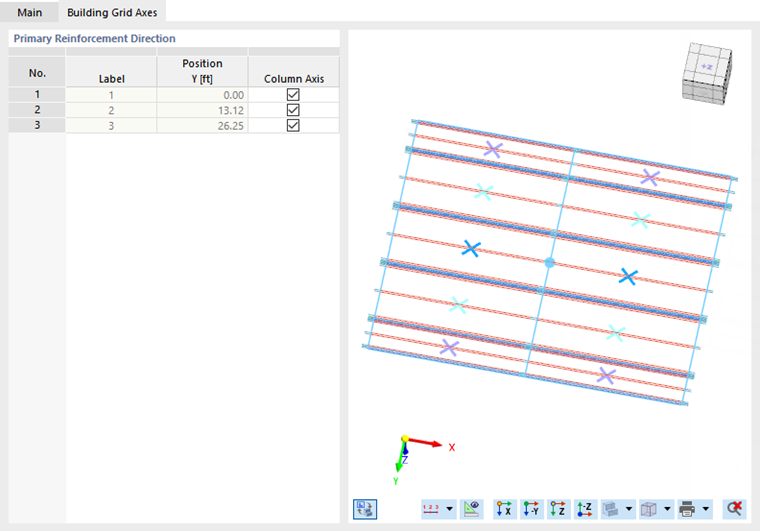
If no design strip is to be generated for a column row, deactivate the corresponding check box in the “Column Axis” column.