


Using construction surfaces, you can create surfaces and assign them to layers, just as you would in a CAD program. These surfaces make it easier to construct model objects.
In the Navigator shortcut menu (see the image Setting Construction Line via Shortcut Menu) and in the list button on the toolbar, you can select from various types of planar and spatial construction surfaces.
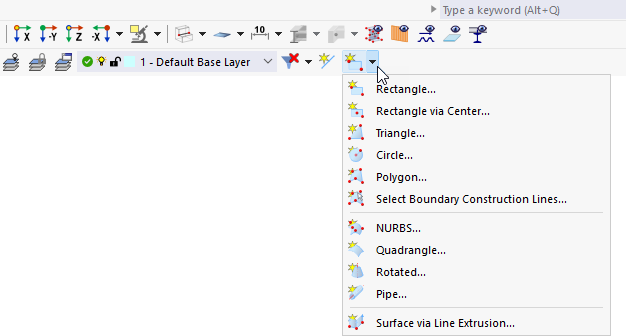
You can define construction surfaces in the same way as the corresponding “real” surfaces of the model.
Construction Surfaces in Layers
Construction surfaces can be assigned to a layer and managed in the layer manager. This allows you to use the construction surfaces in a targeted manner while modeling.
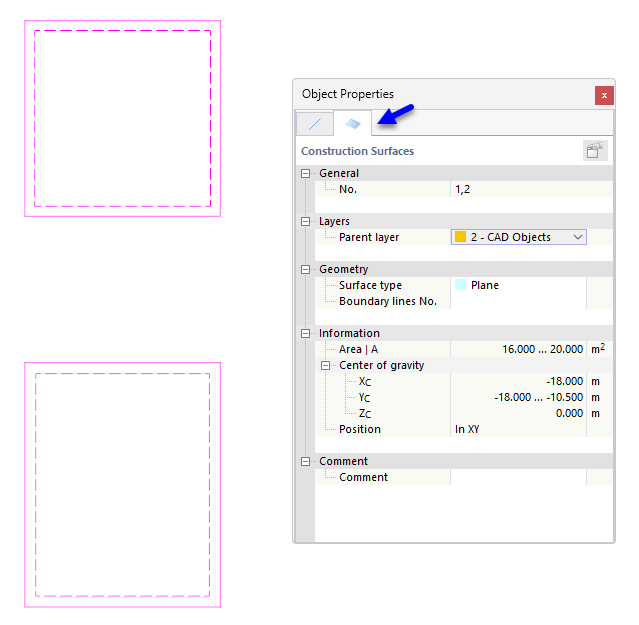
To assign a construction surface to a layer, proceed as follows:
- Select the construction surface.
- Activate the “Object Properties” panel using the button
 in the toolbar. Alternatively, double-click the construction surface.
- Select the corresponding entry from the “Layer” category in the panel list.