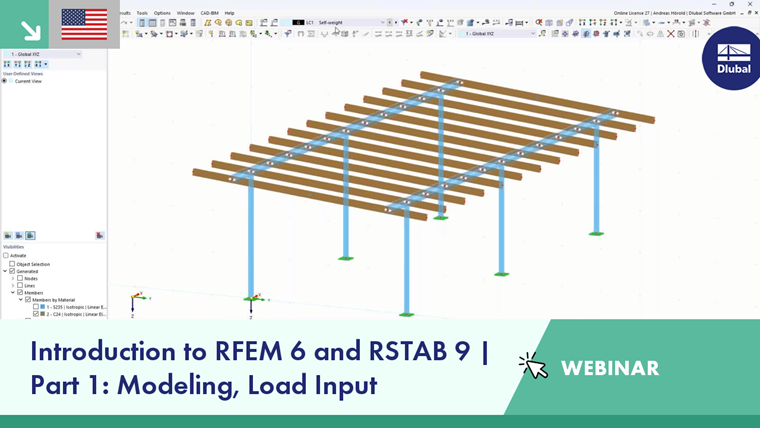
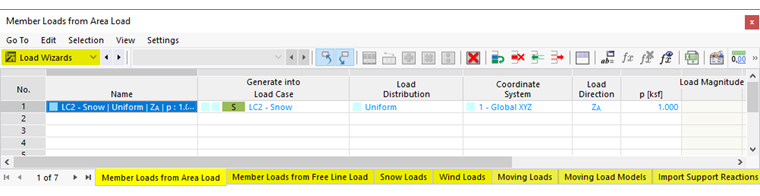
Load wizards facilitate the input of member and surface loads. They allow you to convert area loads to member loads or to apply snow, wind, and moving loads to surfaces and members. There is also a load wizard that allows you to import the support reactions of another model.

Displaying Generated Loads as Member, Line, or Surface Loads
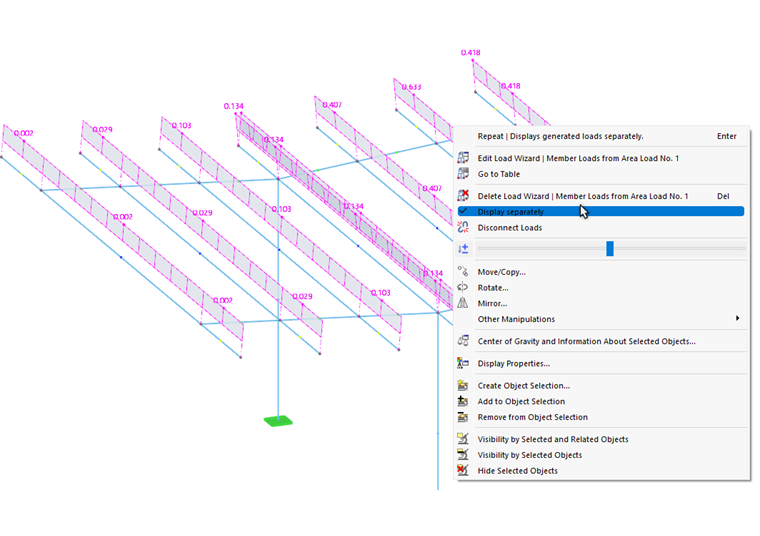
The generated loads are usually displayed as surface loads above the definition objects. In order to check the loads that were generated based on your specifications, open the shortcut menu of the generated load in the work window. Then, activate the Display separately option.
Adjusting Generated Loads
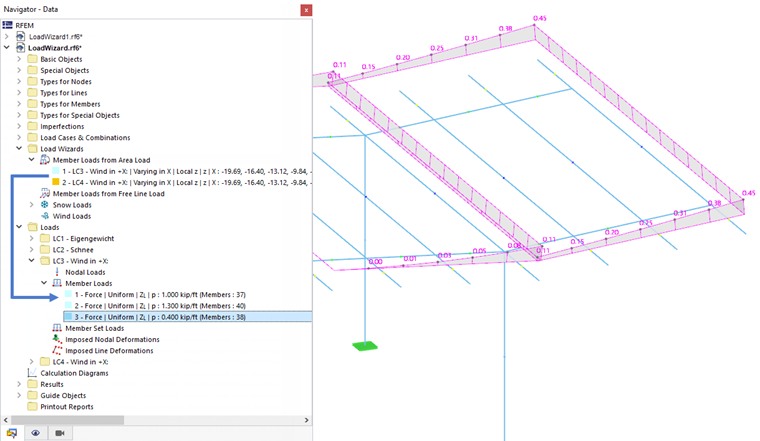
Like other loads, the generated loads are added to the Loads category in the navigator and to the loads in the table. Since they cannot be edited, they are shown in a different color.
If you want to adjust the parameters of the generated loads, open the edit dialog box of the load wizard as usual and make modifications there.
However, if you want to treat the generated loads as isolated load objects, you have to release the loads from the concept and split them into their components. Use the load's shortcut menu in the work window or in the "Navigator – Data". Then, select the Disconnect Loads function.
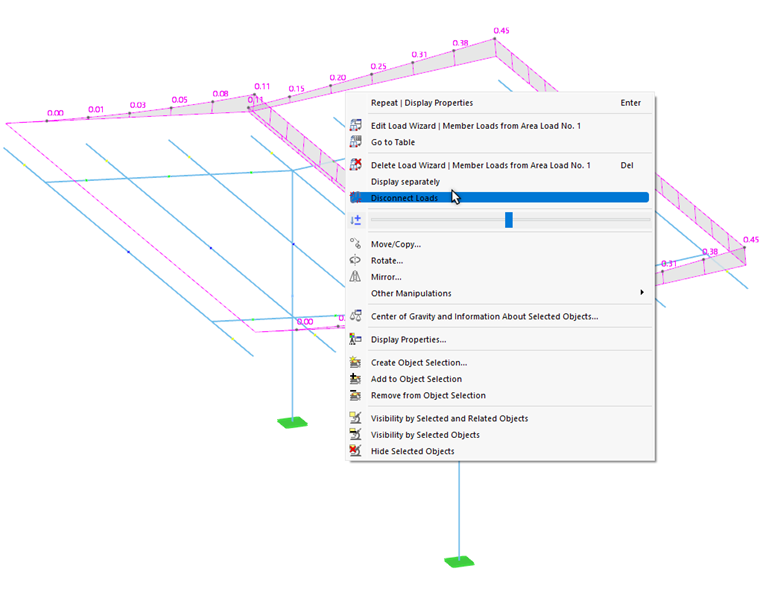
After confirming the query, RFEM converts the generated load into "real" member, line, or surface loads, which you can then edit.