The
 button shows or hides the result values of members. Special functions are available for the results of surfaces, which allow for a targeted evaluation.
Displaying Result Values
In the "Navigator – Results", you can control whether result values are displayed on surfaces, and which results are displayed in detail. Use the Values on Surfaces entries available in both navigator sections.
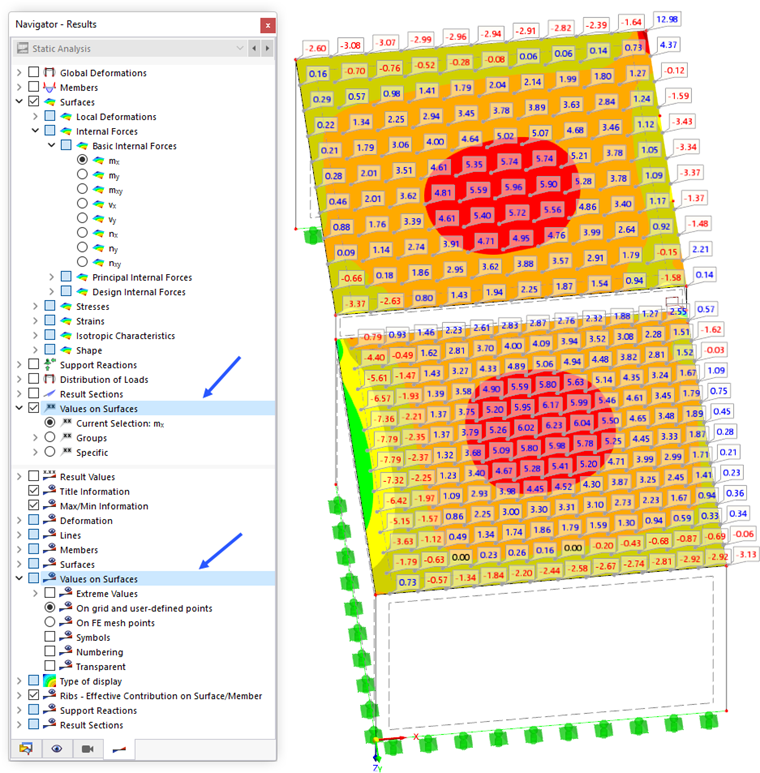
Using the "Values on Surfaces" category in the upper section, you can switch the display of result values on and off. Here, you also define the result type(s) whose values are displayed.
The "Values on Surfaces" category in the lower section manages some settings by which you can influence the output and display of result values.
Result Category for Values
In the upper navigator section, you define the result category to be used for the value display.
Current Selection
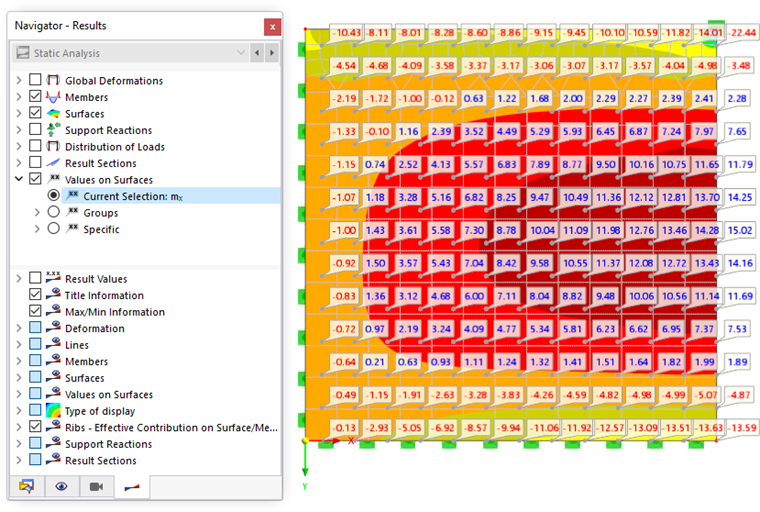
The "Current Selection" setting is aligned with the graphical results: In the image above, these are the basic internal moments my. This way, the result values of the current deformation, internal force, or stress graphic are displayed.
Groups
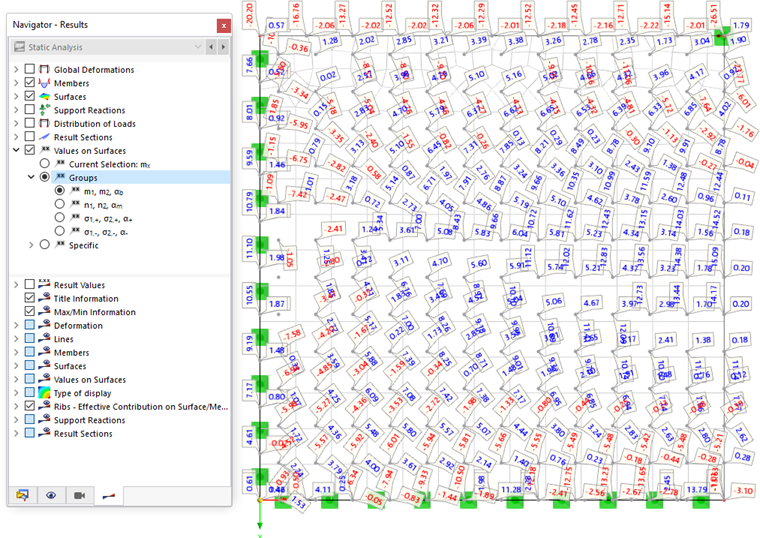
The "Groups" setting allows you to display two result values at each result point. Four groups of internal forces and moments, as well as stresses, are available. The image above shows the group of the principal moments m1 and m2. The arranged grid values are rotated about the angle αb.
Specific

With the options of the "Specific" setting, you can individually define which result values are displayed: deformations, internal forces and moments, stresses, strains. The image above shows the values of the principal stresses that are available on the positive and negative sides of the surface, respectively.
Settings for Result Values
In the lower navigator section, you can define the points at which the result values are displayed and in which form they appear.
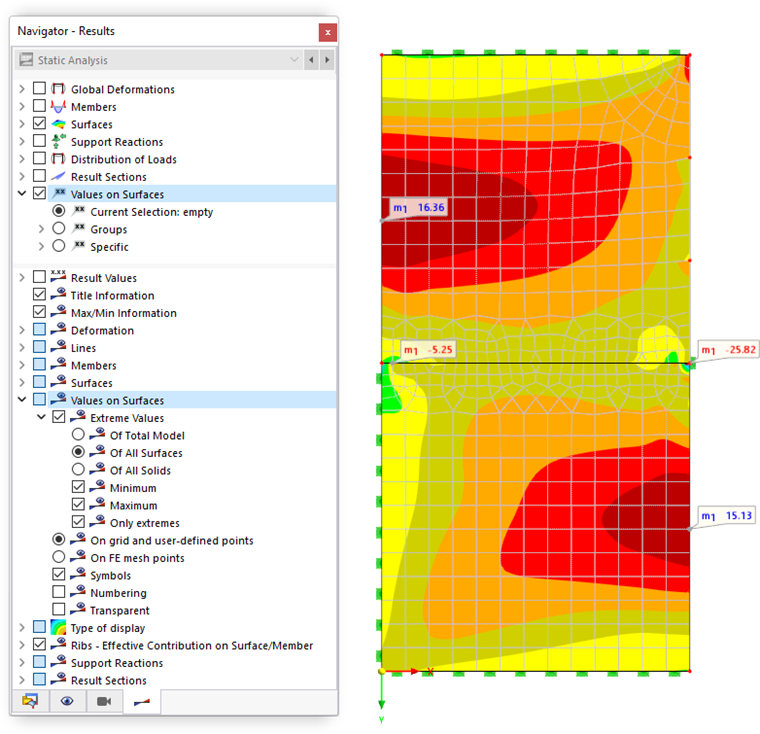
Extreme Values
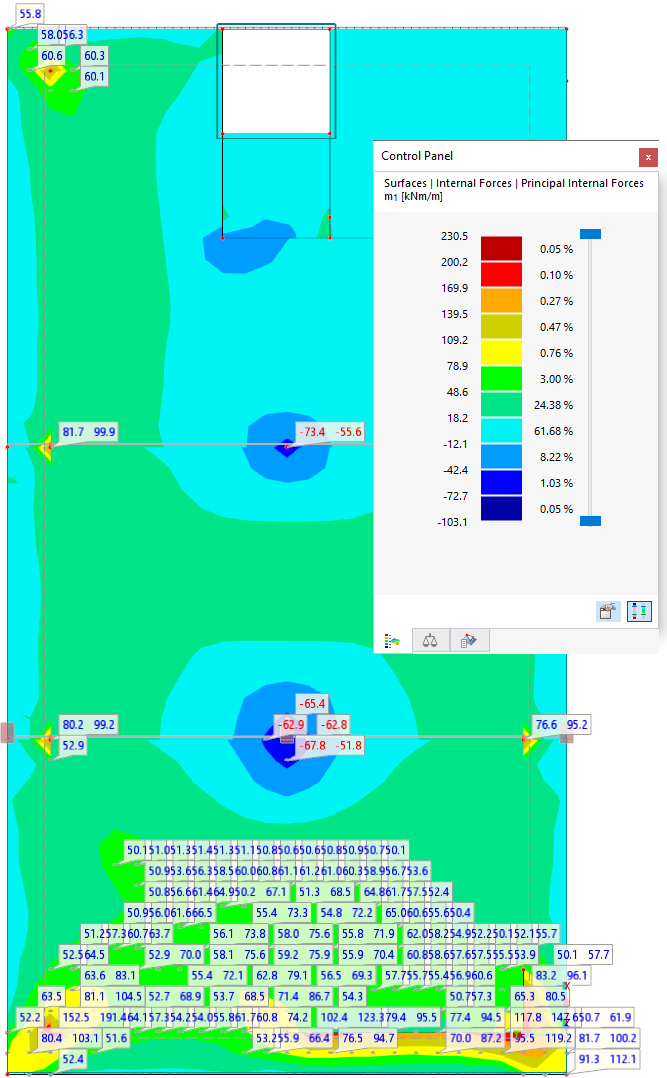
The "Extreme Values" check box allows you to control whether only the extreme values of results are displayed. Depending on the setting, the respective minimum or maximum values of the model, surfaces, or solids appear. The image above shows the minimum and maximum principal moments m1 available in each surface.
On Grid and User-Defined Points / On FE Mesh Points
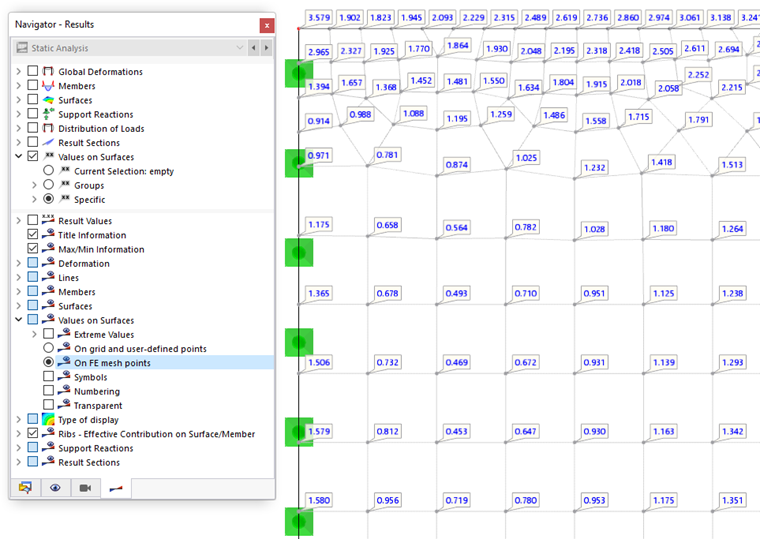
The result values are either displayed in the grid points and user-defined result points or in the FE mesh points. The image above shows the maximum equivalent stresses σv that are available on the nodes of the mesh.
You can change the settings for the result grid of a surface in the Edit Surface dialog box. The user-defined result points are managed in the Result Objects category. You can also use the
 button to set result points directly.
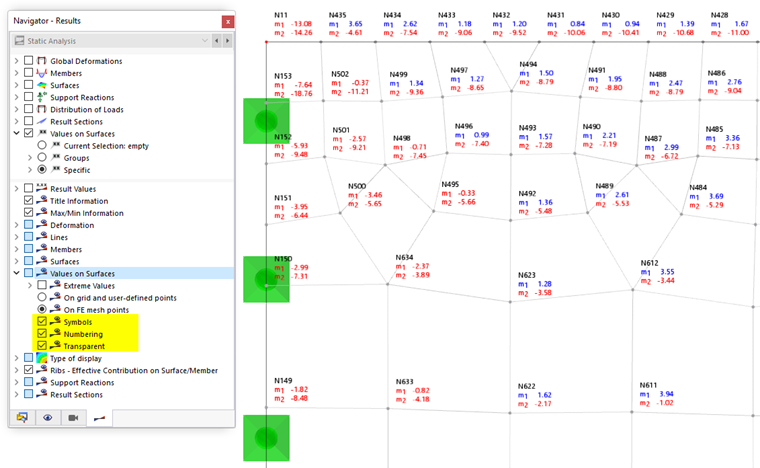
Symbols / Numbering / Transparent
The last three "Values on Surfaces" check boxes in the lower navigator section control how the values are displayed.
- Symbols: The result type (u, m1, σz) is specified additionally.
- Numbering: The number of the R grid point or the N FE mesh point is displayed.
- Transparent: The values are displayed without a frame or background.
The following image shows the principal moments, including numbering of FE nodes, in a transparent representation.
Adjusting Color and Font of Result Values
To adjust the colors and font of result values, click Display Properties in the Options menu. In the "Display Properties" dialog box, open the Results category. Select Values on Surfaces.
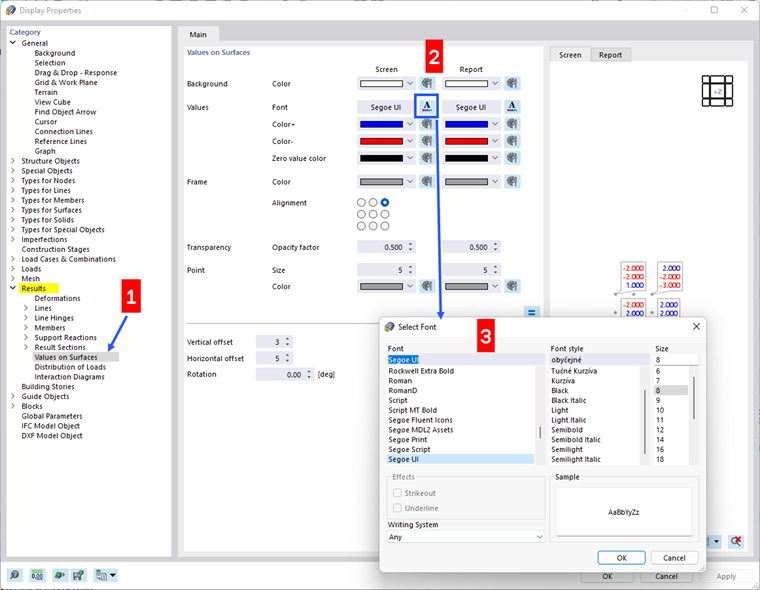
In the "Values on Surfaces" dialog section, you can adjust the color of the background as well as the frame, font, arrangement, and transparency. The changes are shown in the preview on the right.
Separate specifications for "Screen" and "Report" are possible. If the
 button is activated, the changes are synchronized for both output types.
Filtering Result Values
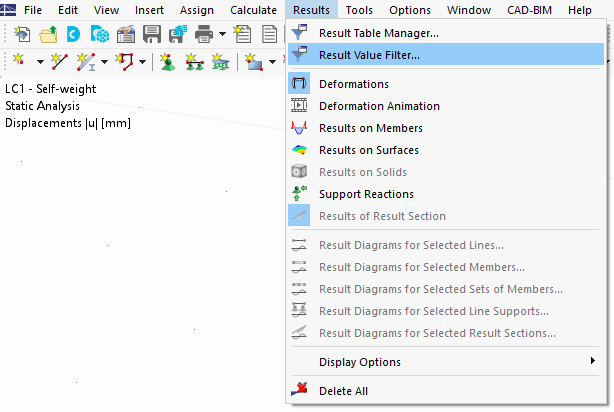
There are filter options for the result values, which you can use to display particular results. In the "Results" menu, select the Result Value Filter item to open the "Result Value Filter" dialog box.
In this filter, you can define the criteria for displaying result values.
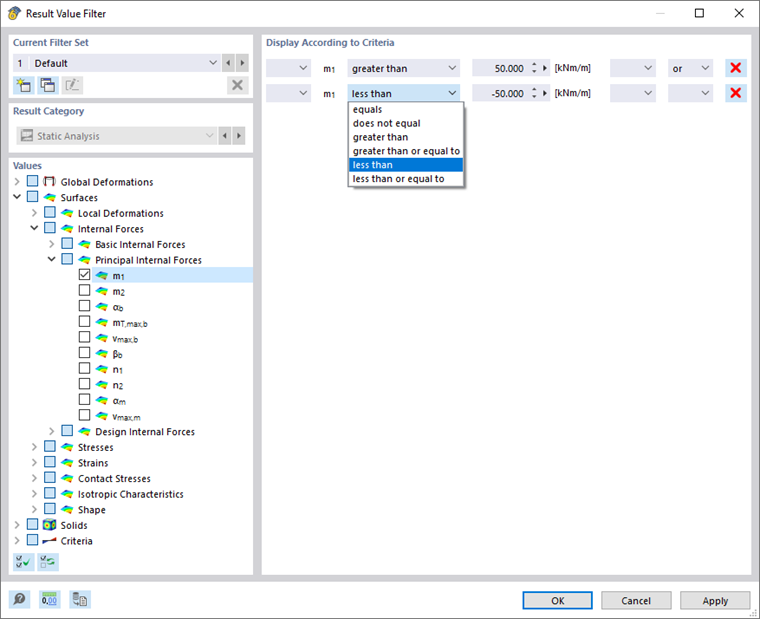
Current Filter Set
The dialog section on the top left allows for saving the filter settings. All results without restrictions are preset as "Default".
To save specific settings for the result values, click the
 button. Enter a description in the "New Filter Set" dialog box.
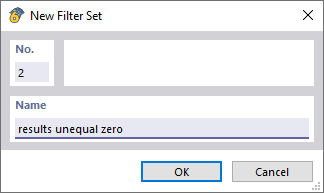
After clicking OK, you can specify the settings for the new filter set. They are then available for evaluation in the "Current Filter Set" list.
Values
Use the check boxes in the directory tree to define the result types for which you want to define the criteria. If you select the check box, you can specify the conditions for this result type in the "Display According to Criteria" section.
Display According to Criteria
In this dialog section, you can define the conditions that apply to the result values of the selected result type. In the second column, select the comparison to be applied. In the third column, enter the governing value.
To define another criterion, select the "or" entry (each criterion counts for itself) or "and" (each criterion must be fulfilled) in the last column. Then, define the next condition in the new line.
The image Defining Filter Criteria for Result Values shows the criteria for the surface principal moments. With these settings, all values of the moments m1 that are between ±50 kNm are hidden.