


Creating a Short Printout Report
Using one of the following options, you can create a short printout report:
- New Short Printout Report function in the File menu
- List button
 in the toolbar
- Shortcut menu in the 'Navigator – Data'
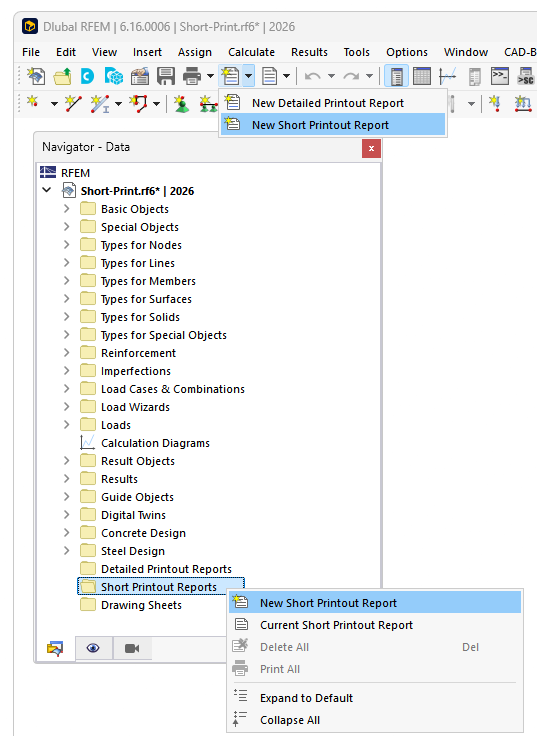
The 'Short Printout Report Manager' dialog box appears. There, you can define the contents that you need in the document. The functions are described in the chapter Printout Report Manager. Then, use the Save and Display button to create the print preview of the printout report.
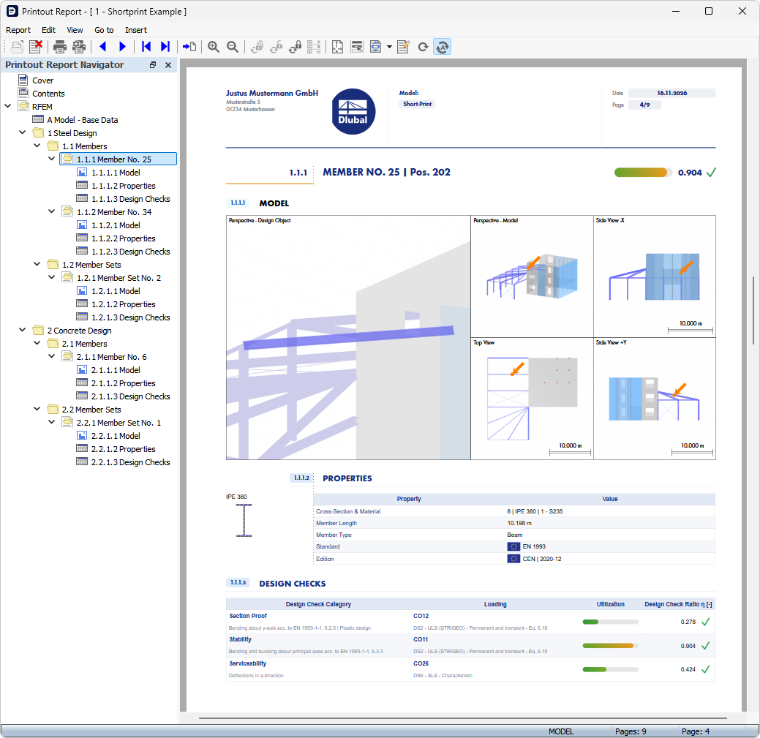
As for a detailed printout report, the print preview can only be opened if a default printer is installed.
Opening Printout Report
You can open an existing short report using one of the following options:
- Double-click the entry in the 'Navigator – Data'.
- In the Printout Report Manager dialog box, select the printout report in the 'list' and open it with the Save and Display button.
Printing Printout Report
To send the short printout report to the printer, use the Print Printout Report function in the Report printout report menu. The printout starts immediately with the settings stored in the 'Printer & Page Setup' dialog box.