Many cross-sections are stored in a database.
Opening Library
You can access the library in the "Name" section using the
 button (see the image New Cross-Section).
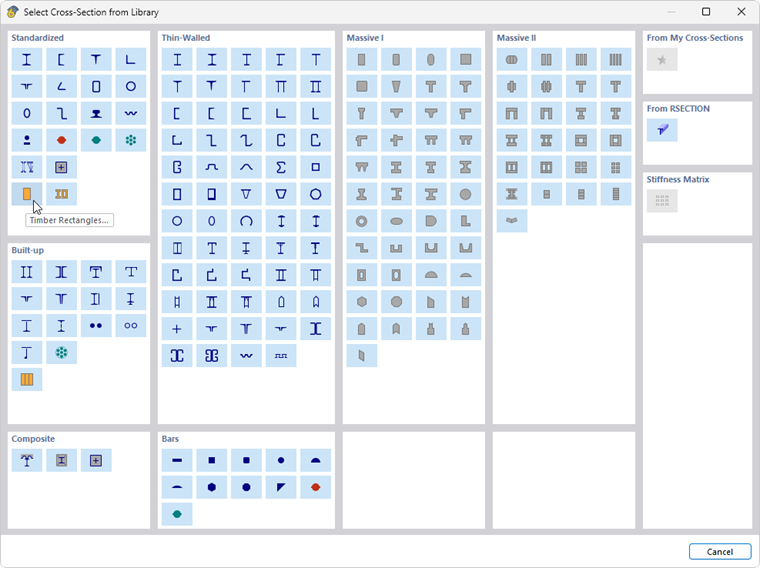
The library is divided into sections, including various cross-section types. Find the category of the relevant cross-section and click the button with the corresponding symbol.
Standardized Sections
For cross-sections of the Standardized category, another dialog box opens where you can select from a wide range of cross-sections.
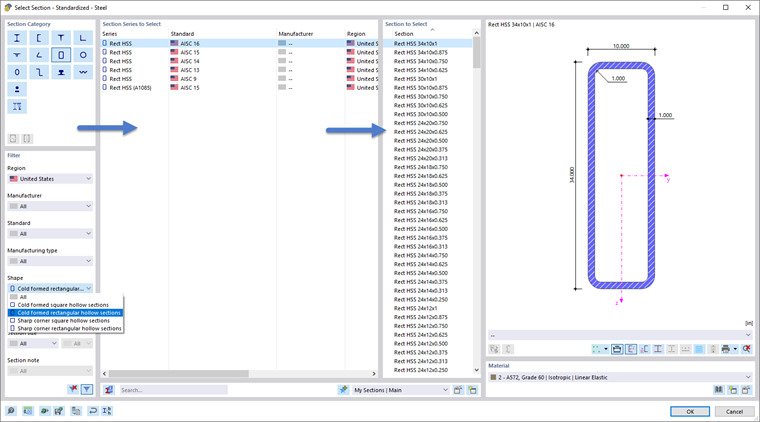
You can do the following for selecting a cross-section:
- Reduce the selection using suitable criteria in the "Filter" section on the left.
- Use the full text search in the "Search" text box at the bottom.
If you want to select a different cross-section type, you can return to the overview using the
 button.
Filter
The Filter section offers various selection options. You can filter the cross-sections using certain criteria, thus reducing the selection (see the image Selecting Hot-Rolled Rectangular Hollow Section).
Use the
 button at the bottom of the section to control whether to display cross-sections of the standards that are no longer valid.
Section Series to Select
In the middle section, define the material series in which the material is listed. The series are sorted by standard, manufacturer, region, and manufacturing type. You can control the sorting order by clicking the column headings.
You can use the
 button at the bottom of the section to check the properties of the selected cross-section.
Section to Select
Finally, select the suitable cross-section in the right section.
Click OK or use the Enter key to transfer the selected cross-section to the "New Section" dialog box.
Built-up Sections
This section allows you to combine standardized cross-sections using parameters. You return to the "New Section" dialog box, which includes the “Built-up” tab for built-up steel or timber cross-sections.
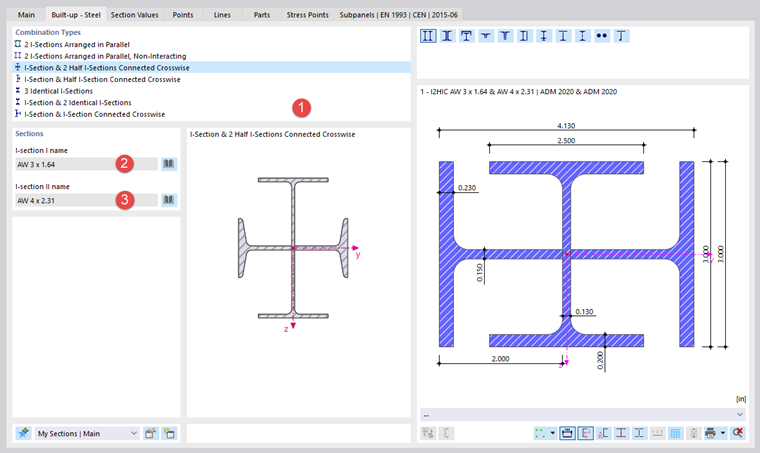
In the "Combination Types" section, define how the cross-sections are arranged (1). In the "Sections" dialog section, you can use the
button to select the relevant cross-sections in the library one by one (2) (3).
Thin-Walled and Massive Cross-Sections
If you select a thin-walled or massive cross-section type in the library, you can define its geometry parameters in the "New Section" dialog box. An additional tab is available for the definition.
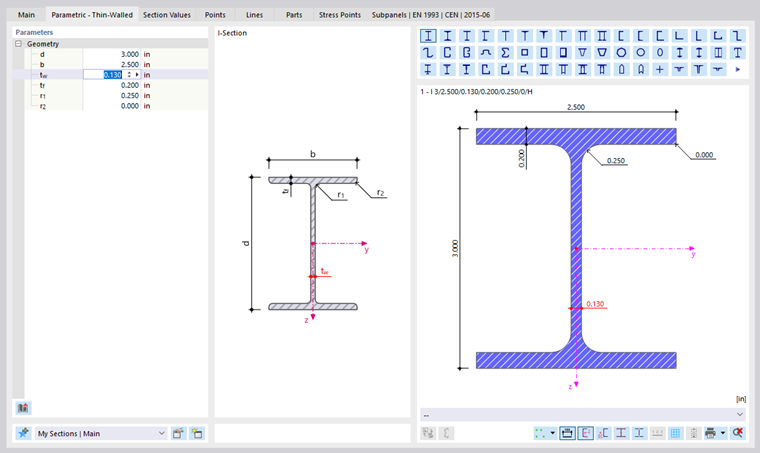
For thin-walled sections, you can use the
 button to preset the dimensions of a rolled section.
Favorite Sections
It is possible to save frequently used cross-sections as Main Favorites. They are then available as preferred cross-sections ("favorites") in other projects.
To save the current cross-section as a favorite, go to the bottom of the library after defining the cross-section or the definition parameters and click the button
 . This way, the cross-section is stored in the "My Sections | Main" category.
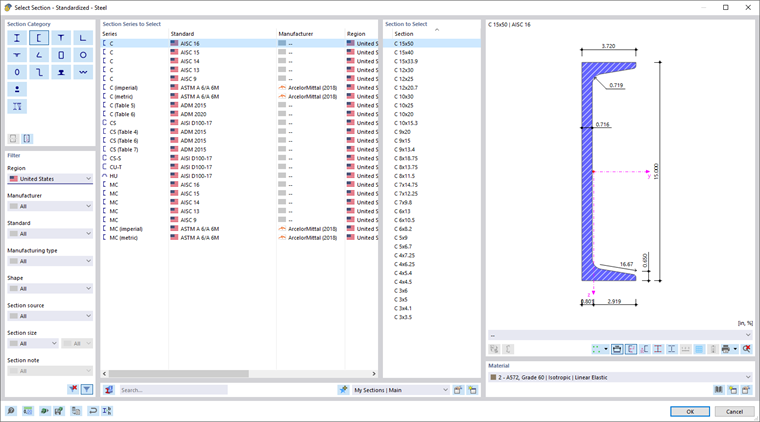
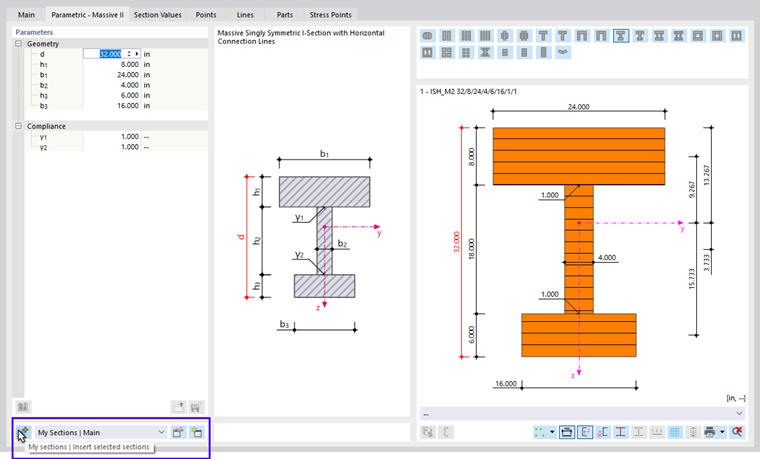
You can use the
 button to check your preferred cross-sections. The cross-sections saved as favorites are listed and sorted by section type in the "Edit Favorite List" dialog box.
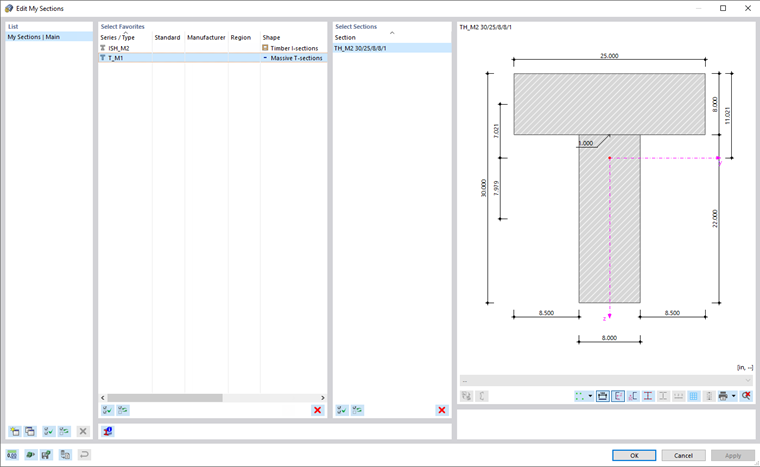
The
 button allows you to create a new category in the list of preferred cross-sections.
To import a preferred cross-section from the library, go to the '"From Favorite List" section and click the button
 .
.
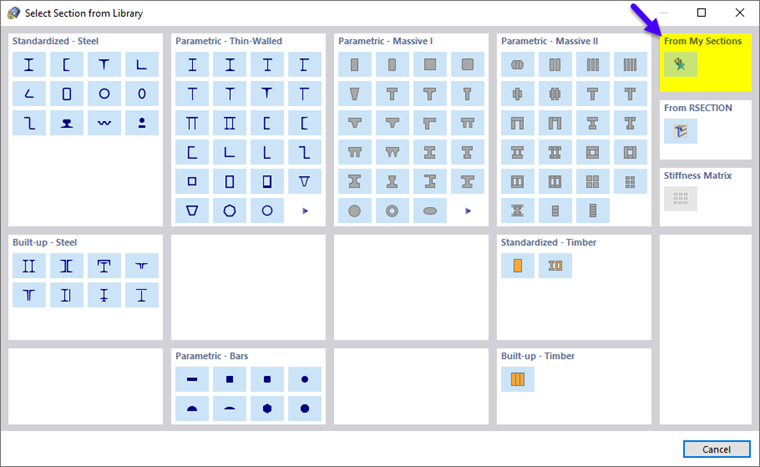
Composite Cross-Sections
This section provides a selection of composite cross-section types. You will return to the “New Cross-Section” dialog box, specifically the “Composite” tab.
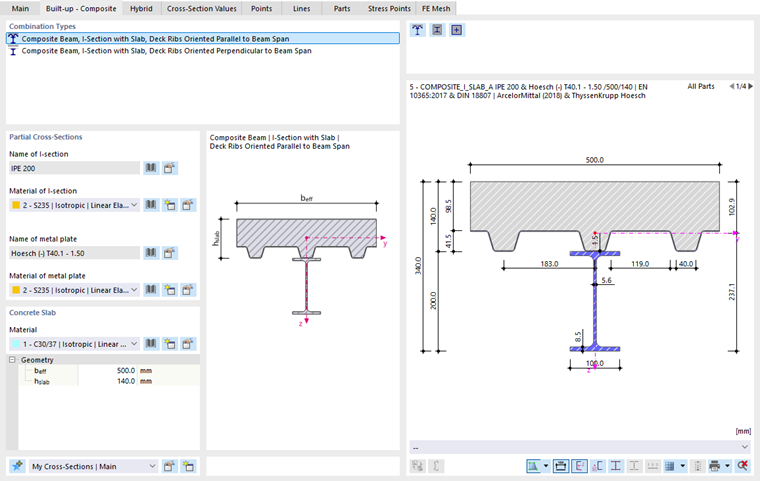
In the “Combination Types” section, specify how the cross-section components are arranged. In the “Partial Cross-Sections” section, you can then use the
button to select the relevant cross-sections and materials from libraries.
Member Cross-Sections
This section contains a selection of parametric metal member cross-sections and reinforcement bars that do not fall into the categories of thin-walled or thick-walled cross-sections. You can define the geometric parameters in the “New Cross-Section” dialog box.
RSECTION Cross-Sections
You can also import user-defined cross-sections in RFEM that you created in the RSECTION program. To do so, click the following button in the "From RSECTION" section:
 . A note to "Select section in Dlubal Center" appears; the Dlubal Center opens. In Dlubal Center, select the RSECTION cross-section.
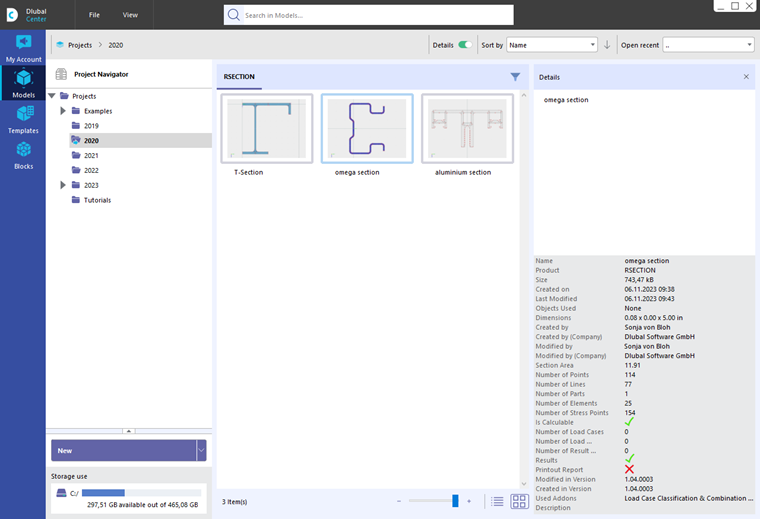
In order to import the cross-section, it is necessary to meet certain license conditions. In the RSECTION cross-section, information is stored about the licenses that were available in RSECTION when the cross-section was saved. The following rules apply:
- You do not need to save the RSECTION cross-section, including results, to use it in RFEM.
- If an RSECTION license user creates a cross-section and saves it in RSECTION, other users can import this cross-section in RFEM, run structural analyses, and design it in a design add-on like Steel Design or Aluminum Design even if they do not have a license for RSECTION.